



Checking & Savings / Digital Banking / Instructions / Account Reports
Create and export custom reports.
Create a New Report
Create a custom report using a variety of options.

View and Manage Reports
Sort & filter, export, print, save as PDF, edit and delete.
Manage Users
Share your digital banking access with others.
{beginAccordion}
Create a New Report
{openTab}
-
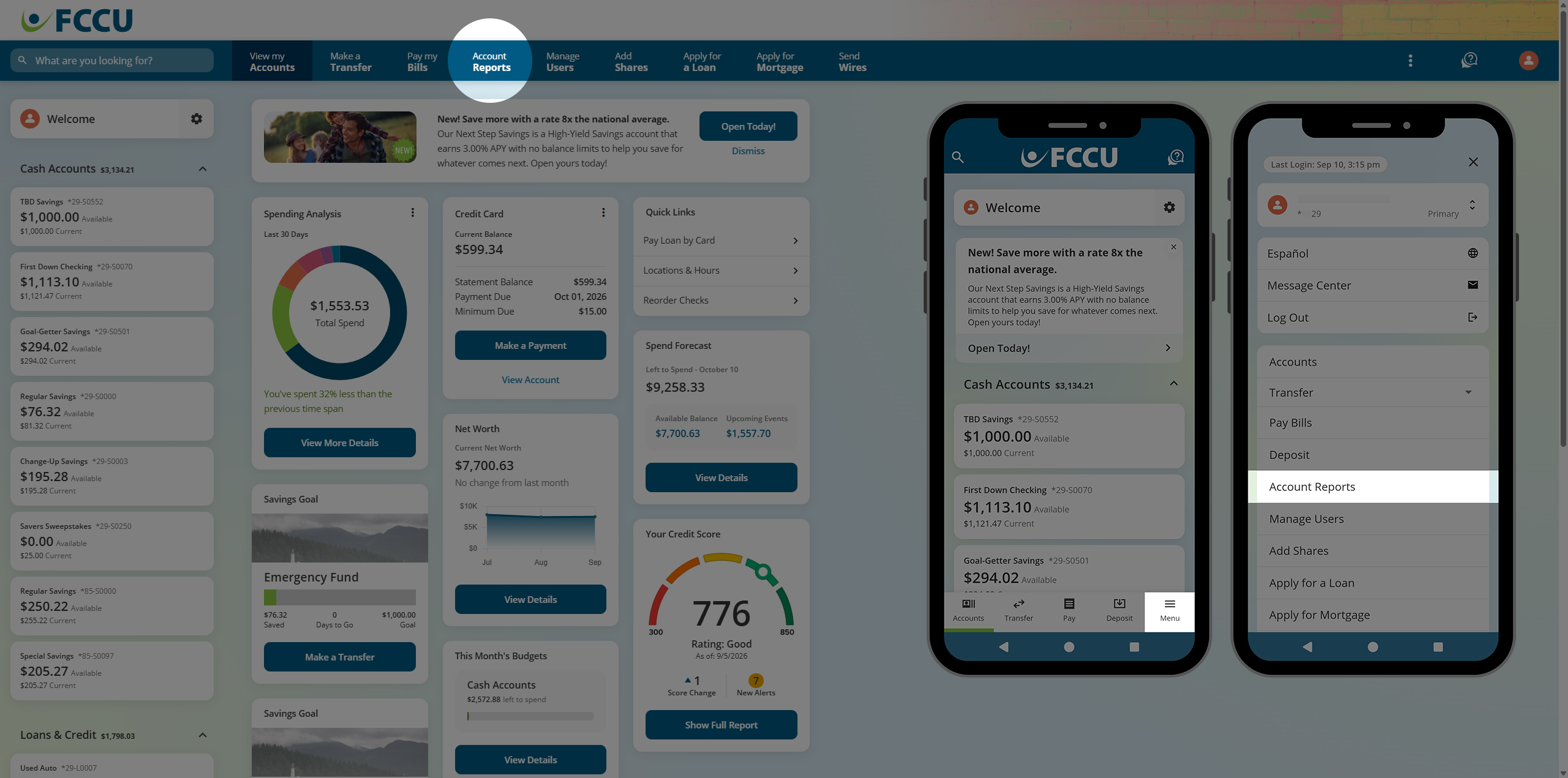
From your account dashboard, click the Account Reports menu option.
On the mobile app, tap the Menu button and then tap the Account Reports button.
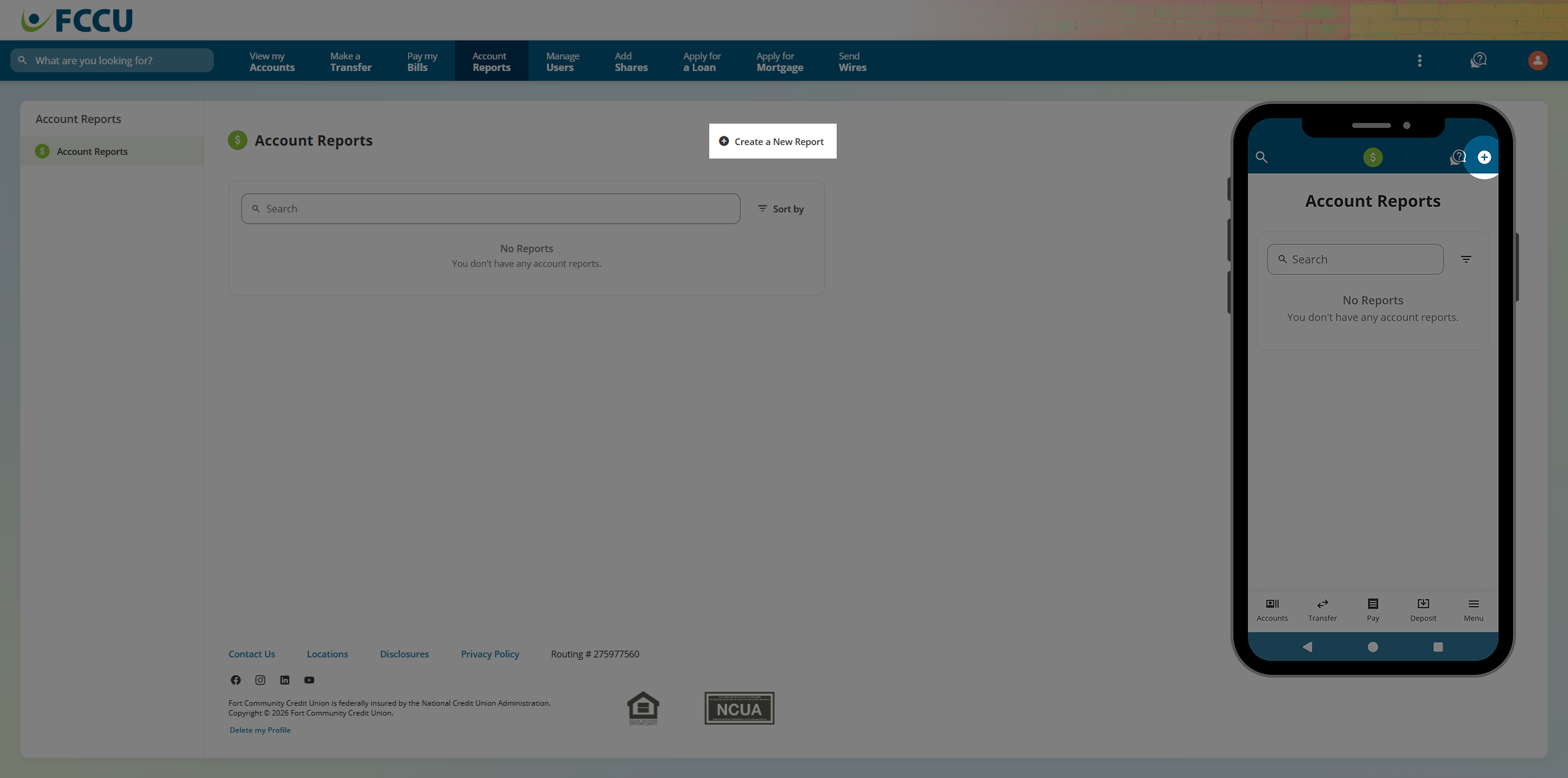
- Click the Create a New Report button. A new window will appear.
- In the Report Type dropdown menu, select one of the following options:
- Transaction Listing
- Running Balance
- Cleared Checks
- Intraday Account Report
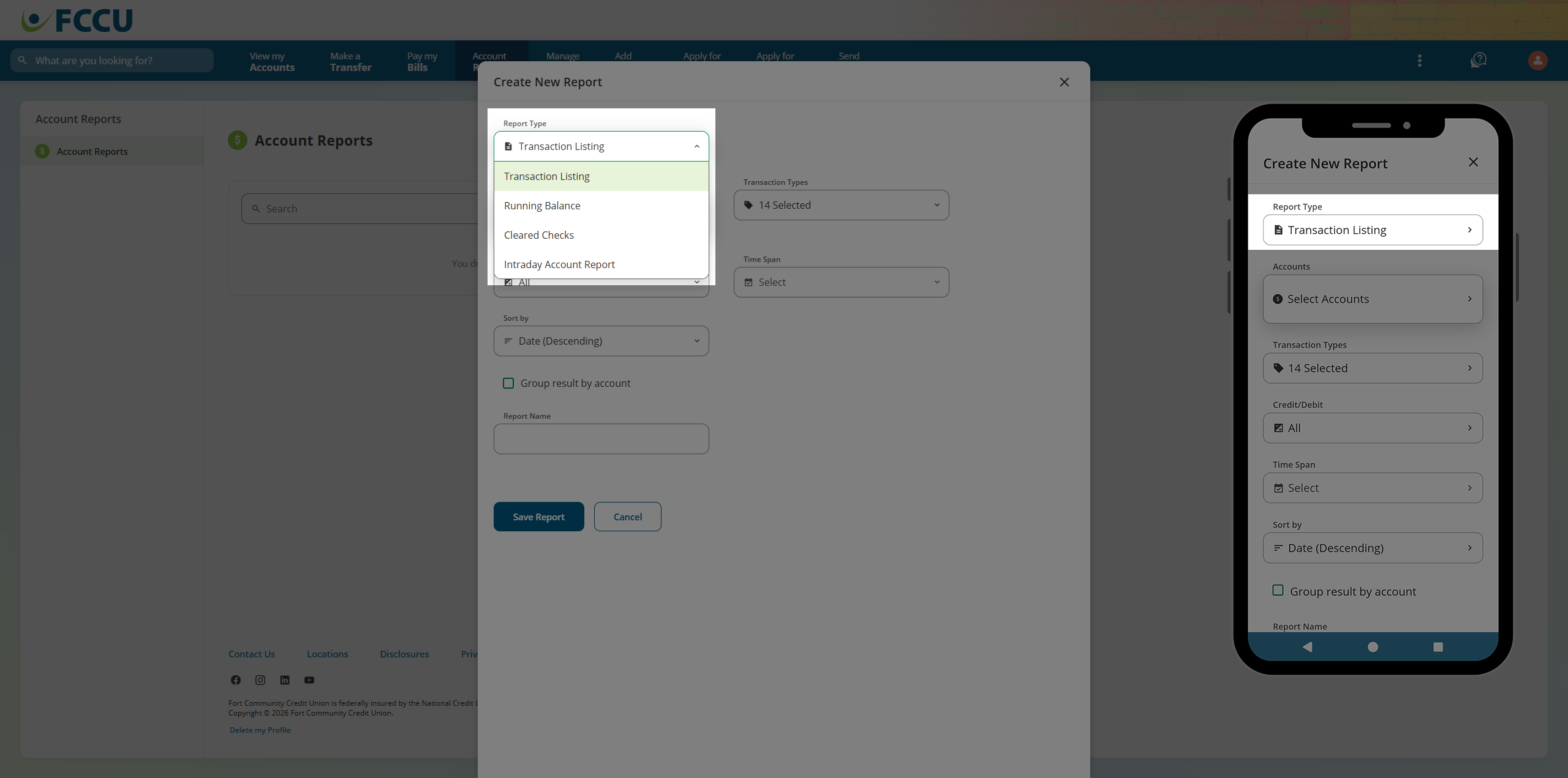

Note: The following screenshots show the Transaction Listing report type.
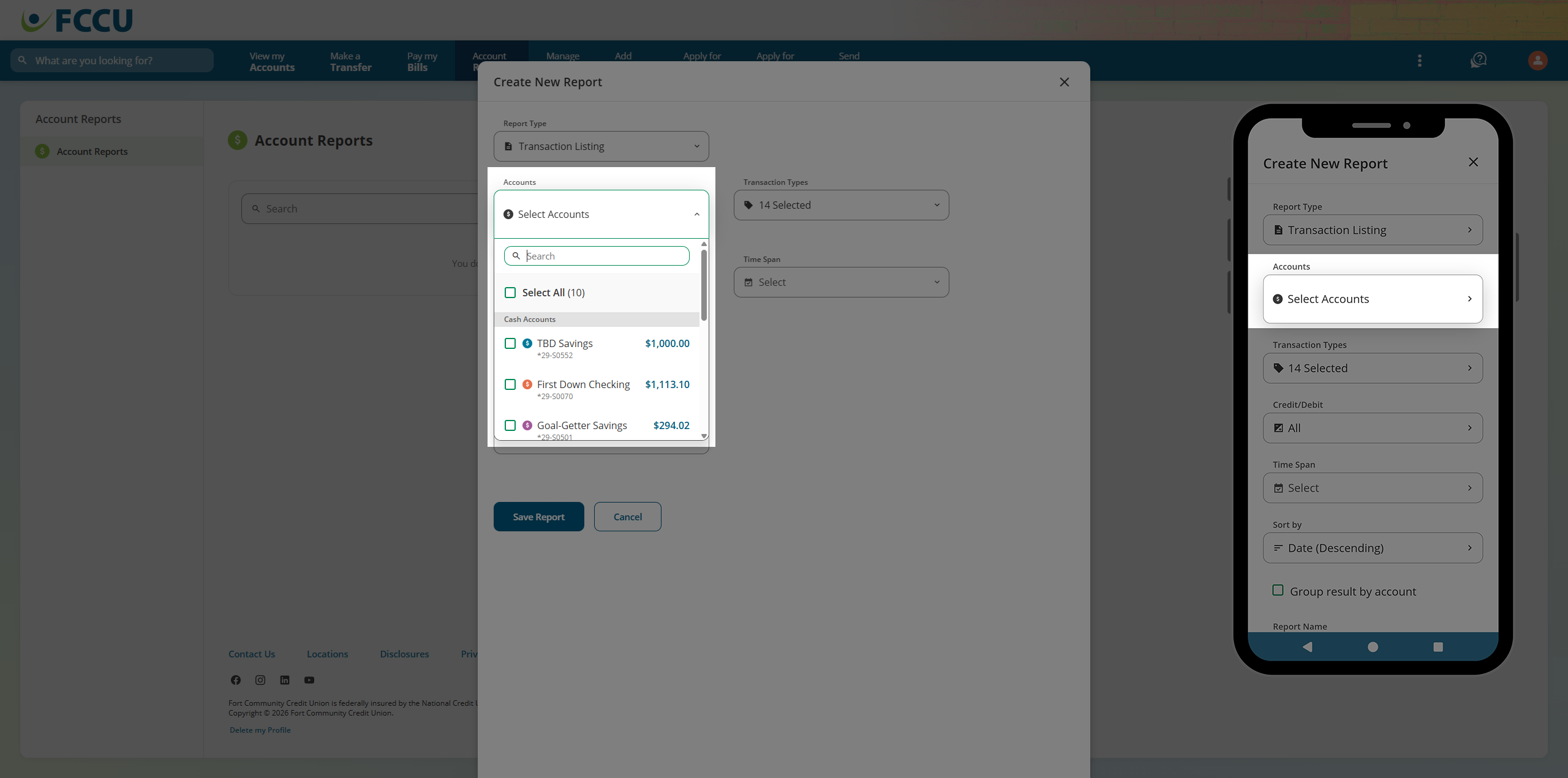
- In the Accounts dropdown menu, select one or more accounts:
- In the Transaction Types dropdown menu, select one or more of the following options:
- ACH
- ATM
- Bill Pay
- Check
- Credit Card
- Debit Card
- Dividend
- Fee
- Other
- POS (Point of Sale)
- Transfer
- Loan Payment
- Withdrawal
- Deposit
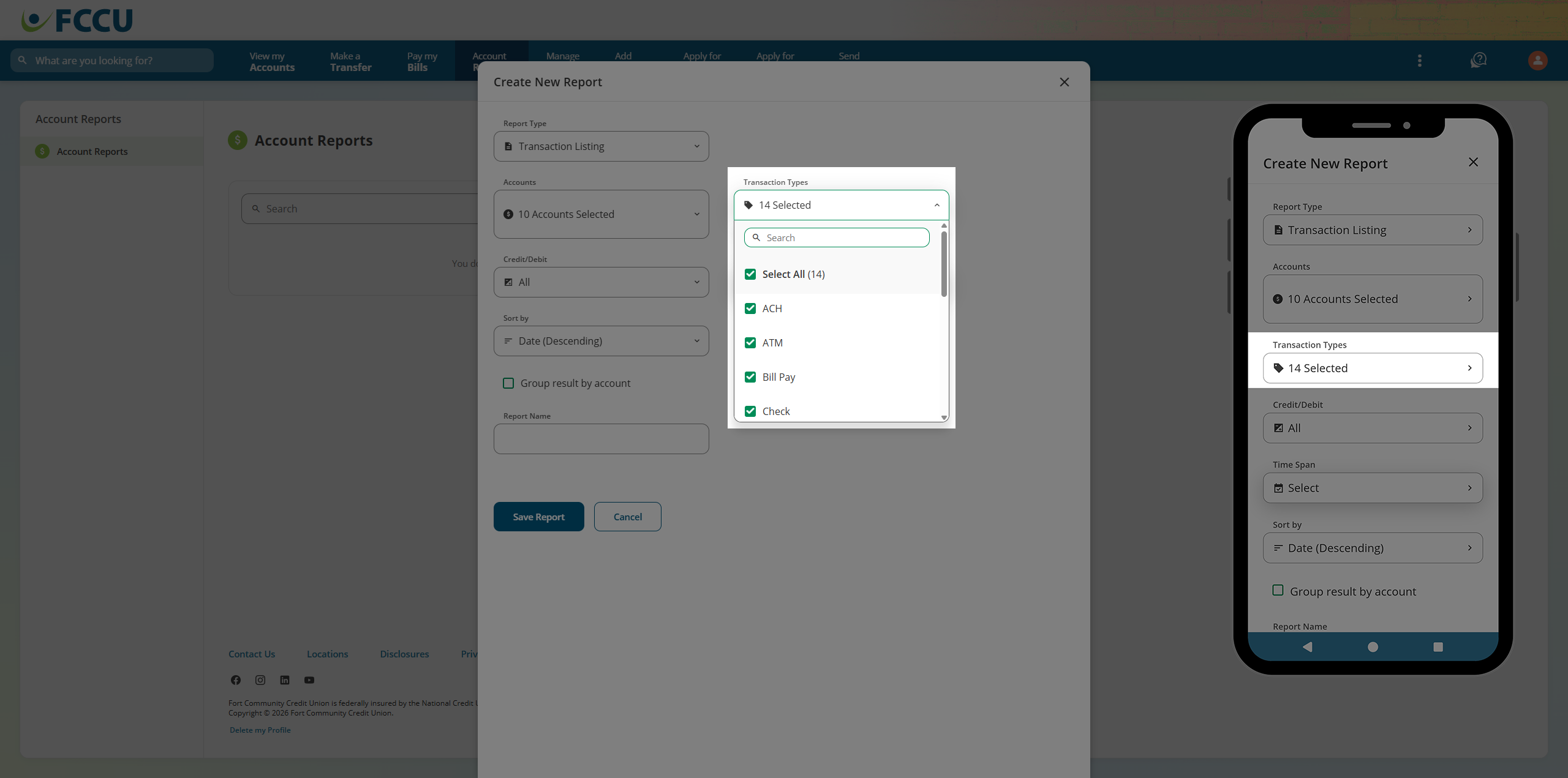
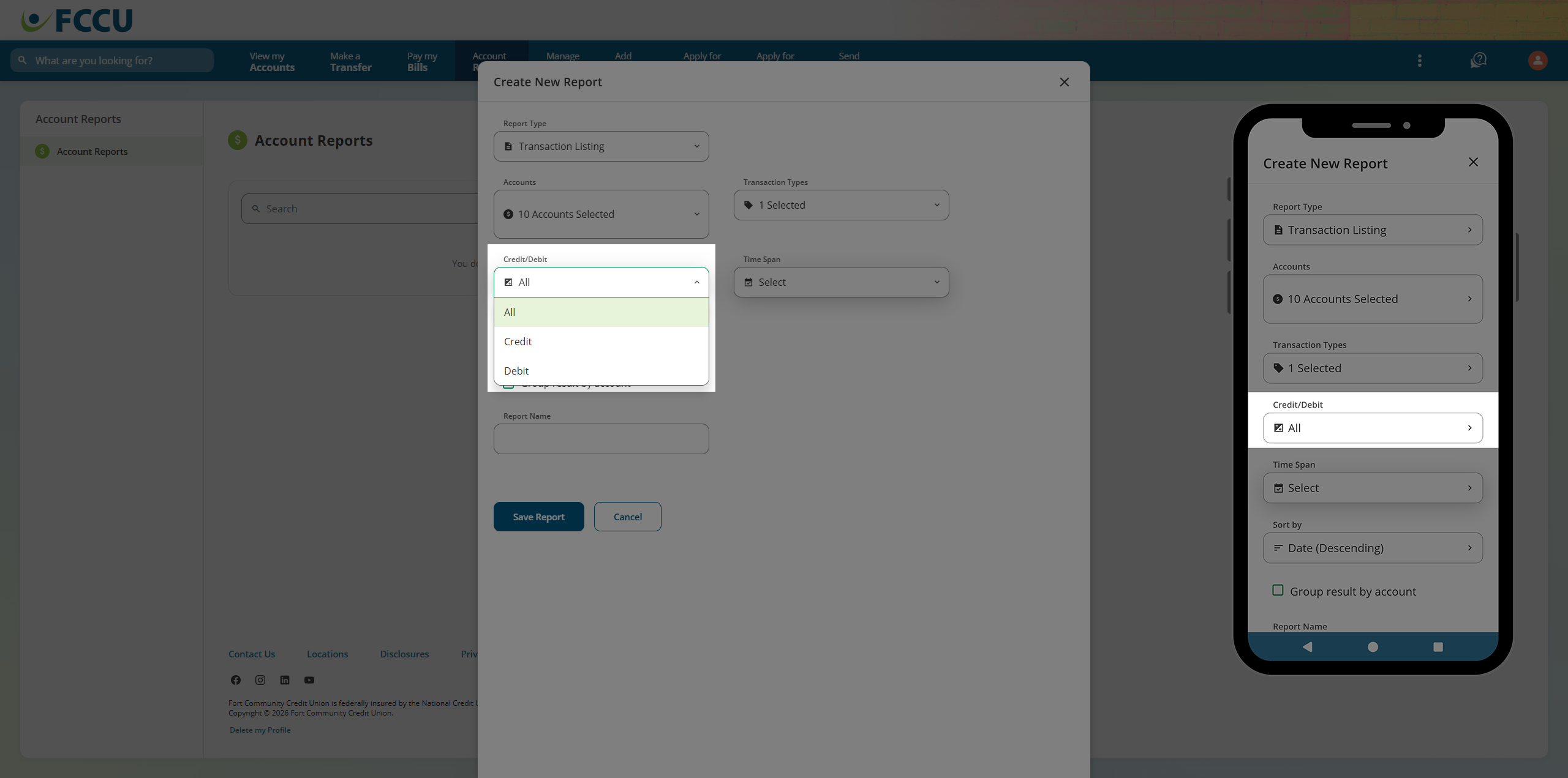
- In the Credit/Debit dropdown menu, select one of the following options: All, Credit, or Debit.
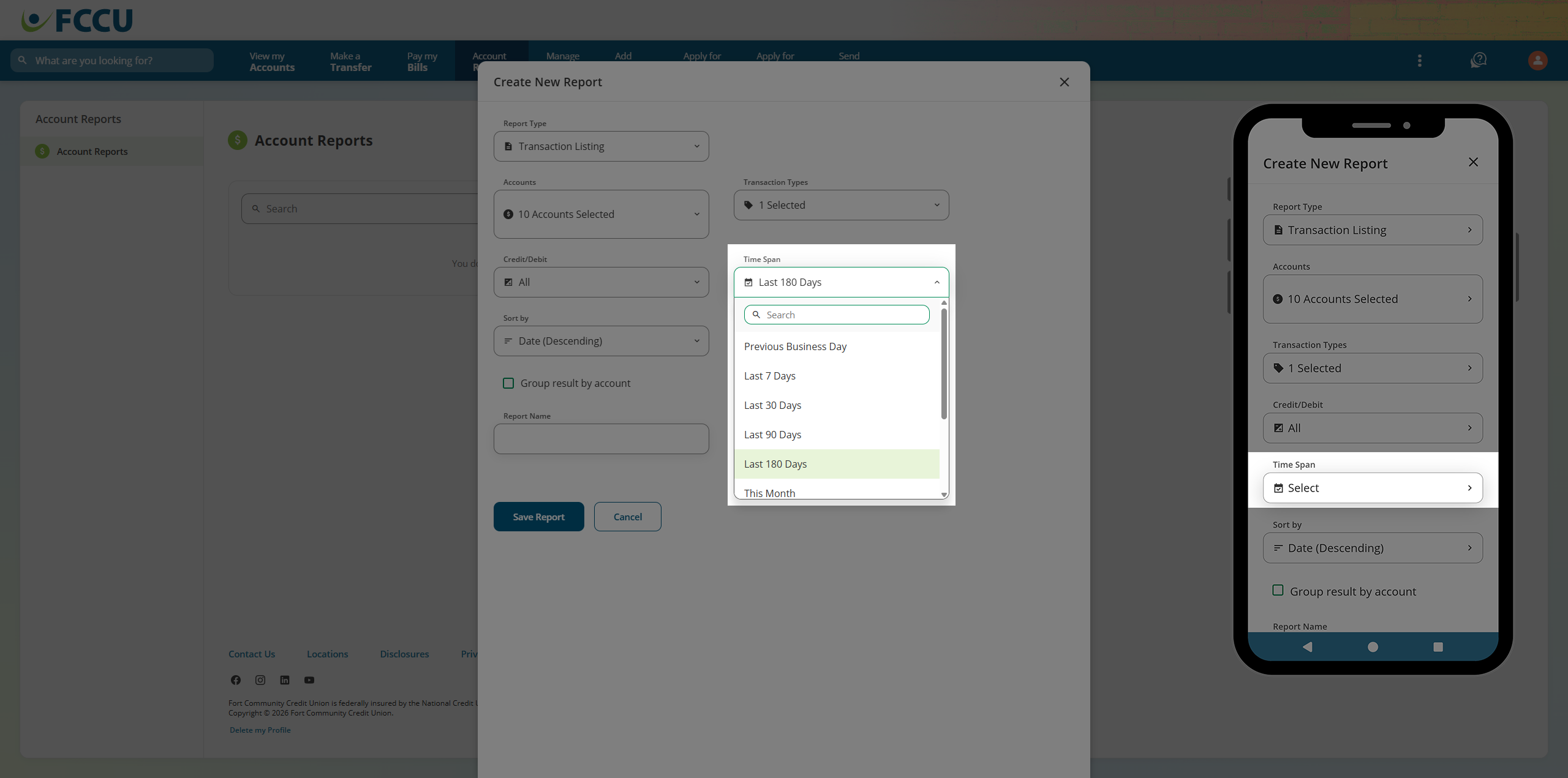
- In the Time Span dropdown menu, select one of the following options:
- Last 7 Days
- Last 30 Days
- Last 90 Days
- Last 180 Days
- This Month
- Last Month
- This Year
- Last Year
- Custom - Selecting this option will display the From Date and To Date fields.
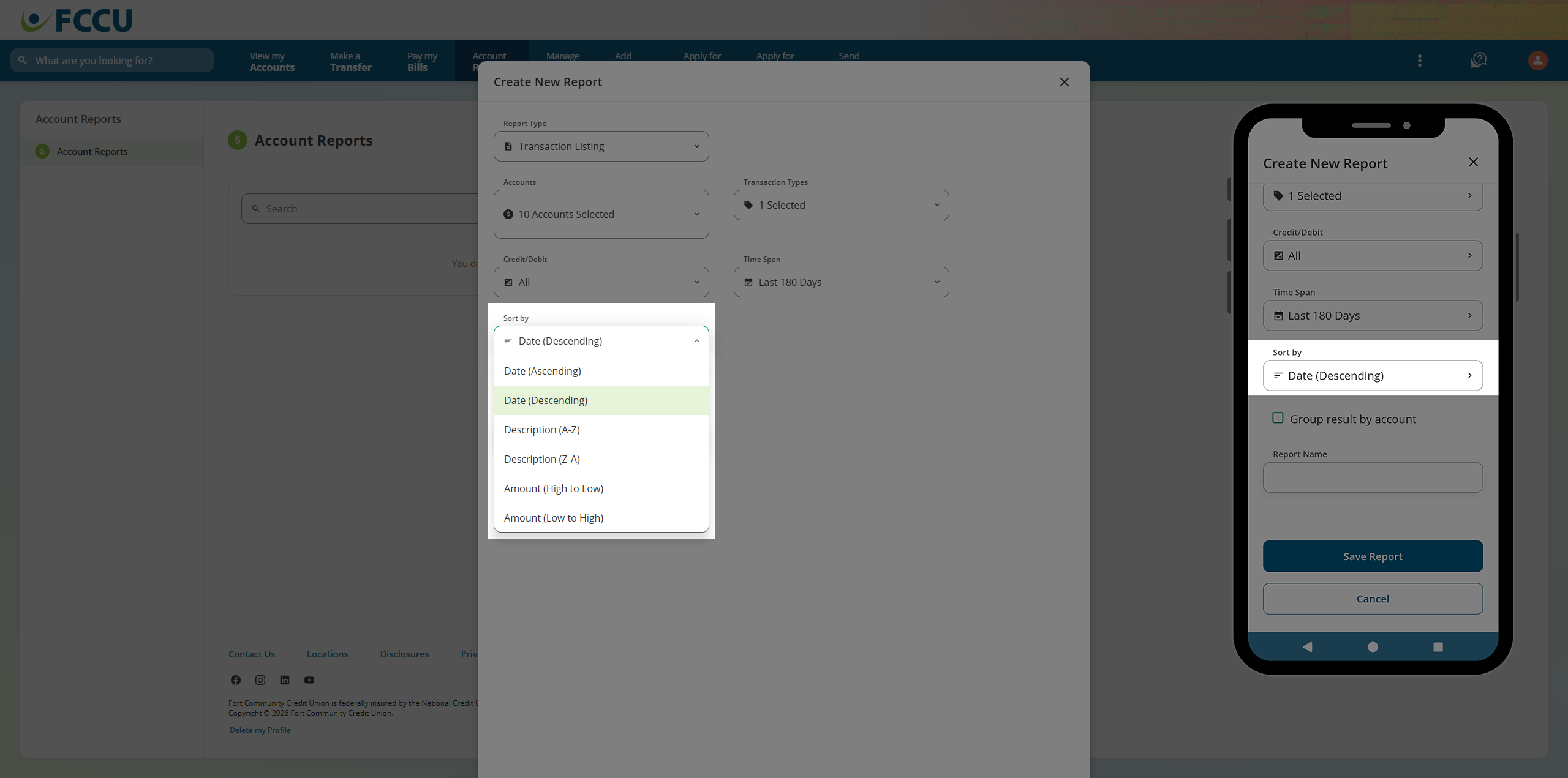
- In the Sort by dropdown menu, select one of the following options:
- Date (Ascending)
- Date (Descending)
- Description (A-Z)
- Description (Z-A)
- Amount (High to Low)
- Amount (Low to High)
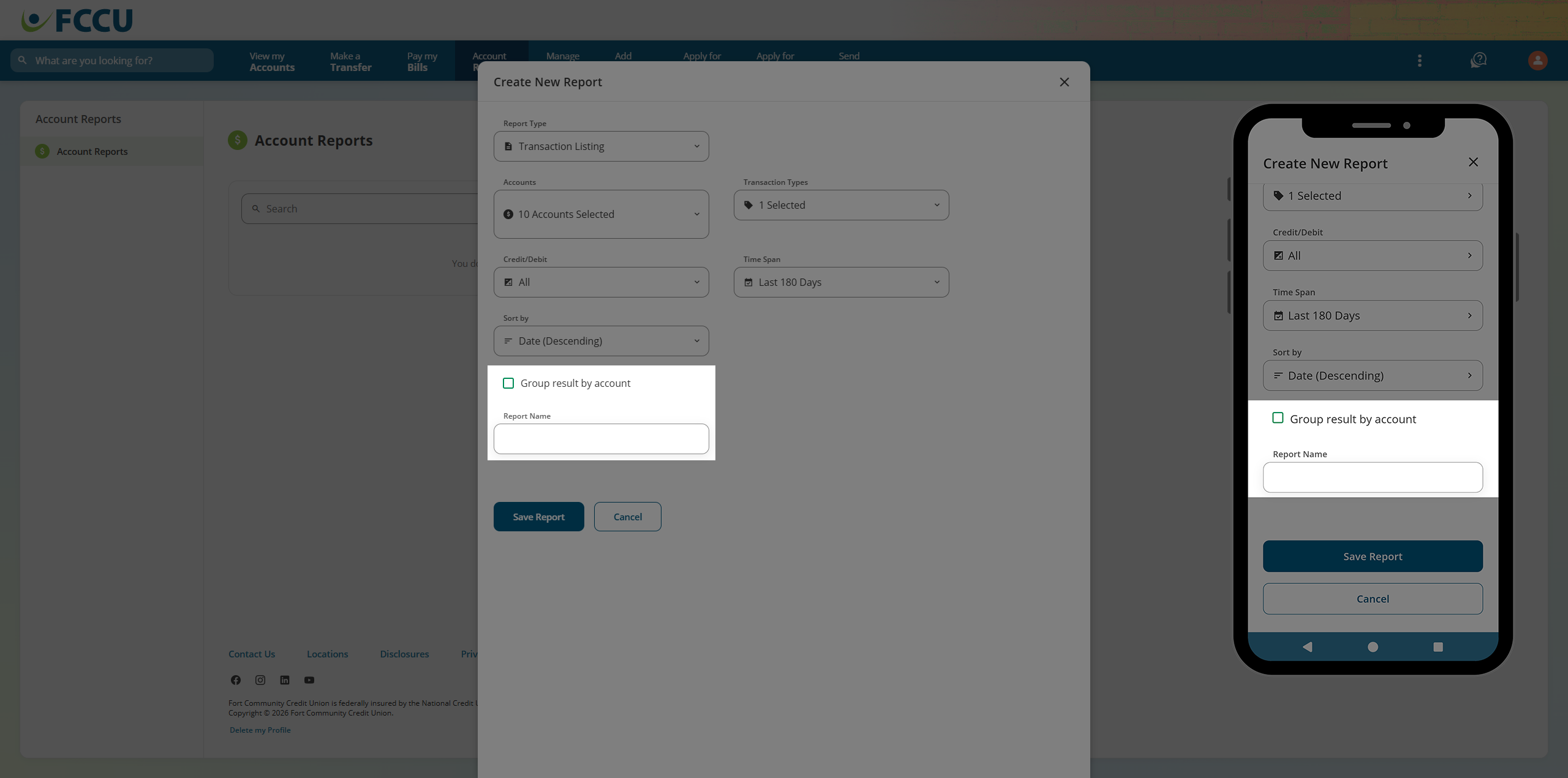
- Optional: Click the Group result by account checkbox to format the report.
- In Report Name field, type a name for the report.
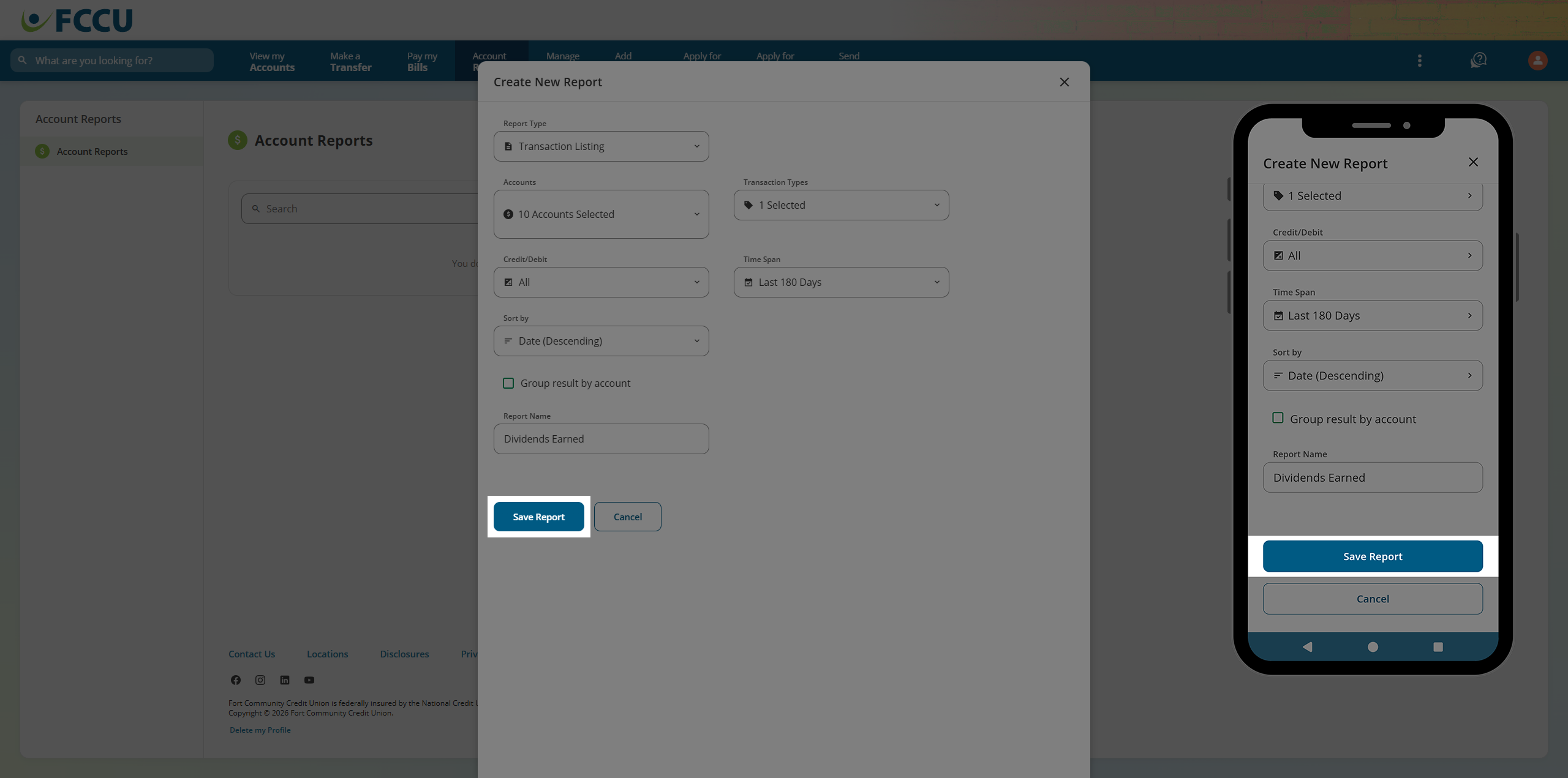
- If everything looks good, click the Save Report button. This window will close.
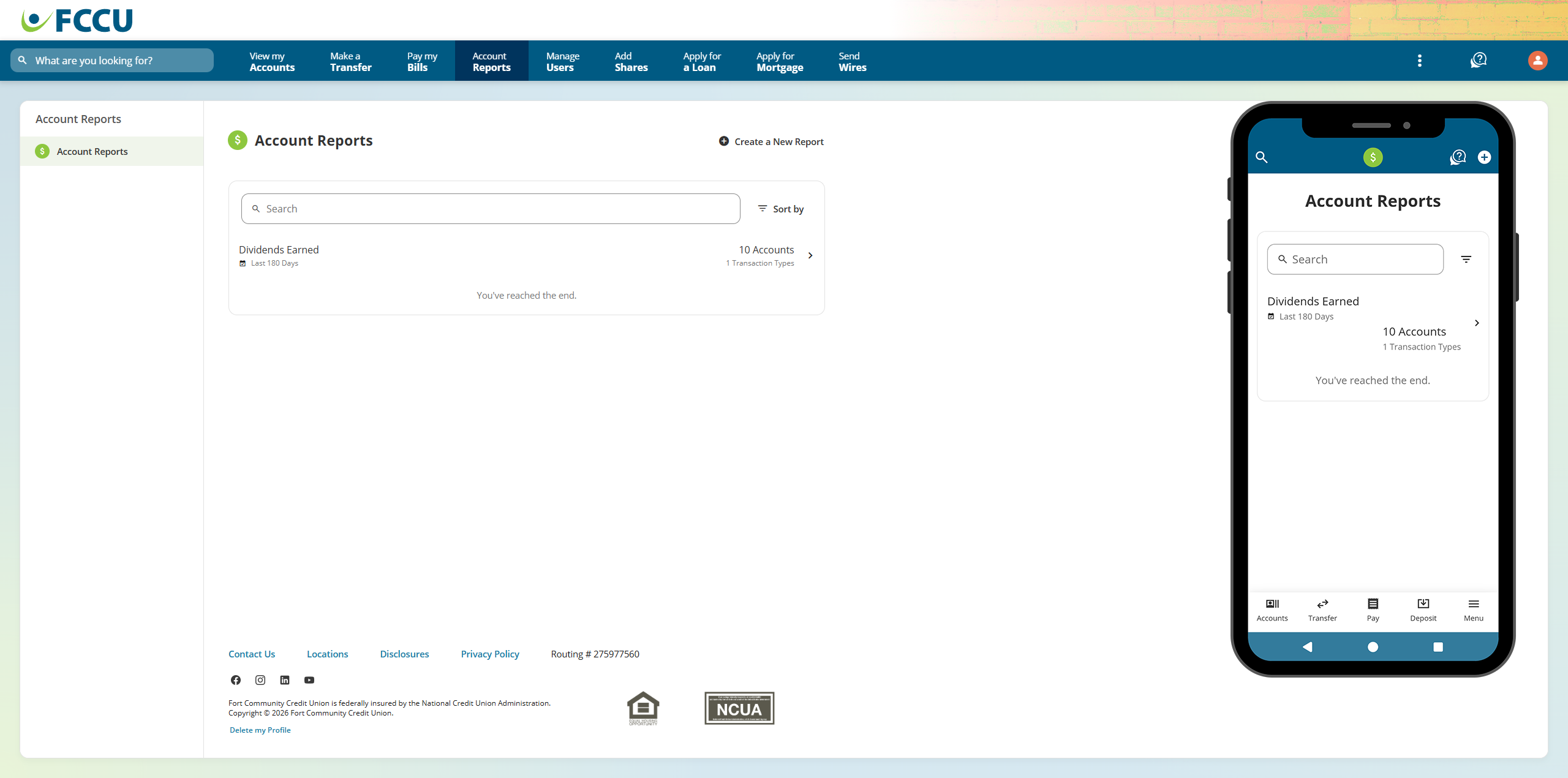
- Your report has been created! View and manage the report by clicking into it from the Account Reports page.
{endAccordion}
 View and Manage Reports
Click the accordions below to learn more:
{beginAccordion}
Sort & Filter
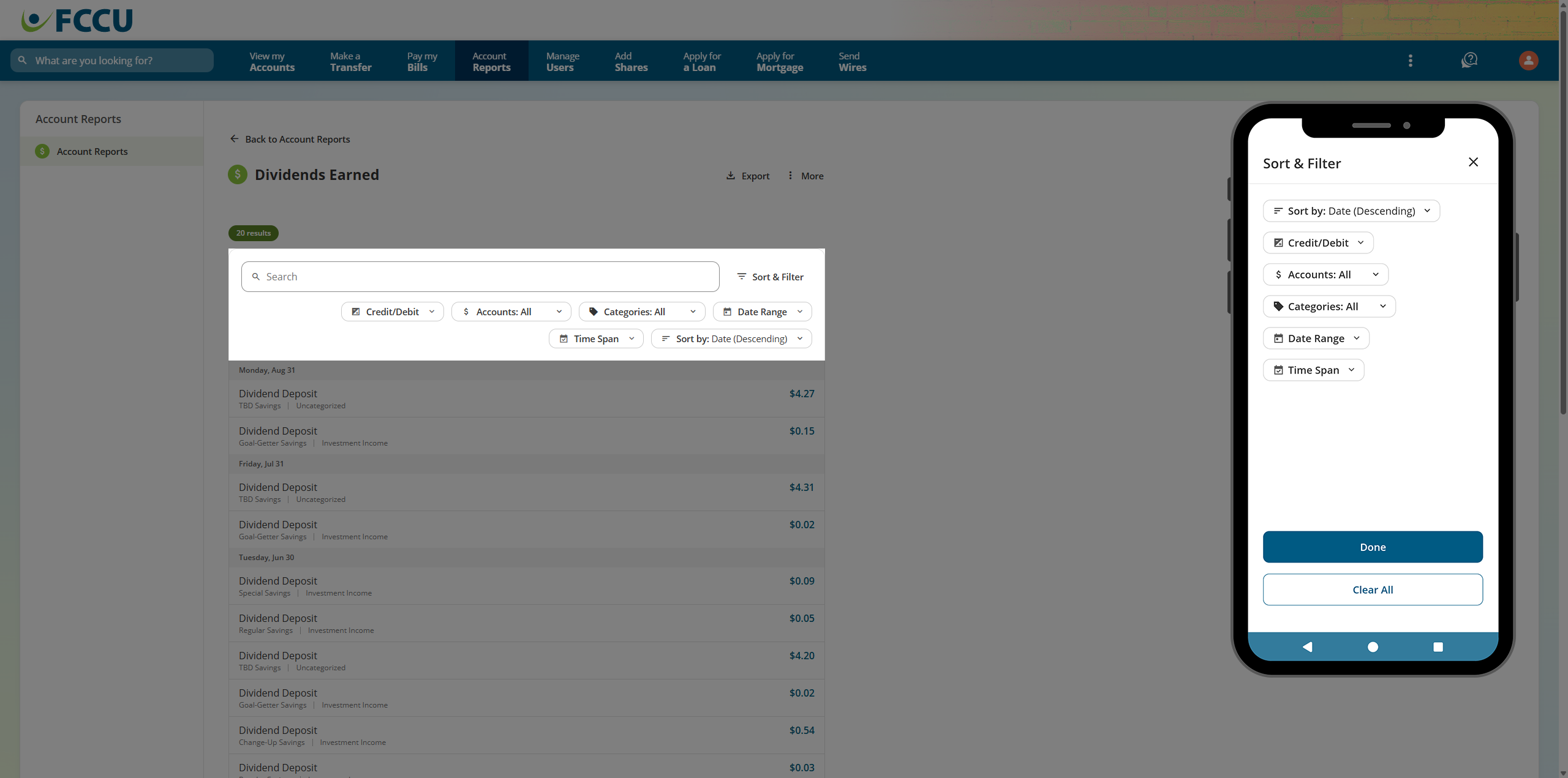
- From the report page, use the search bar to find something specific within the report data.
- Click the Sort & Filter button/icon.
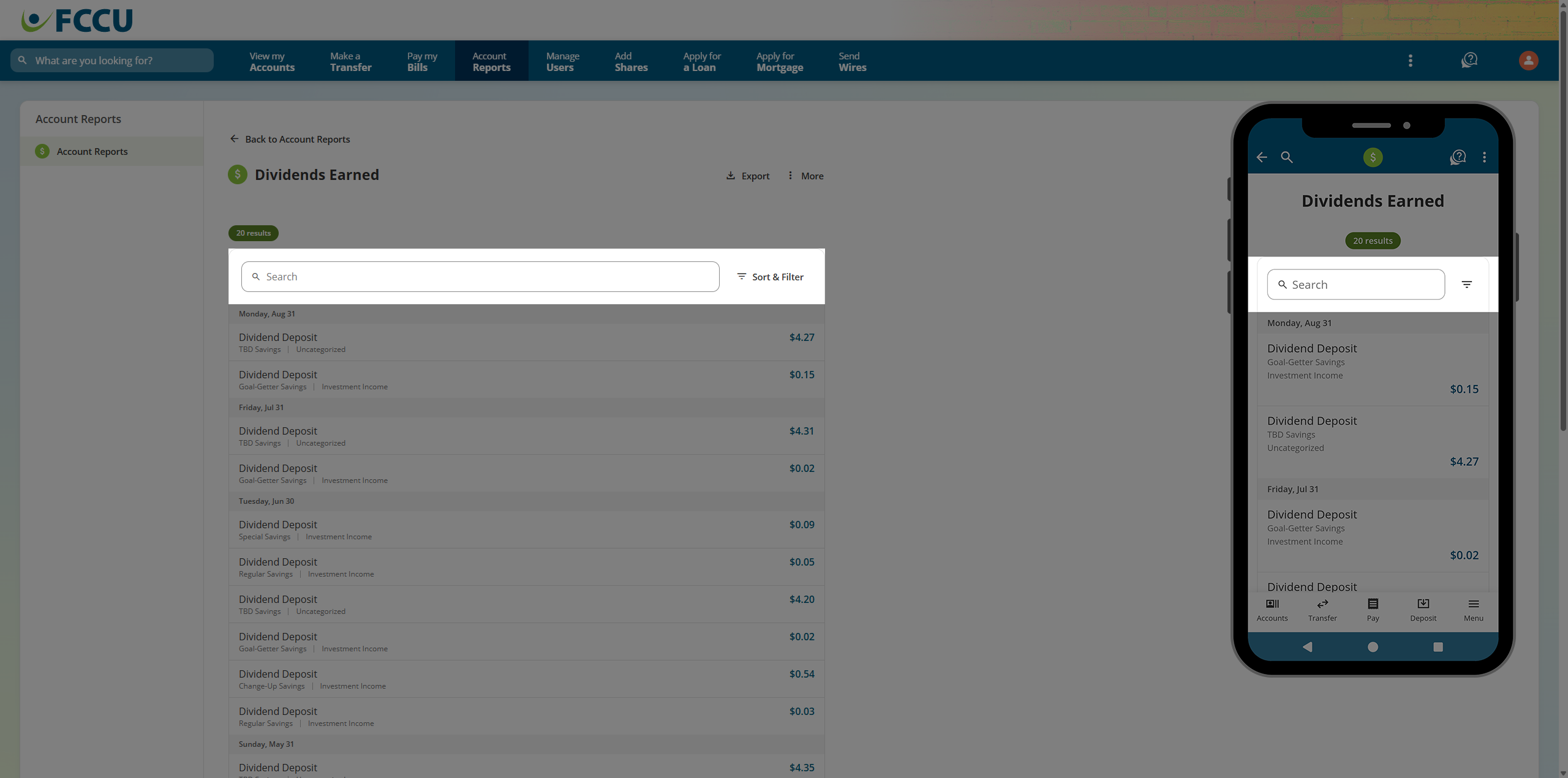
- Use the expanded Sort & Filter dropdown menus to further filter and sort the data that is available in this report.
{endAccordion}
{beginAccordion}
Export

The Export option is not available on the mobile app. You can export from a mobile device by logging in to digital banking from a mobile browser.
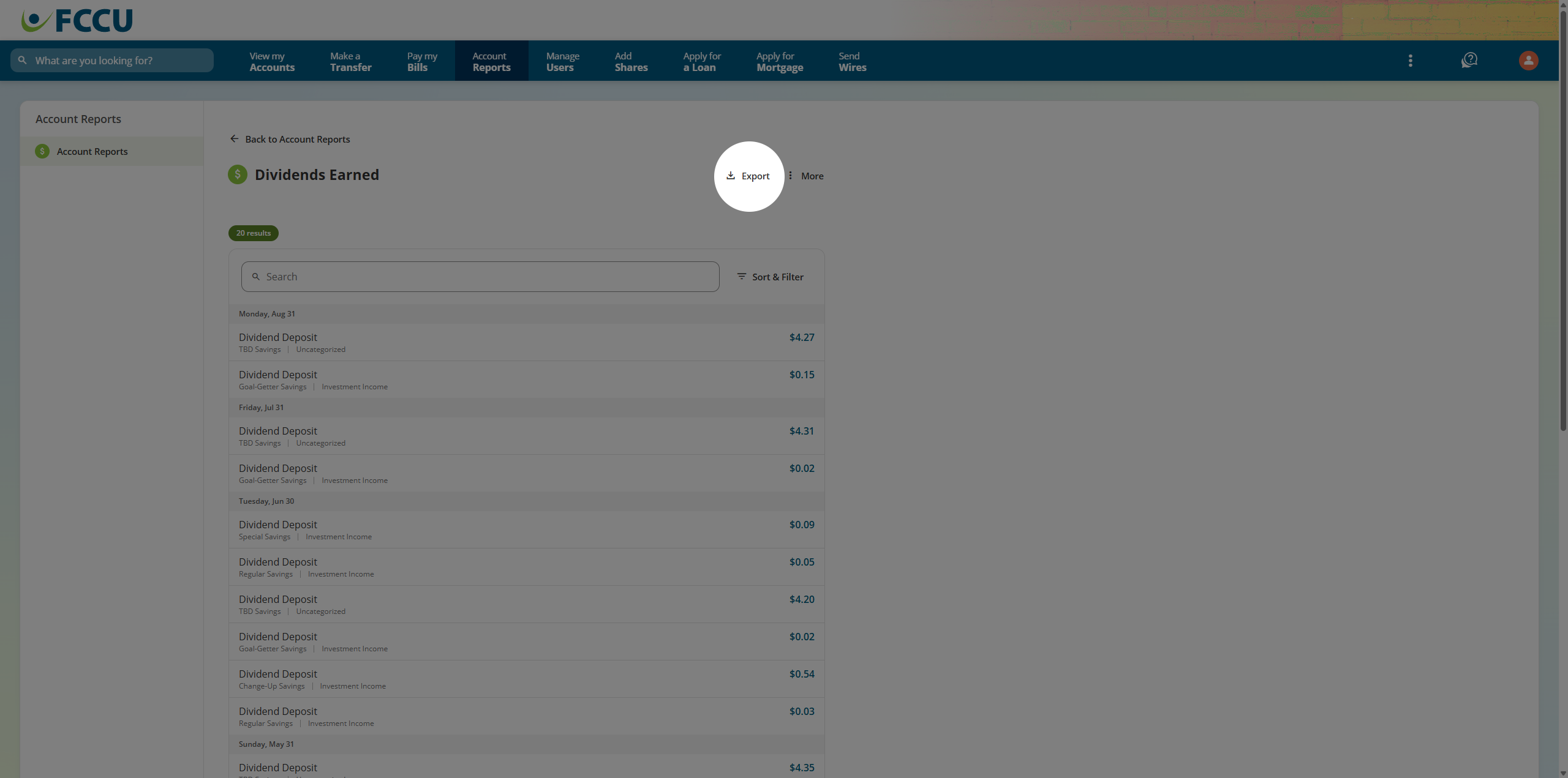
- From the report page, click the Export button. A new window will appear.
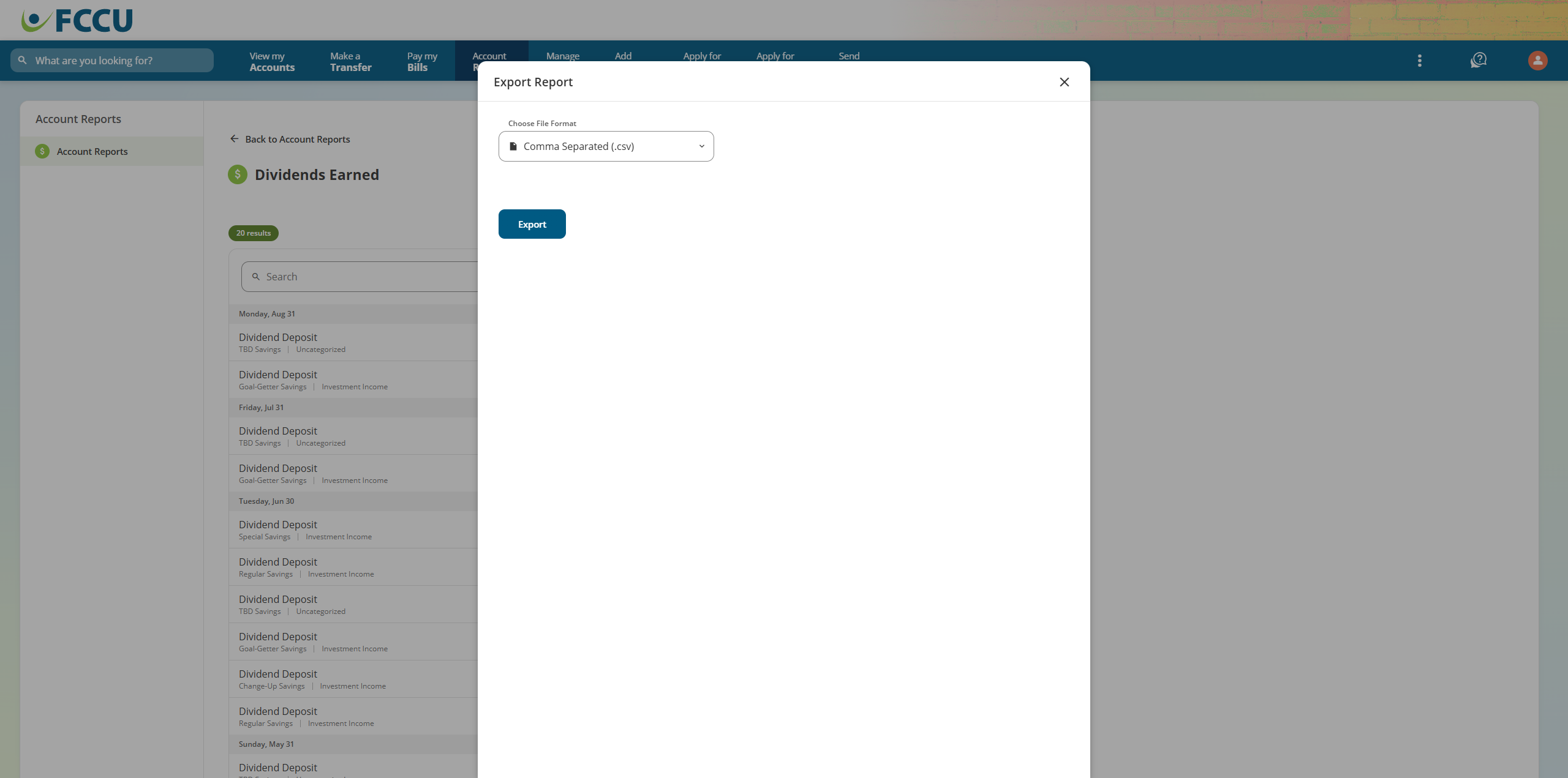
- In the Choose File Format dropdown menu, select one of the following options:
- Comma Separated (.csv)
- Open Financial Exchange (.ofx)
- Quicken (.qfx)
- QuickBooks (.qbo)
- Click the Export button. This window will close.
- Your file will be downloaded!
{endAccordion}
{beginAccordion}
Print or Save as PDF
The Print and Save as PDF options are not available on the mobile app. You can print and save as PDF from a mobile device by logging in to digital banking from a mobile browser.
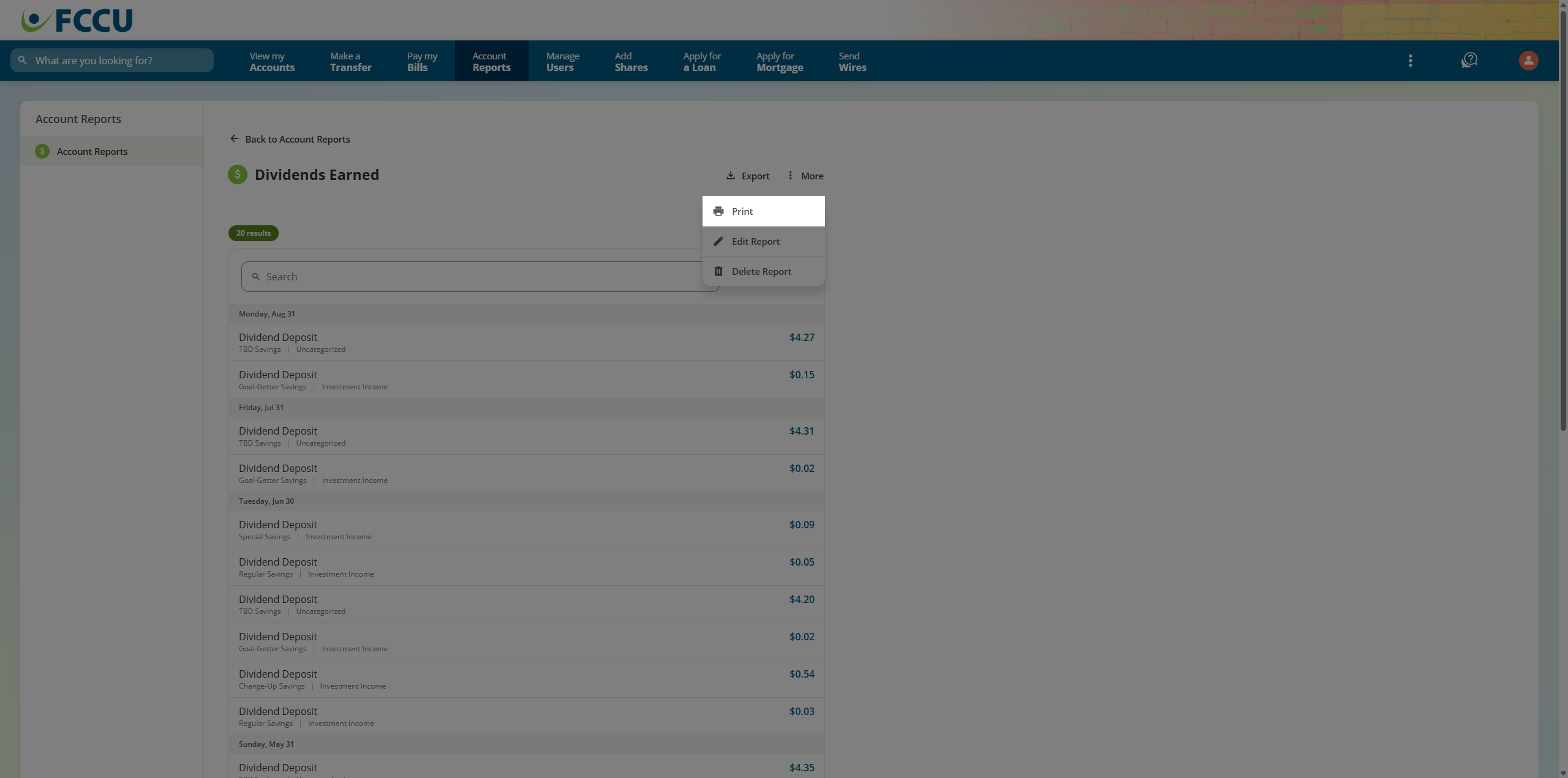
- From the report page, click the More dropdown menu.
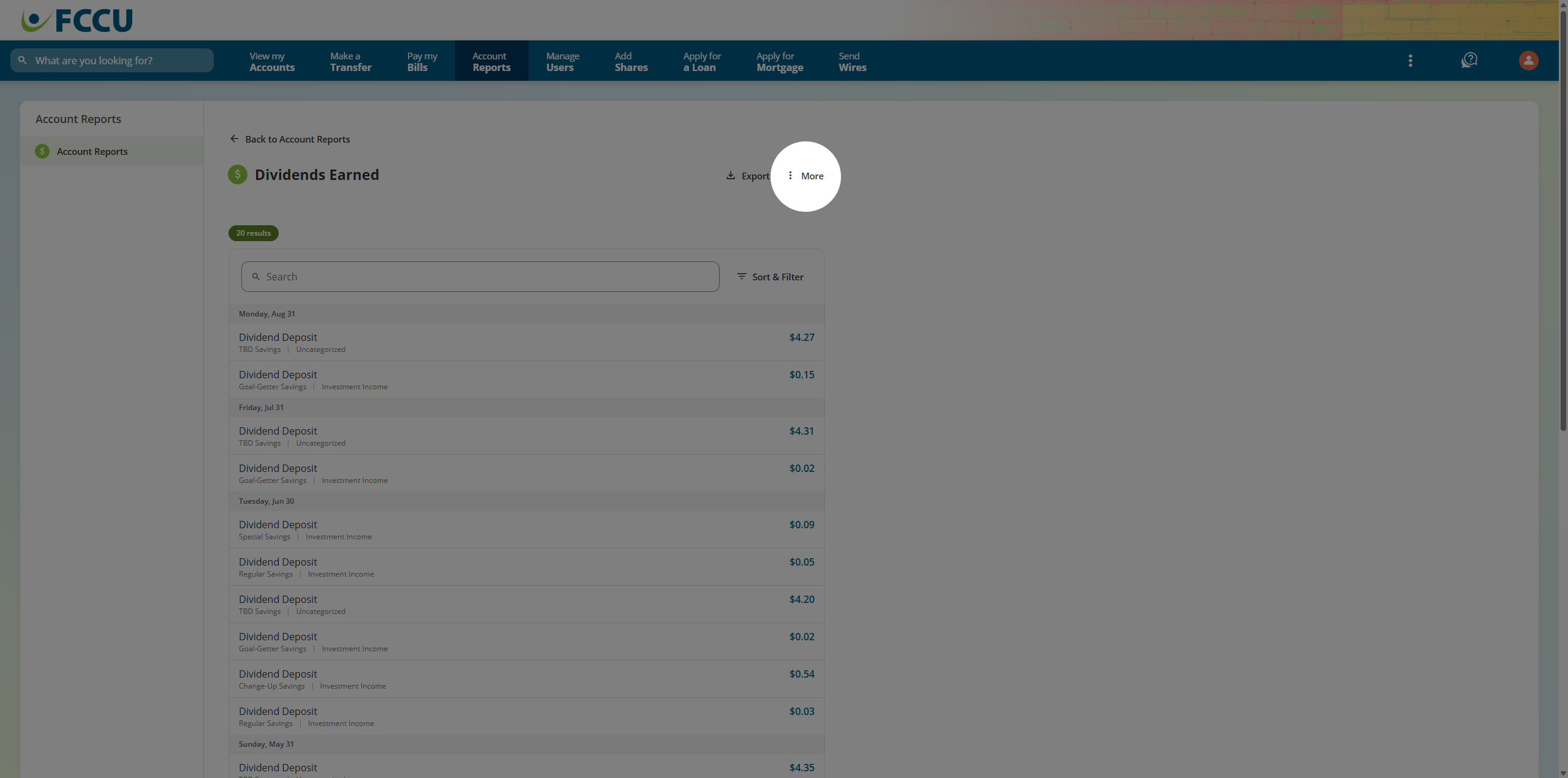
- Click the Print menu option. A new window will appear.
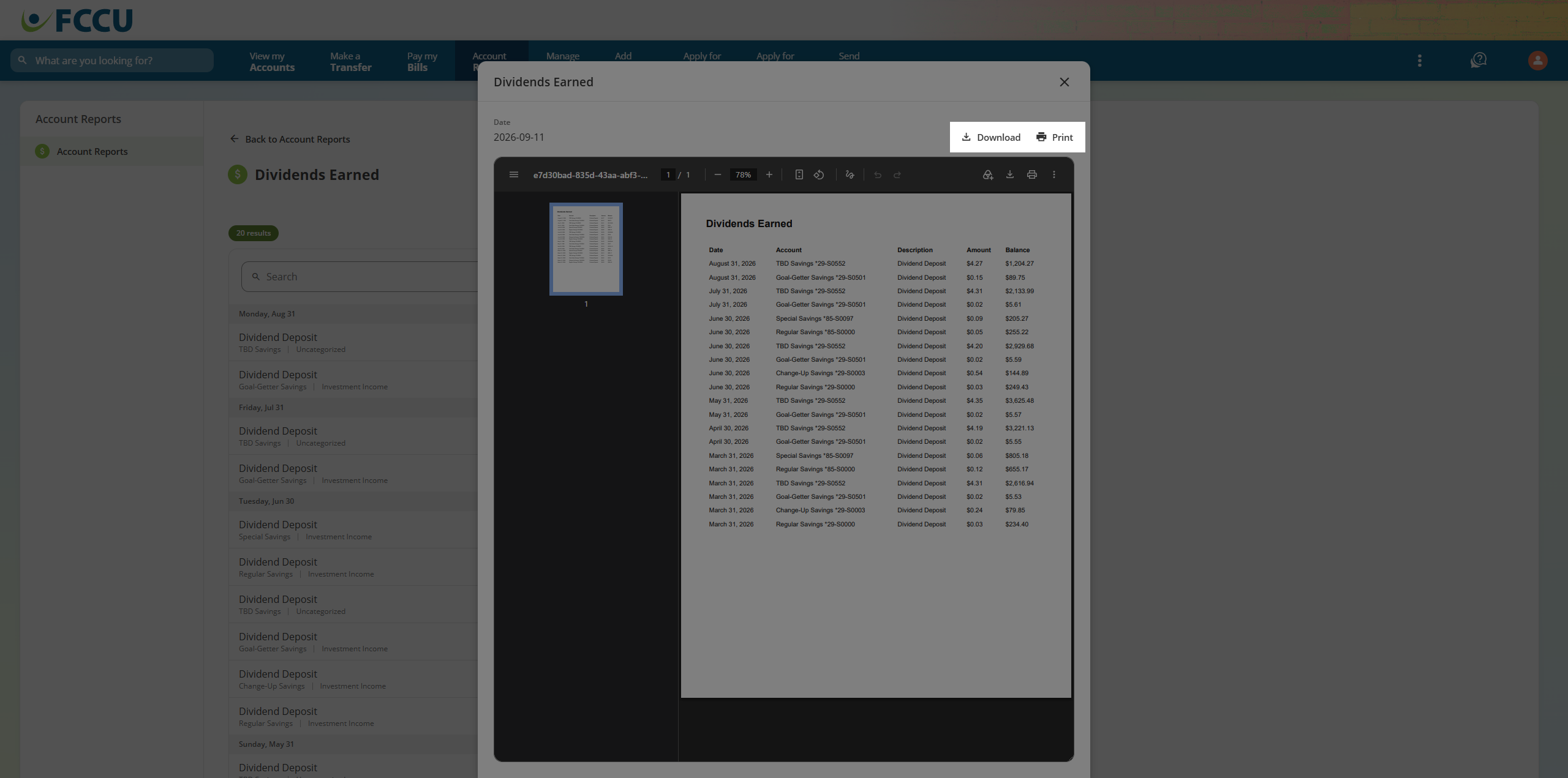
- Click the Download button to save this report as a PDF.
- Click the Print button to follow your web browser's additional printing options.
{endAccordion}
{beginAccordion}
Edit
- Click the More dropdown menu.
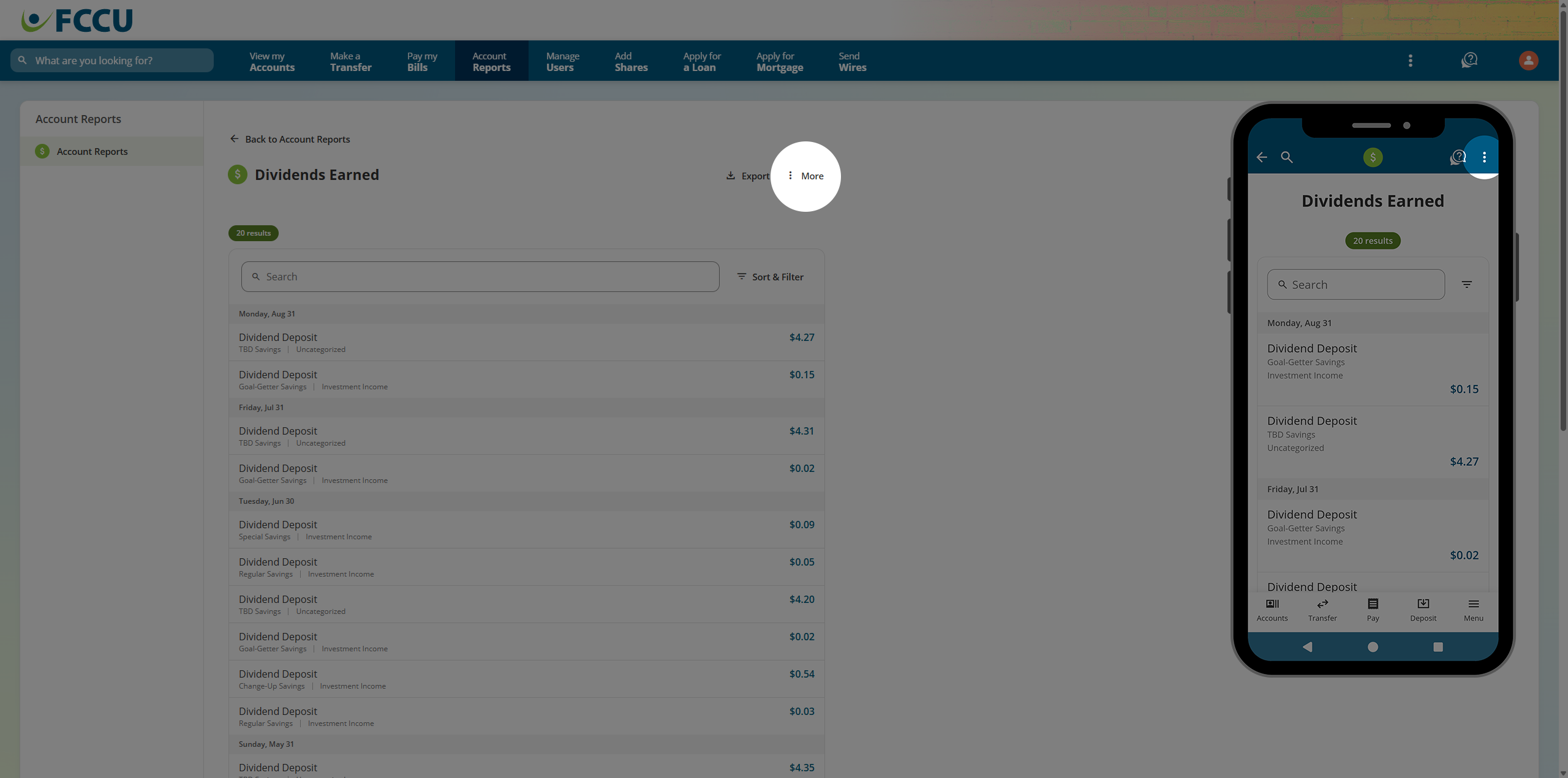
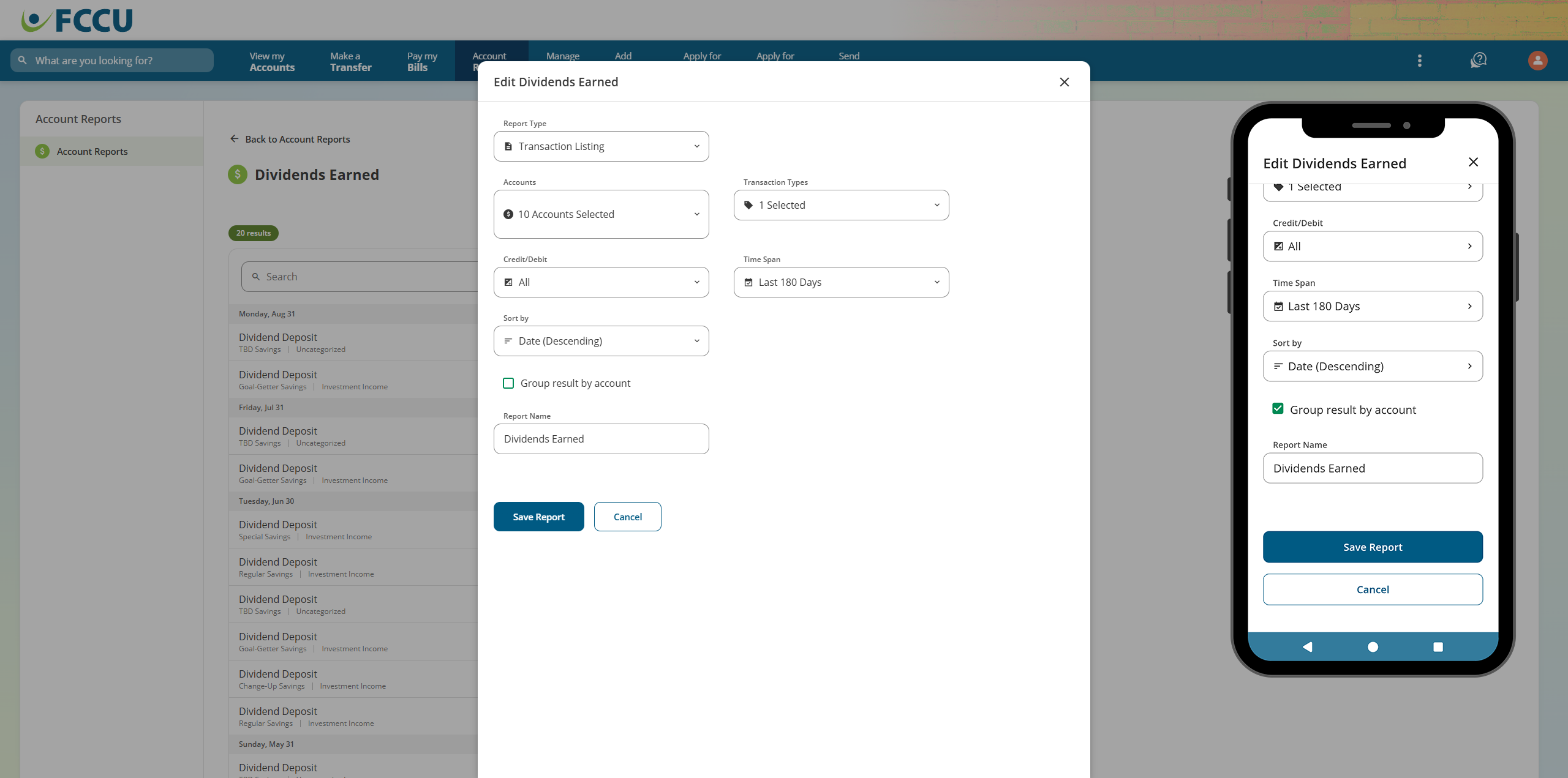
- Click the Edit Report menu option. A new window will appear.
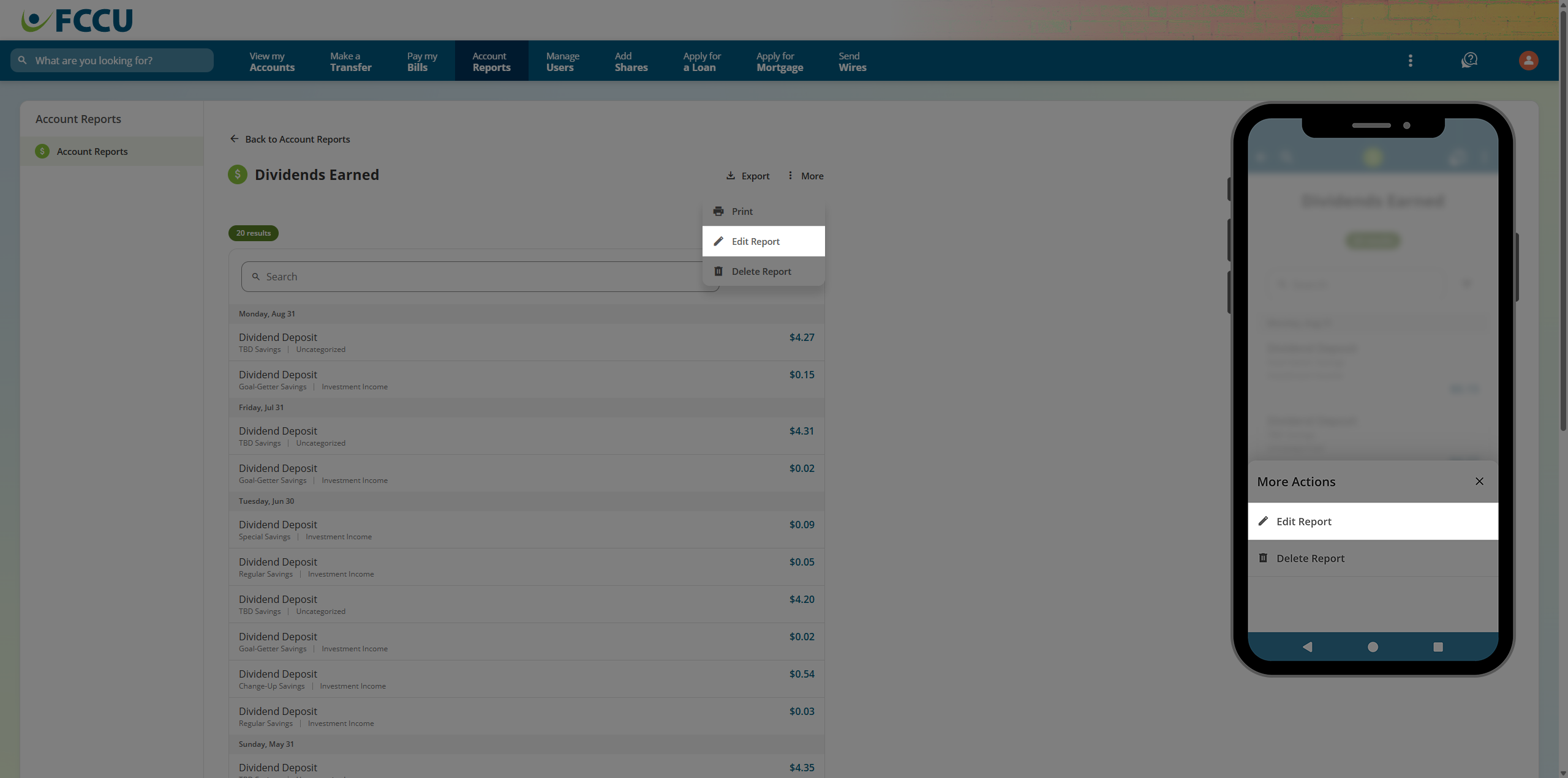
- Make any necessary changes.
- Click the Save Report button. This window will close.
- You changes have been saved!
{endAccordion}
{beginAccordion}
Delete
- Click the More dropdown menu.
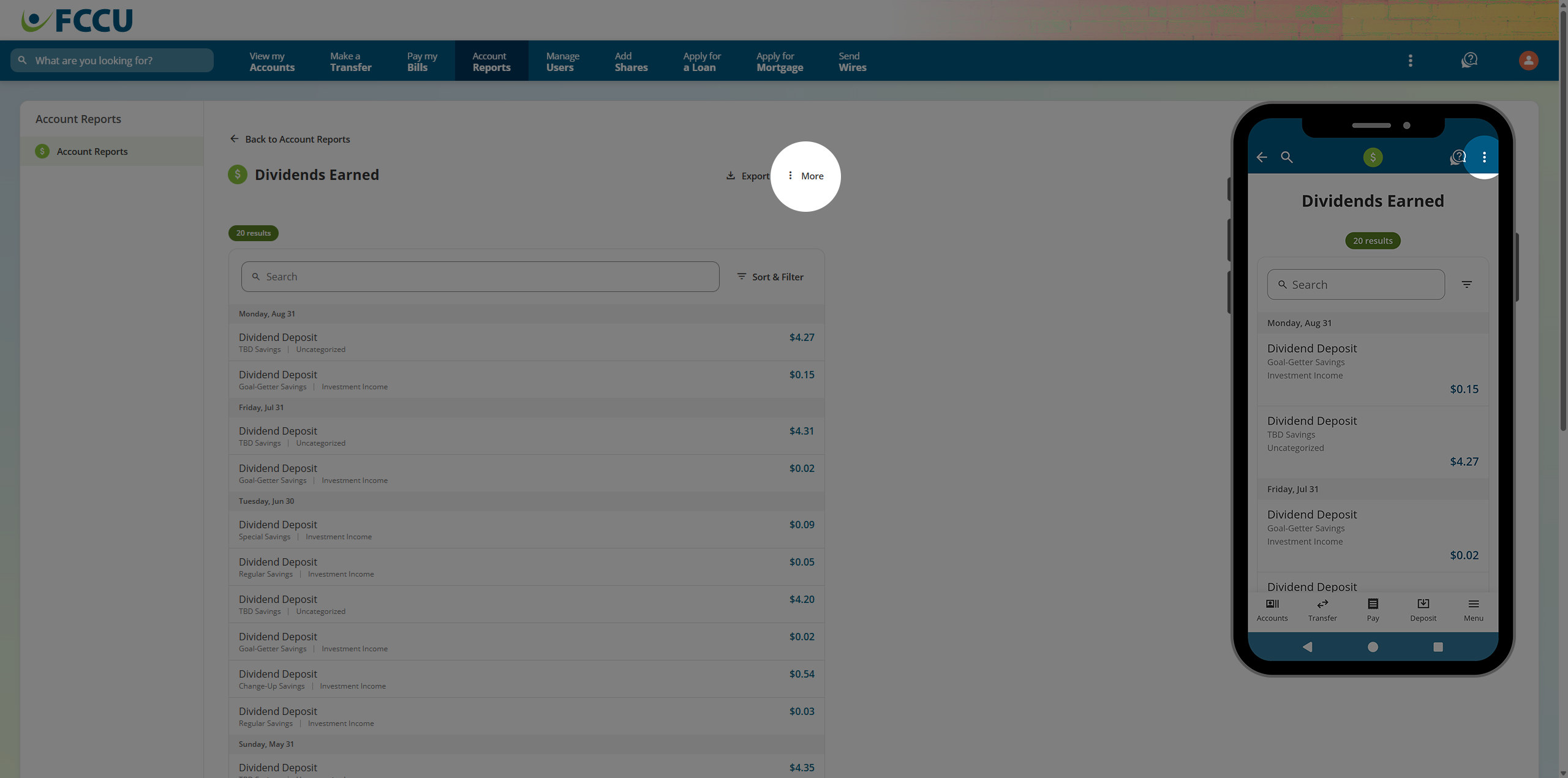
- Click the Delete Report menu option. A new window will appear.
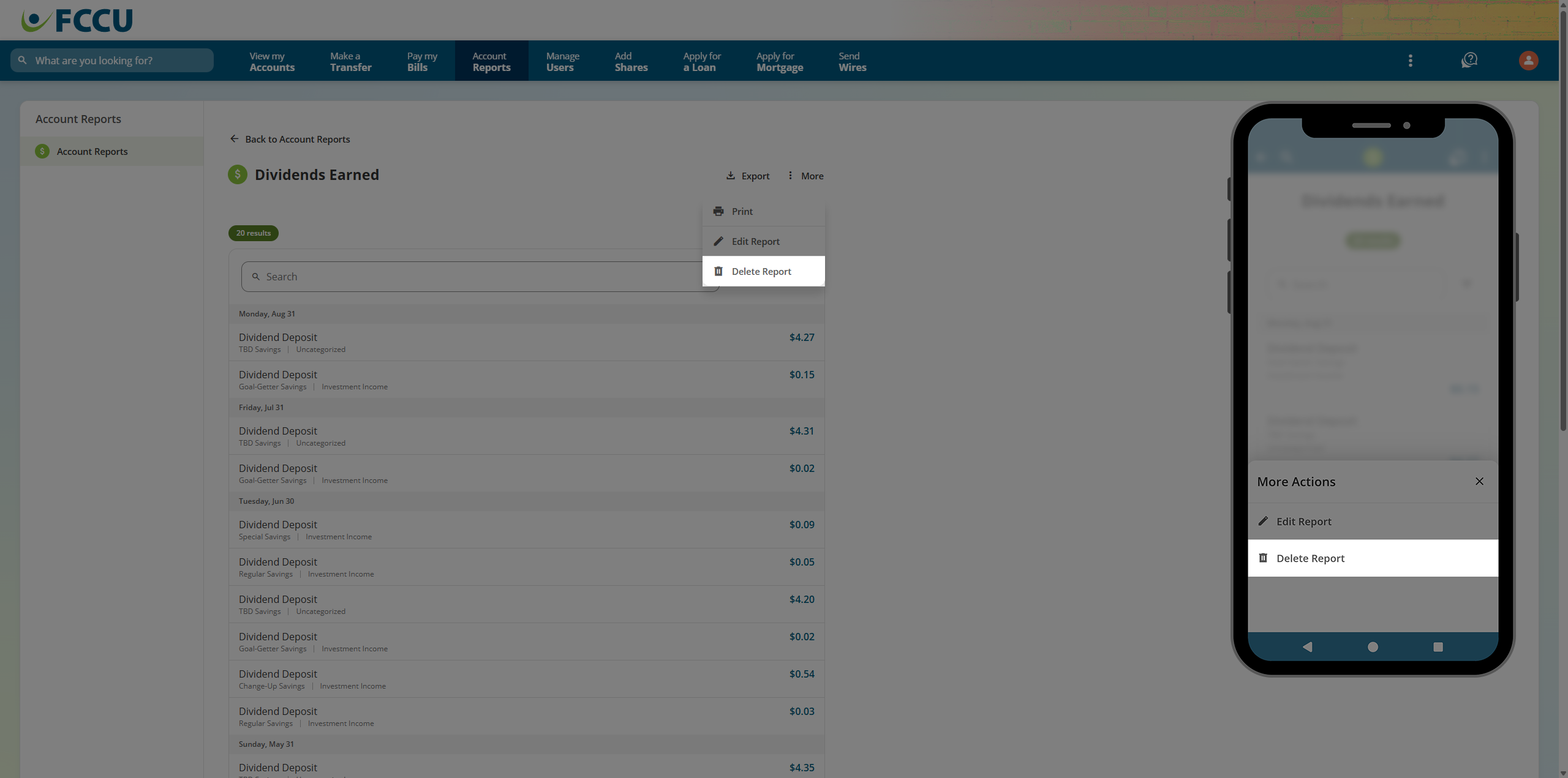
- Click the Yes, Delete button. This window will close.
- Your report has been deleted!
{endAccordion}
Updated 9/16/2026