



Checking & Savings / Digital Banking / Instructions / Manage Users
Share your digital banking account access with others.
Add a New User
If you are the primary user or a user with permission to manage other users, follow these instructions.

Complete Registration as New User
If you are a new user and need help finishing up the registration process, follow these instructions.
Manage Roles
Business users can create custom user roles that allow users to only see and do what they want.
{beginAccordion}
Add a New User

Note: Screenshots are taken from the perspective of a business user.
-
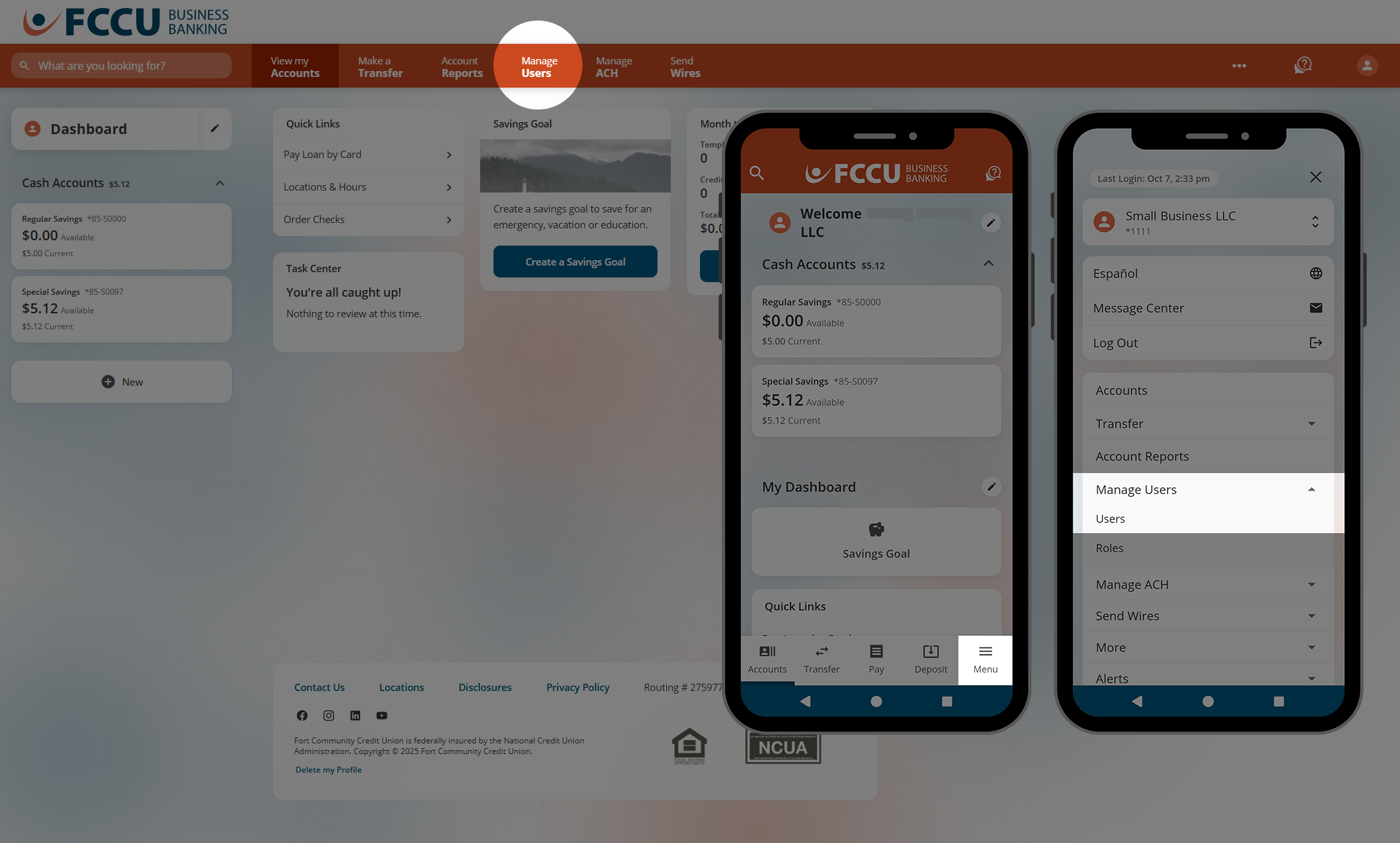
From your account dashboard, click the Manage Users menu option.
On the mobile app, tap the Menu button, tap the Manage Users dropdown menu, and then tap the Users menu option.
-
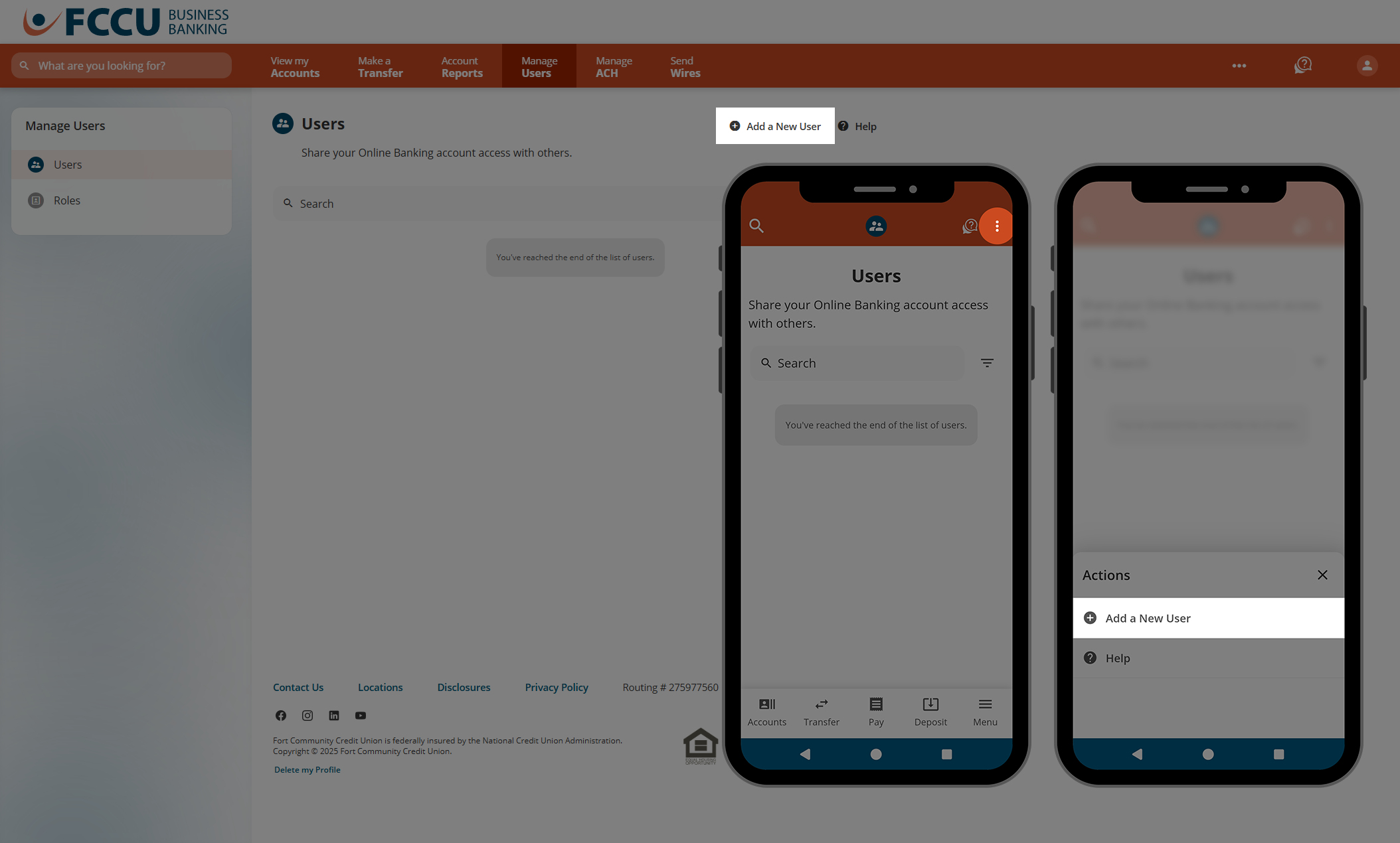
Click the Add a New User button. A new window will appear.
On the mobile app, tap the three dots at the top right of the screen, and then tap the Add a New User button.
You may be prompted to verify your identity to proceed.
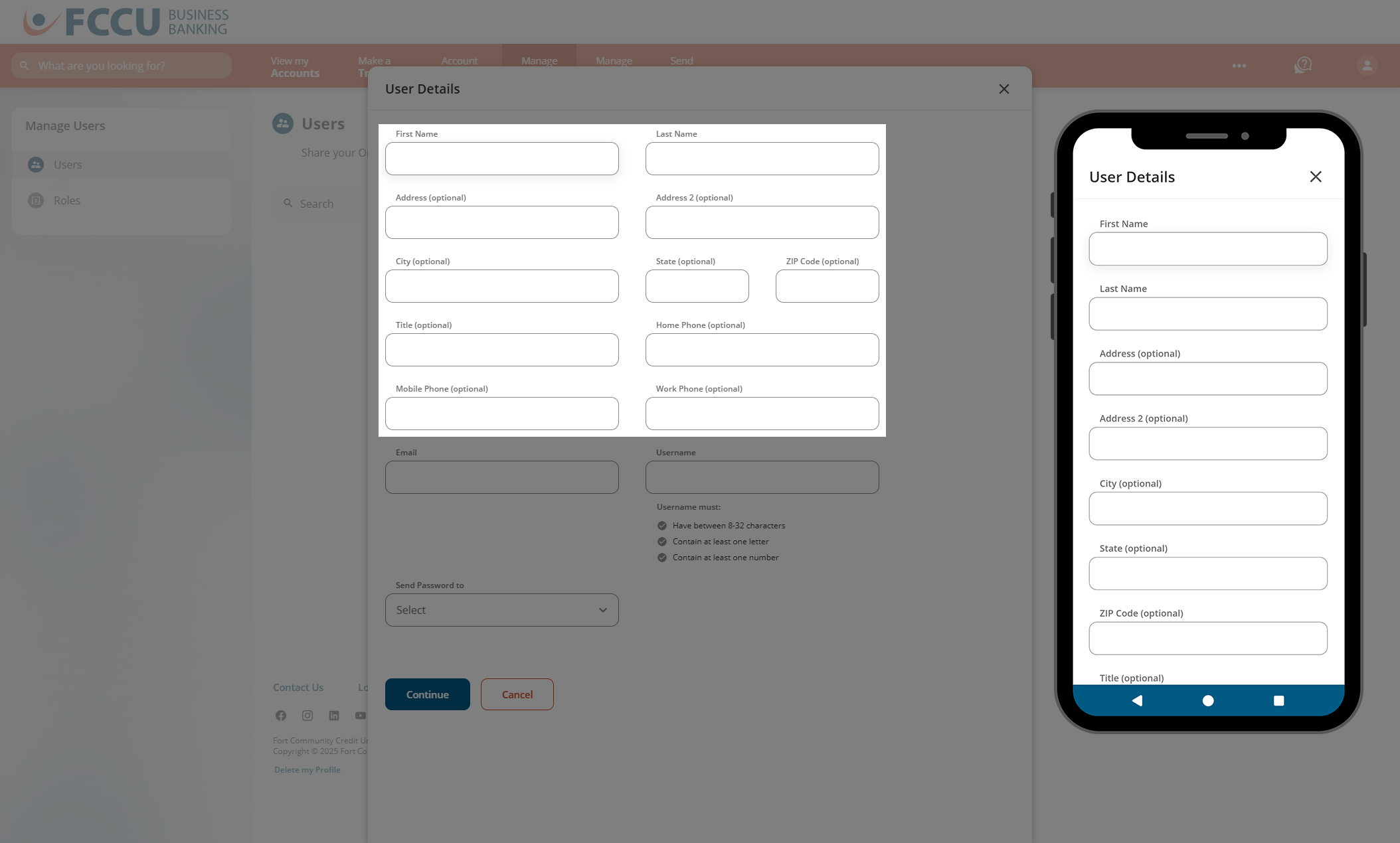
- In the First Name and Last Name fields, type in the information for your new user.
- Fill in as many optional fields as you'd like.
- This user can update their own information via Profile Settings within their digital banking profile later.
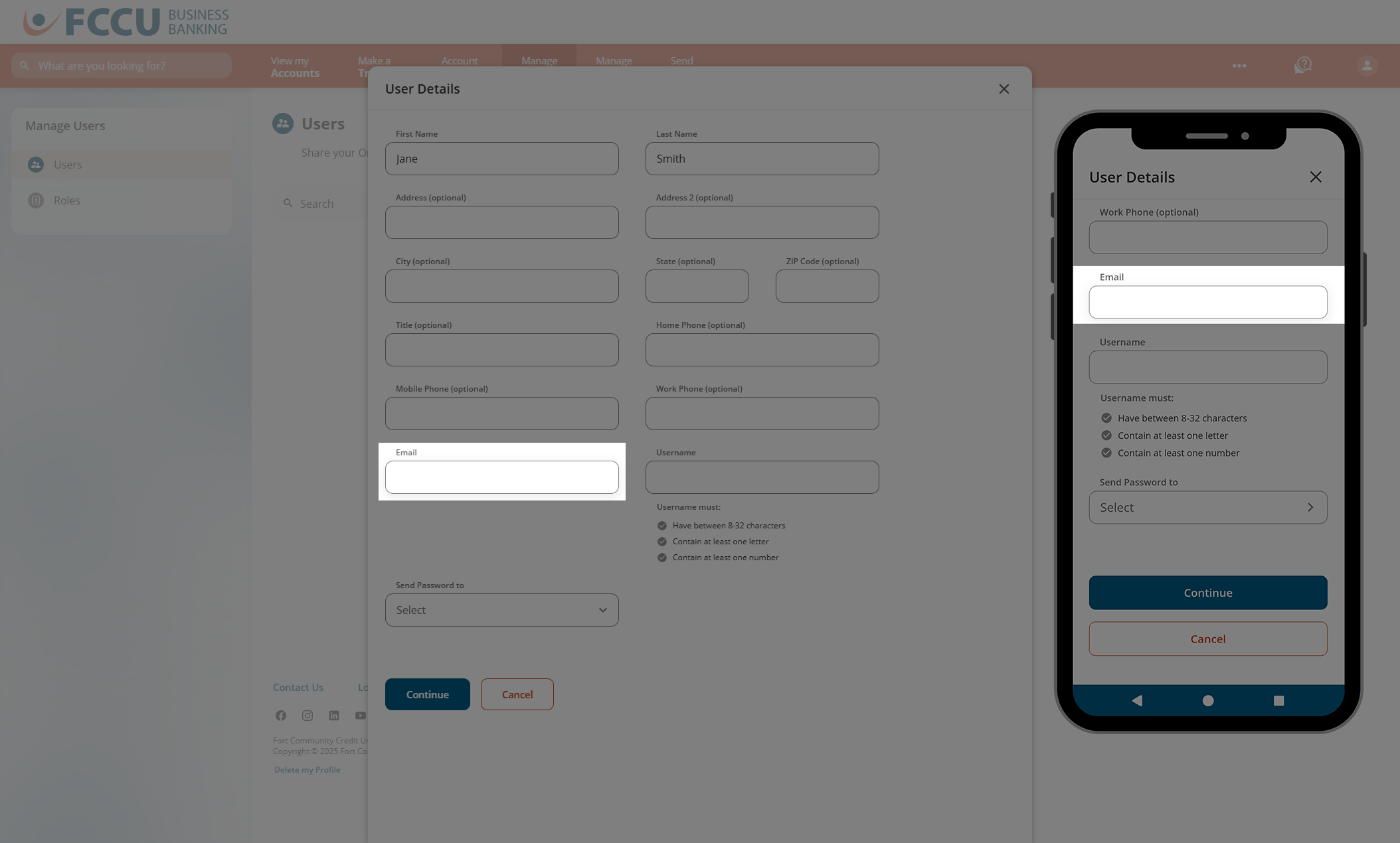
- In the Email field, type in the email address for your new user.
- In the Username field, type in a username for the new user. The username must:
- Have between 8-32 characters
- Contain at least one letter
- Contain at least one number
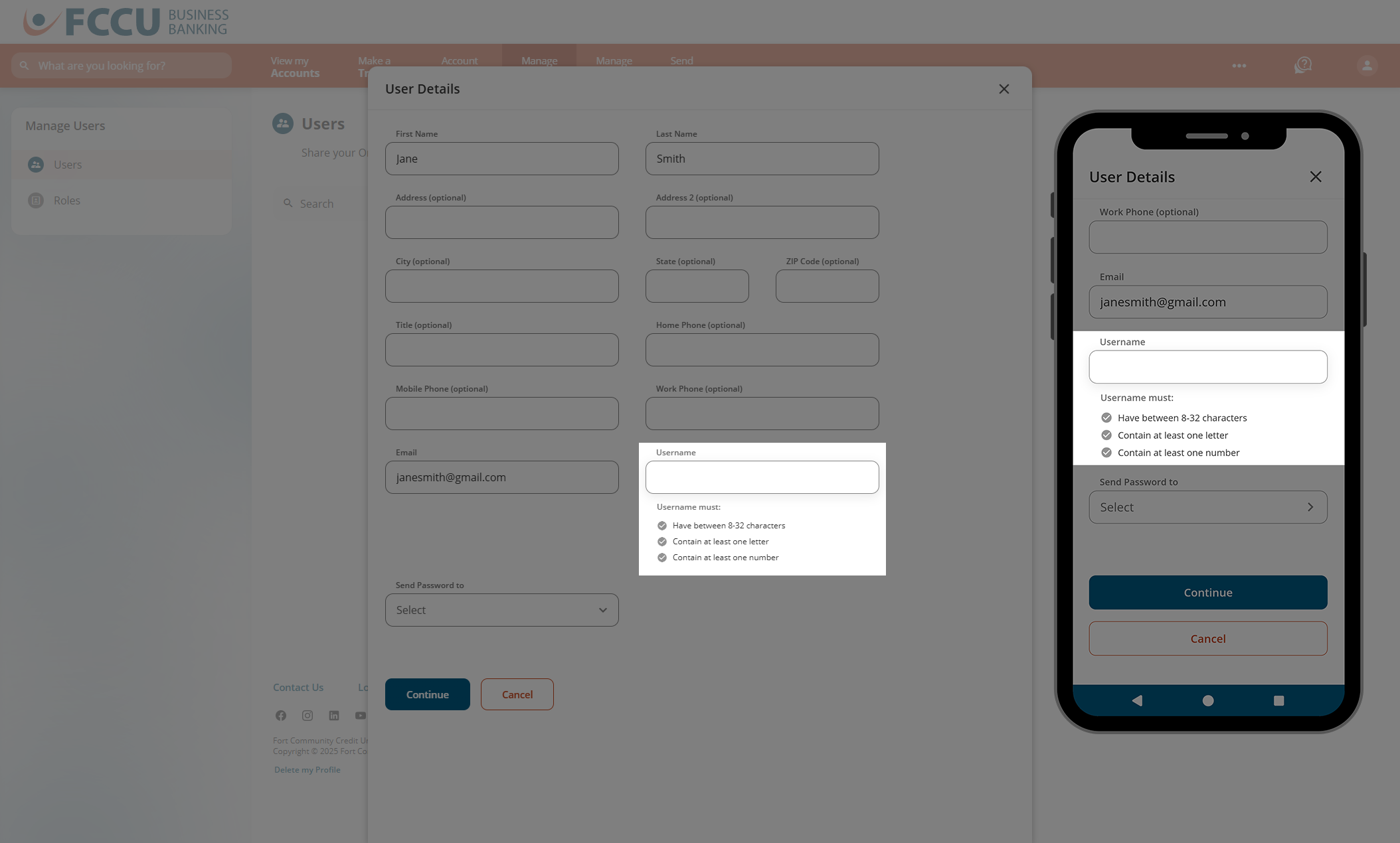
- In the Send Password dropdown menu, choose how you'd like your new user to receive their temporary password.
- If you choose the Email dropdown menu option, the Email dropdown menu will appear to the right.
- If you choose the SMS dropdown menu option, the SMS dropdown menu will appear to the right. If the Home Phone, Mobile Phone, and Work Phone fields are empty, this dropdown menu will be empty.
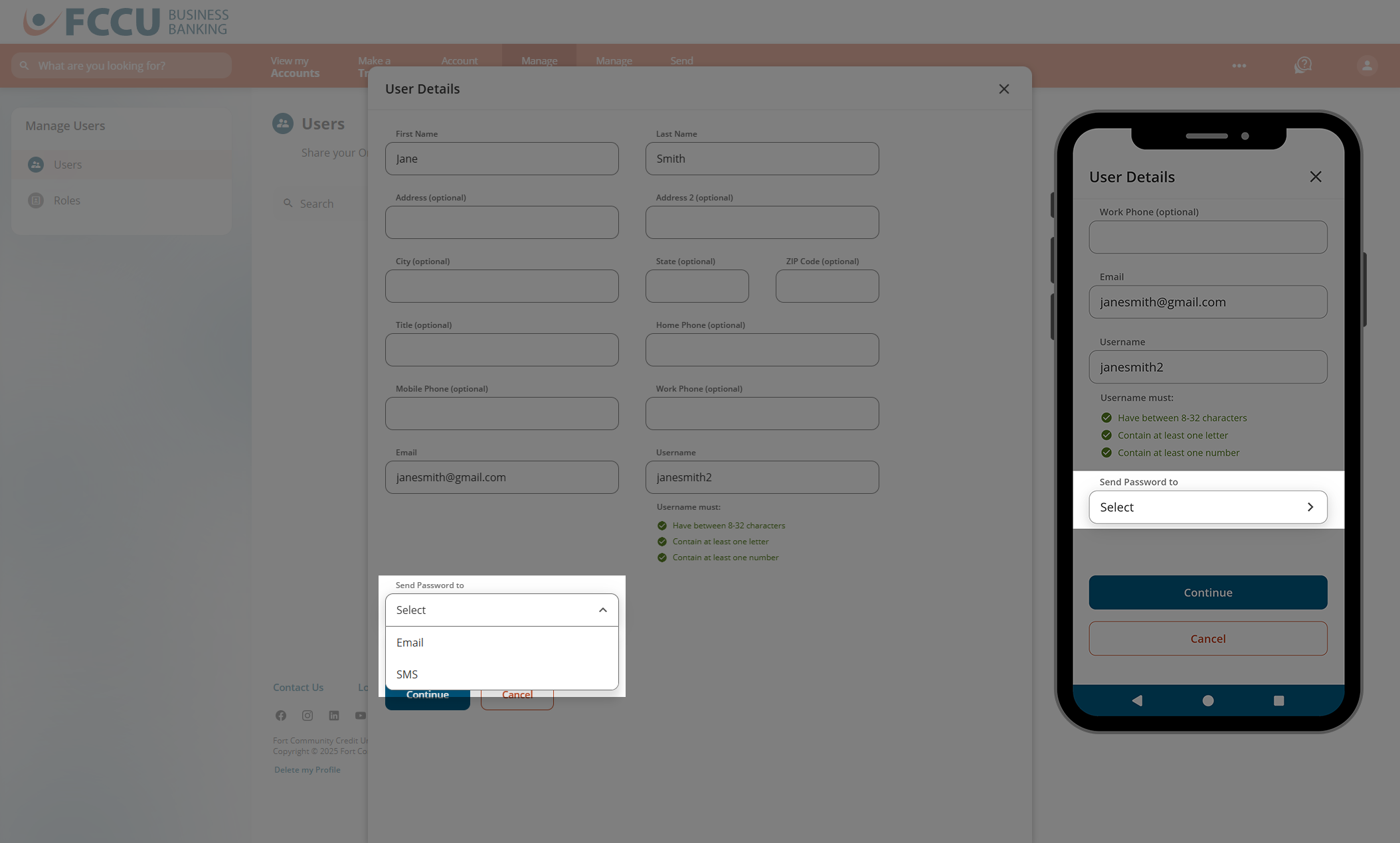
- In the new Email (or SMS) dropdown menu, choose the email address or phone number you'd like to be used to contact your new user.
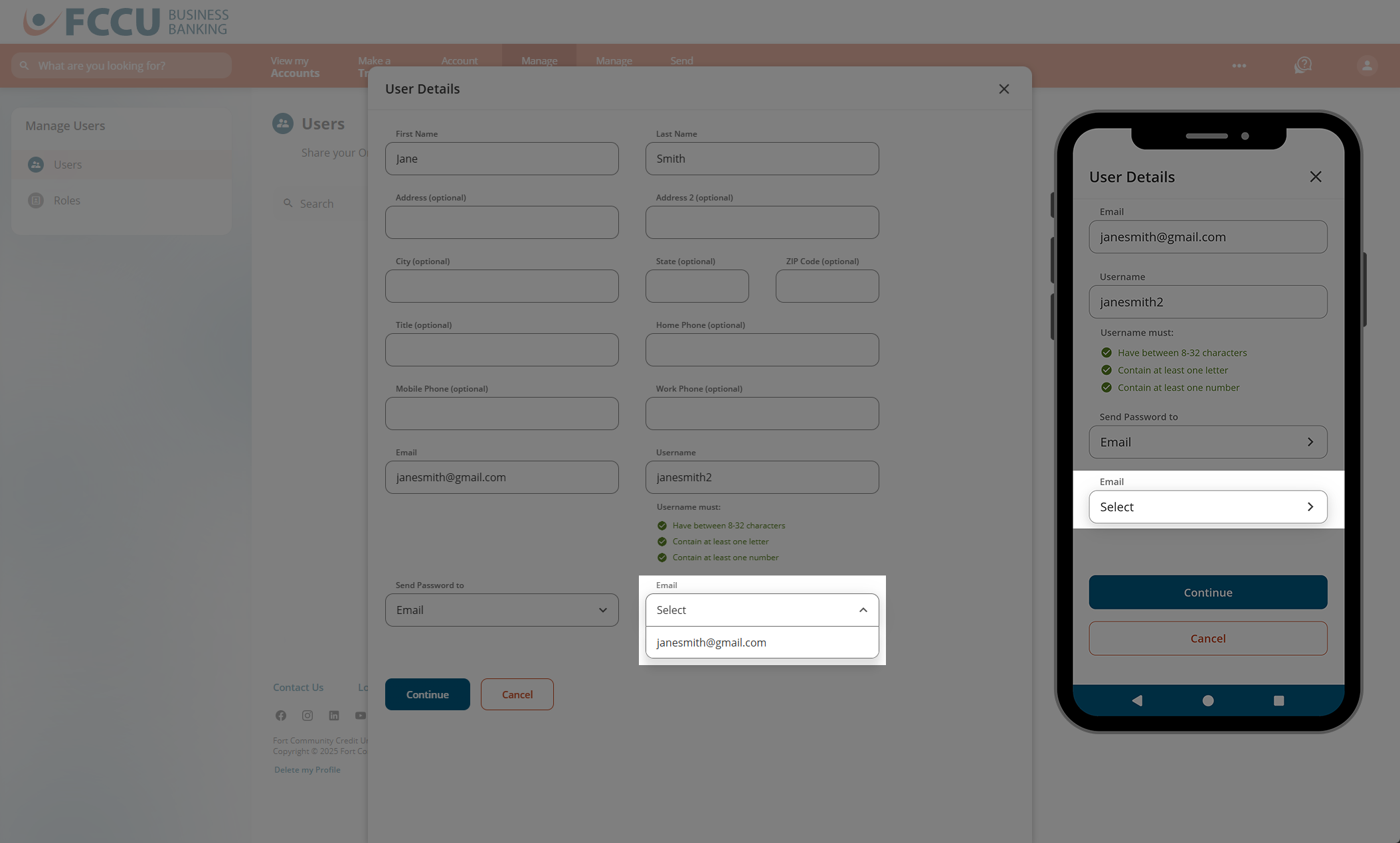
- Click the Continue button.
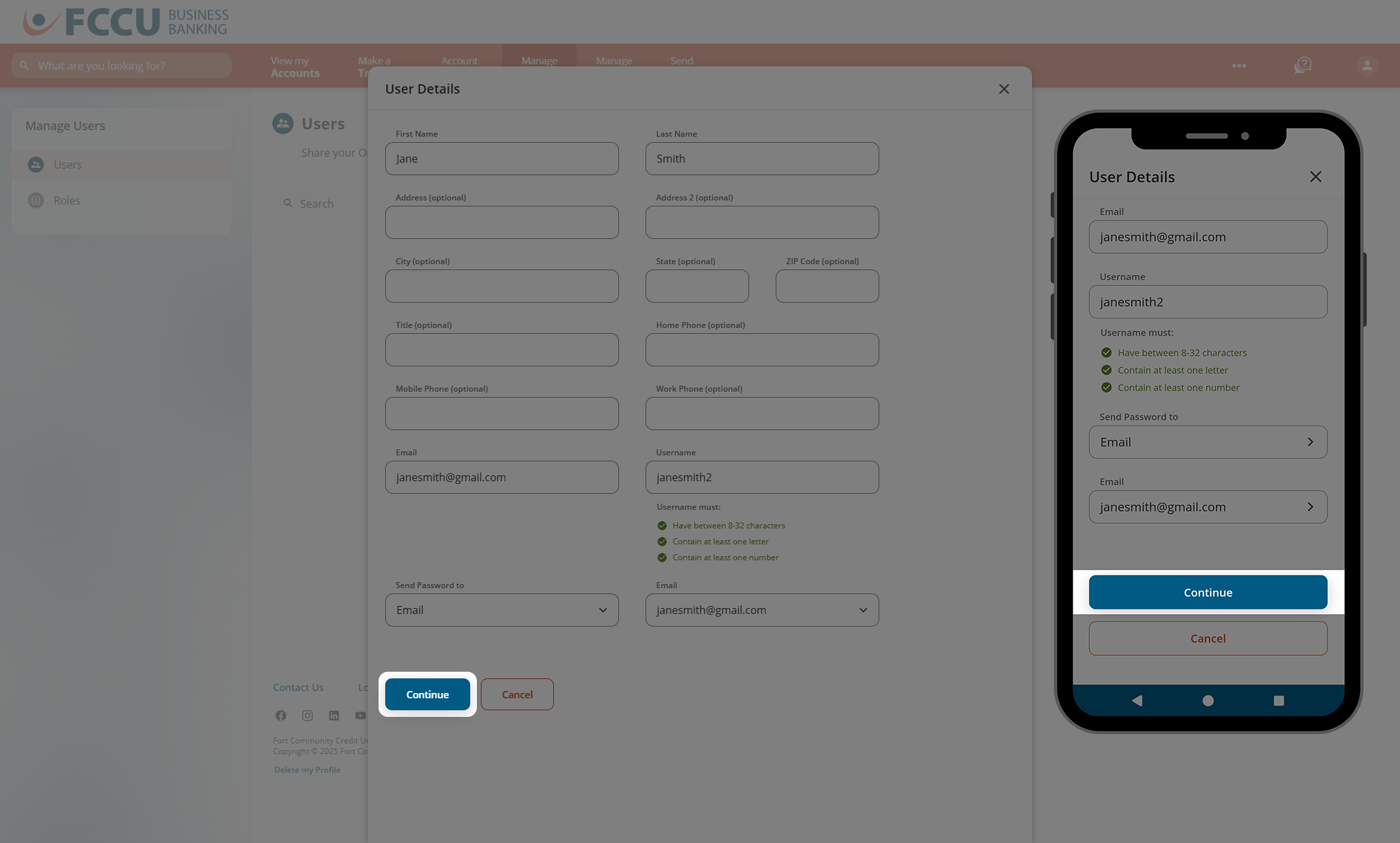
- Business User Only: In the Role dropdown menu, choose the role (or group of permissions) you'd like for this new user.
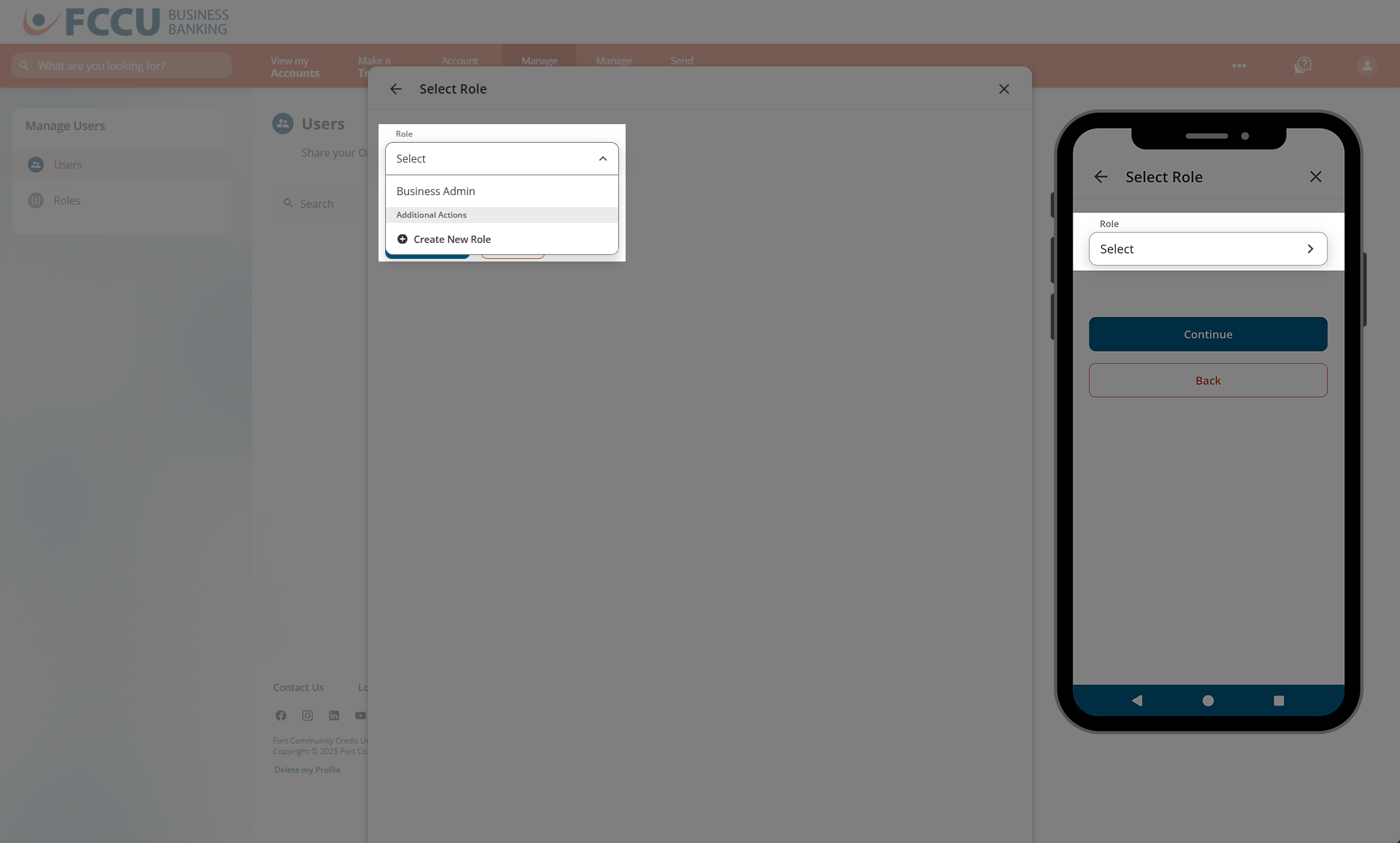
- Business User Only: Click the Continue button.
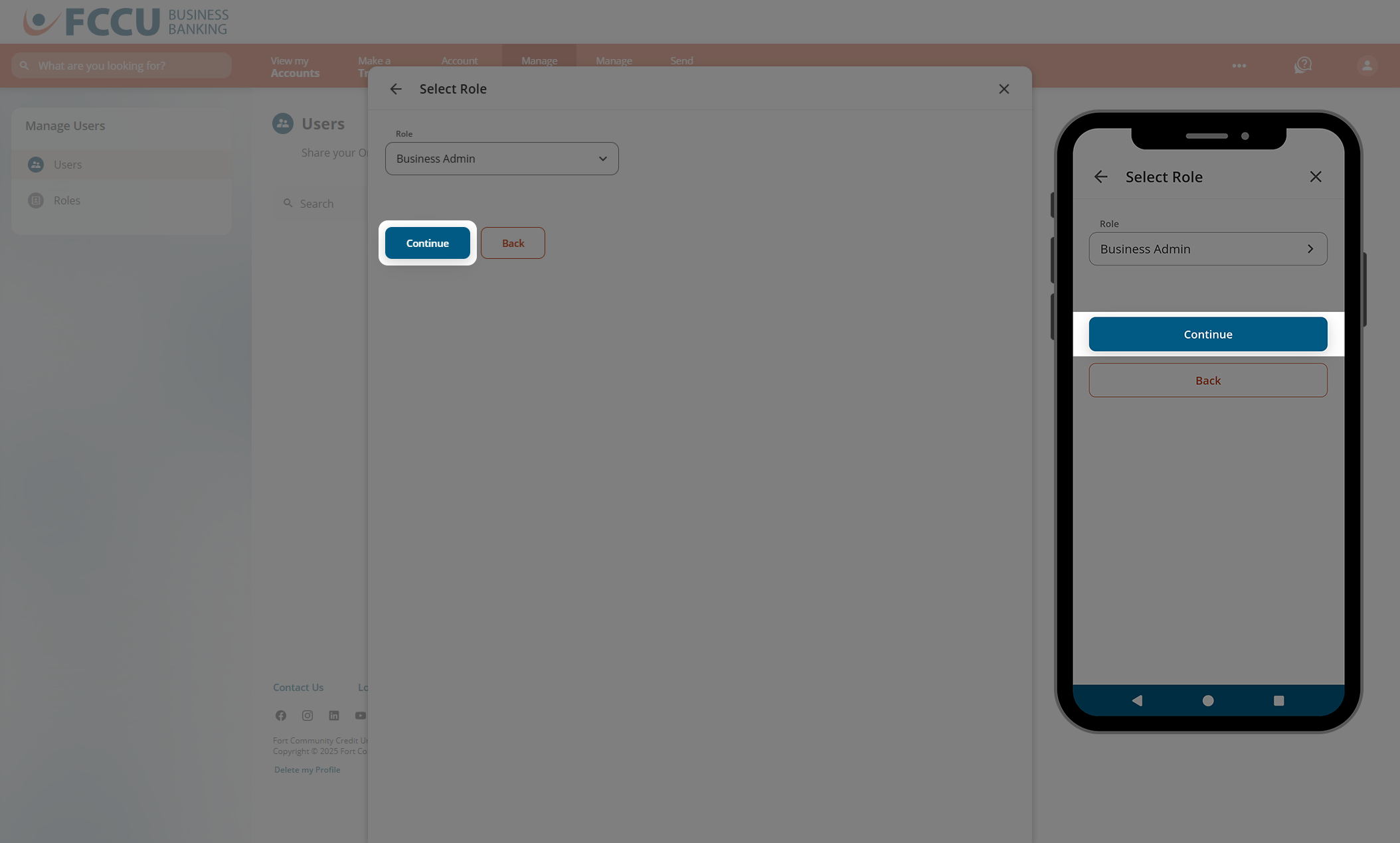
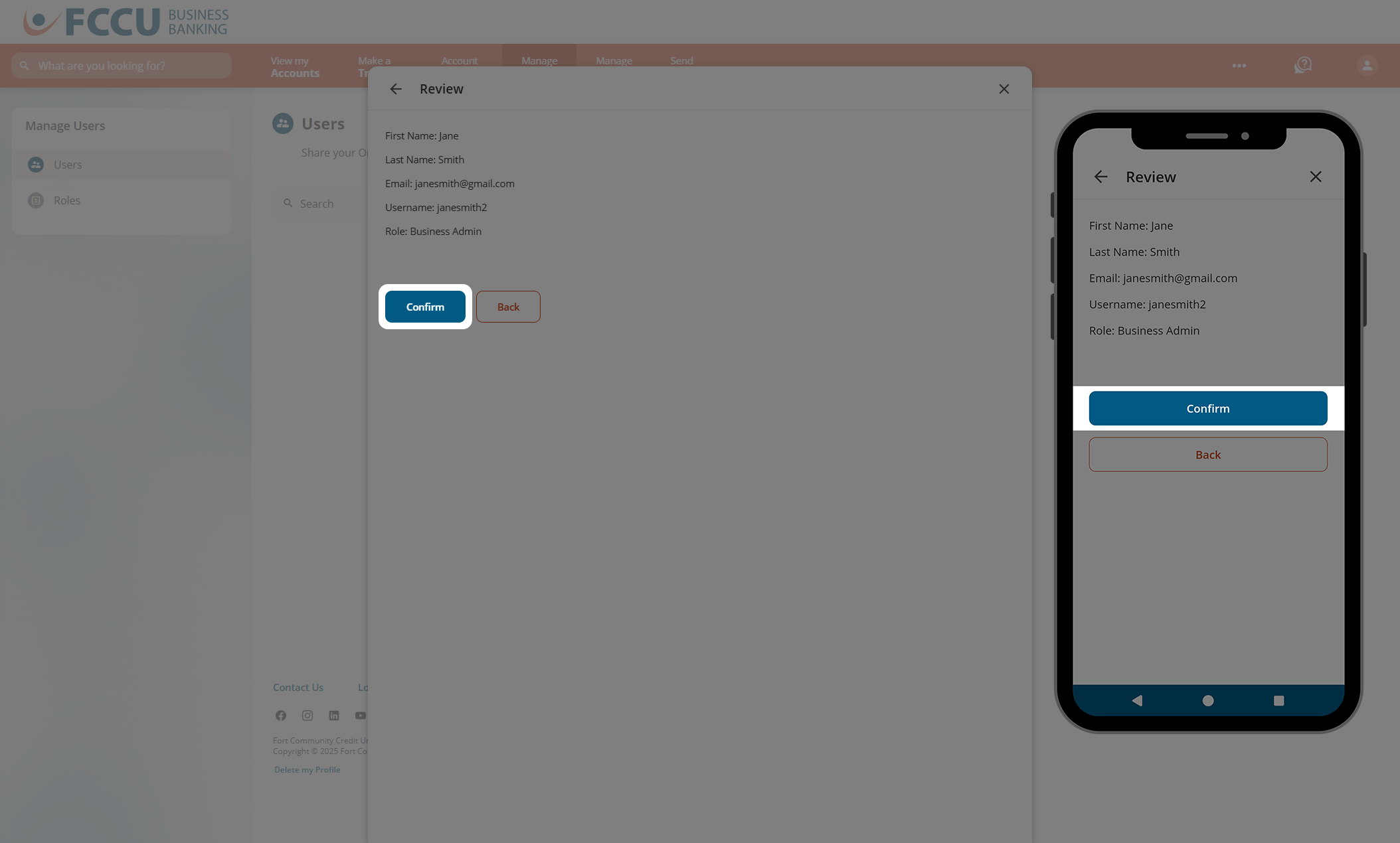
- Review the details of your new user.
- If everything looks good, click the Confirm button.
- Your new user has been added! They will be sent a temporary password (via email or text) that will expire in 24 hours.
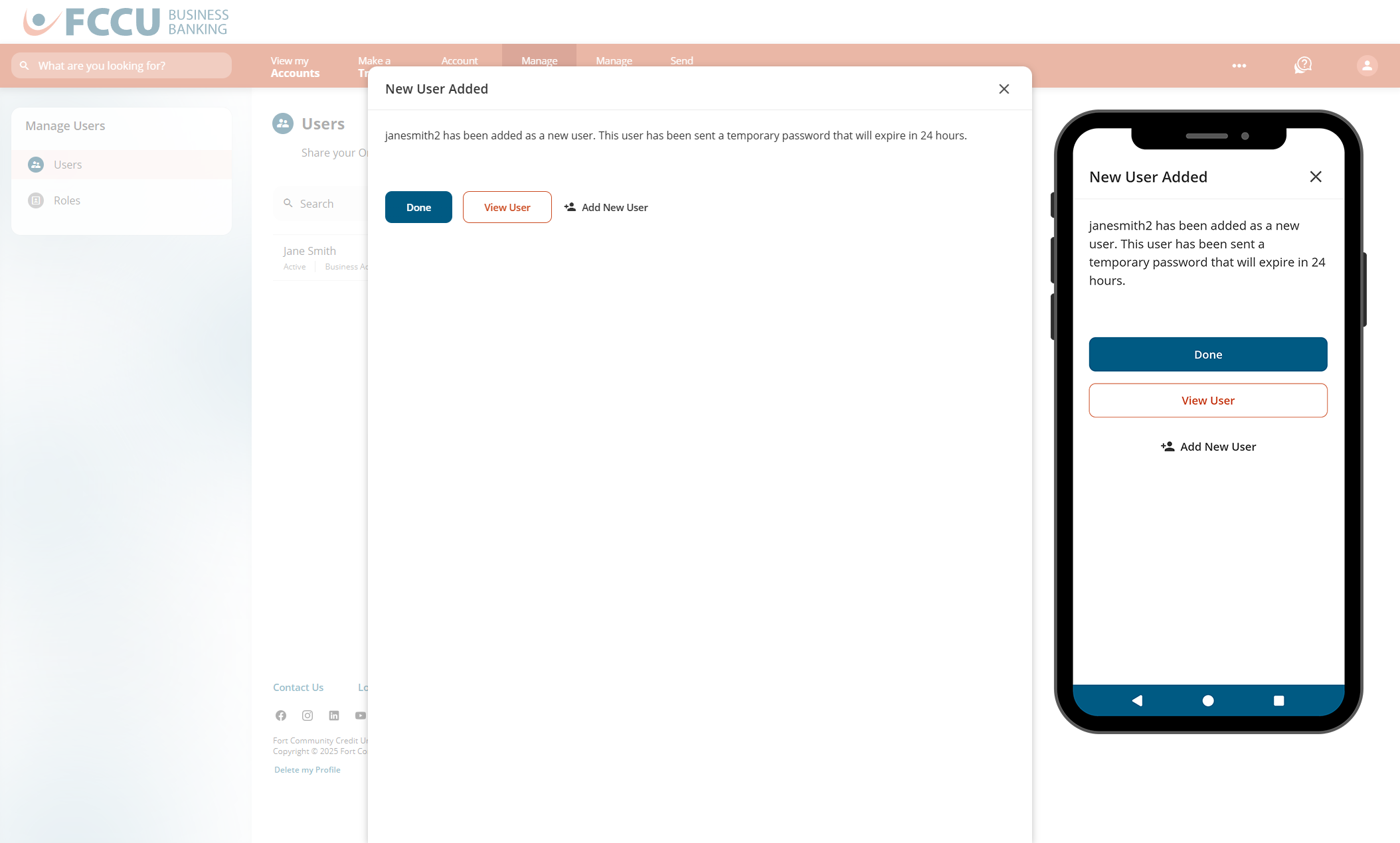

Separately, on your own, contact your new user and let them know their new username. They will need their username to complete the registration process within the next 24 hours.
Continue to the next set of instructions to view the remaining registration steps from your new user's perspective.
{endAccordion}
{beginAccordion}
Complete Registration as New User
You will receive an email or text message containing a temporary password.
Separately, the primary user on this account account should communicate your new username to you. If you don't have that yet, reach out to them first.
- Navigate to the digital banking login page.
- Type in your username and temporary password in the corresponding fields.
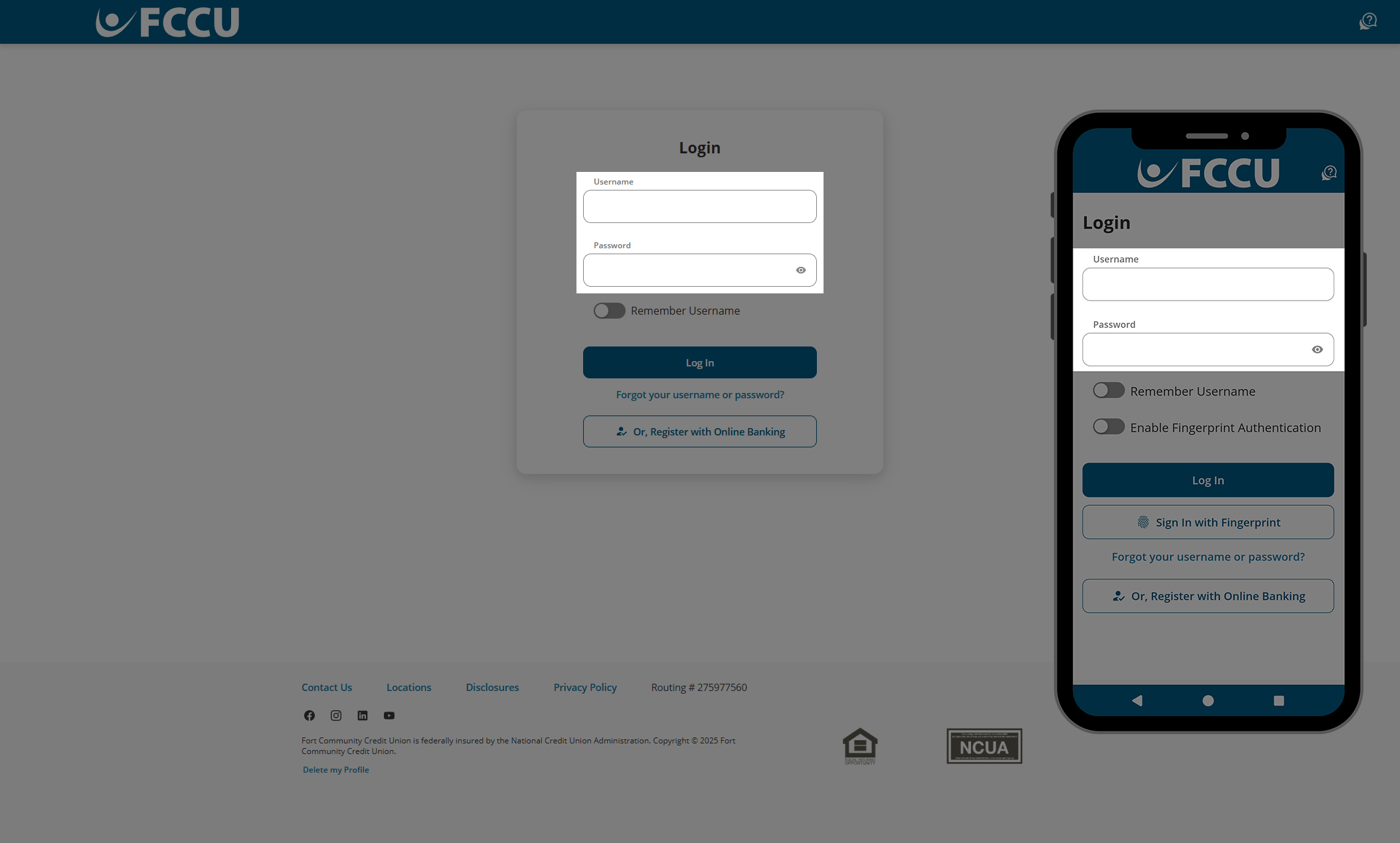
- Click the Log In button.
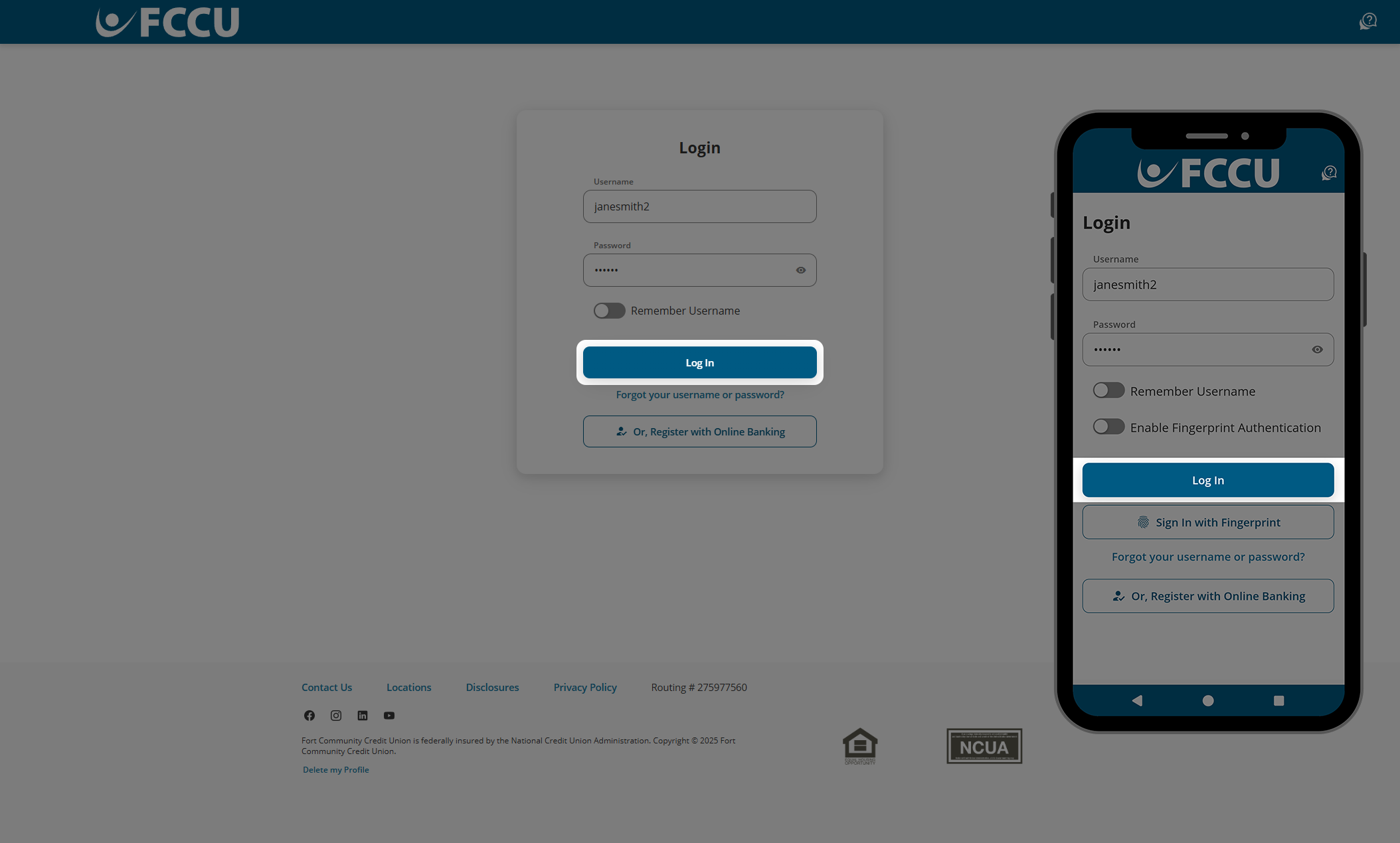
- To protect your account, we need to verify your identity. Please choose a Verification Method— Text Message, Voice Message, or Email— in the corresponding dropdown menu.
- If you choose the Text Message or Voice Message dropdown menu options, the second dropdown menu will display all phone numbers we have on file for you. Select the phone number you'd like us to text or call with your verification code.
- If you choose the Email dropdown menu option, the second dropdown menu will display all email addresses we have on file for you. Select the email address you'd like us to email your verification code.
- Click the Next button.
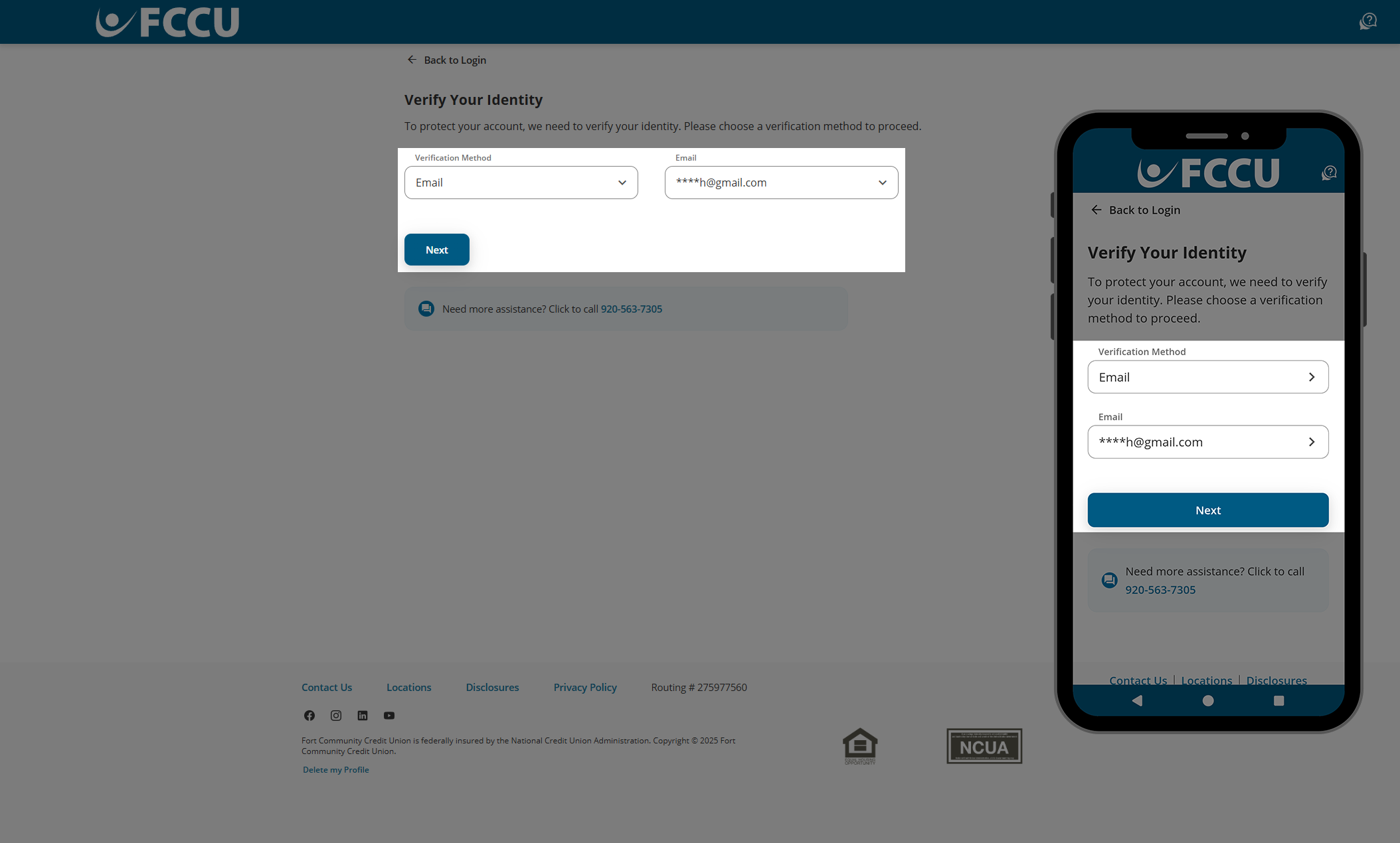
- You should receive a call, text, or email containing a code. Type the six-digit verification code into the Verification Code field.

If you are on a browser, do not fully close this browser window or tab to retrieve the code from another website. Instead, open a new browser tab to navigate to another website.
If you are on the mobile app, do not fully close the FCCU Mobile App to retrieve the code from another app. Instead, use your mobile device's "switch apps" feature to navigate to another app without closing the FCCU Mobile App. See support articles below for more information:
Check your email's spam folder if you do not see the email in your inbox within five minutes.
- Click the Next button.
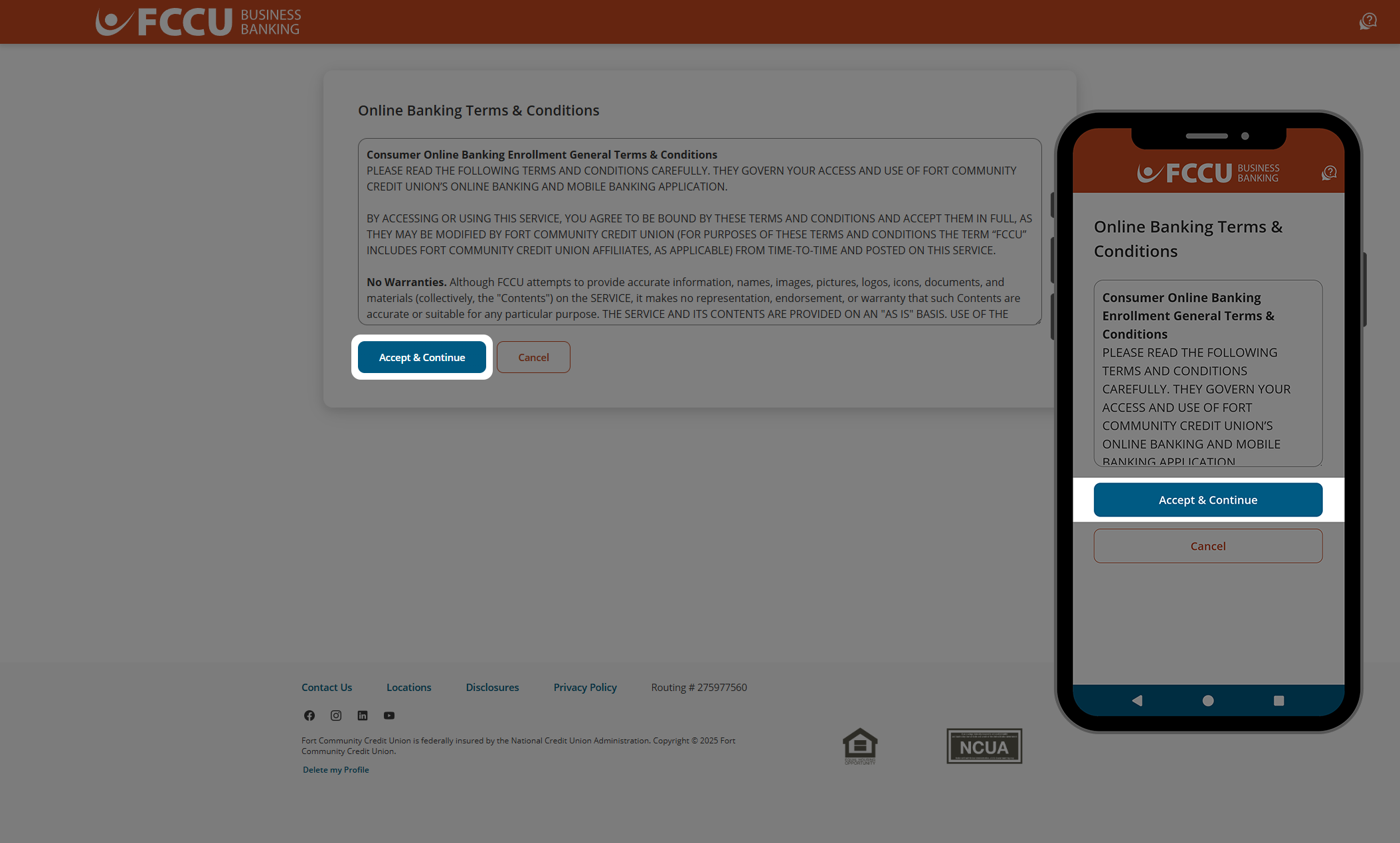
- Review the Terms & Conditions.
- Click the Accept & Continue button.
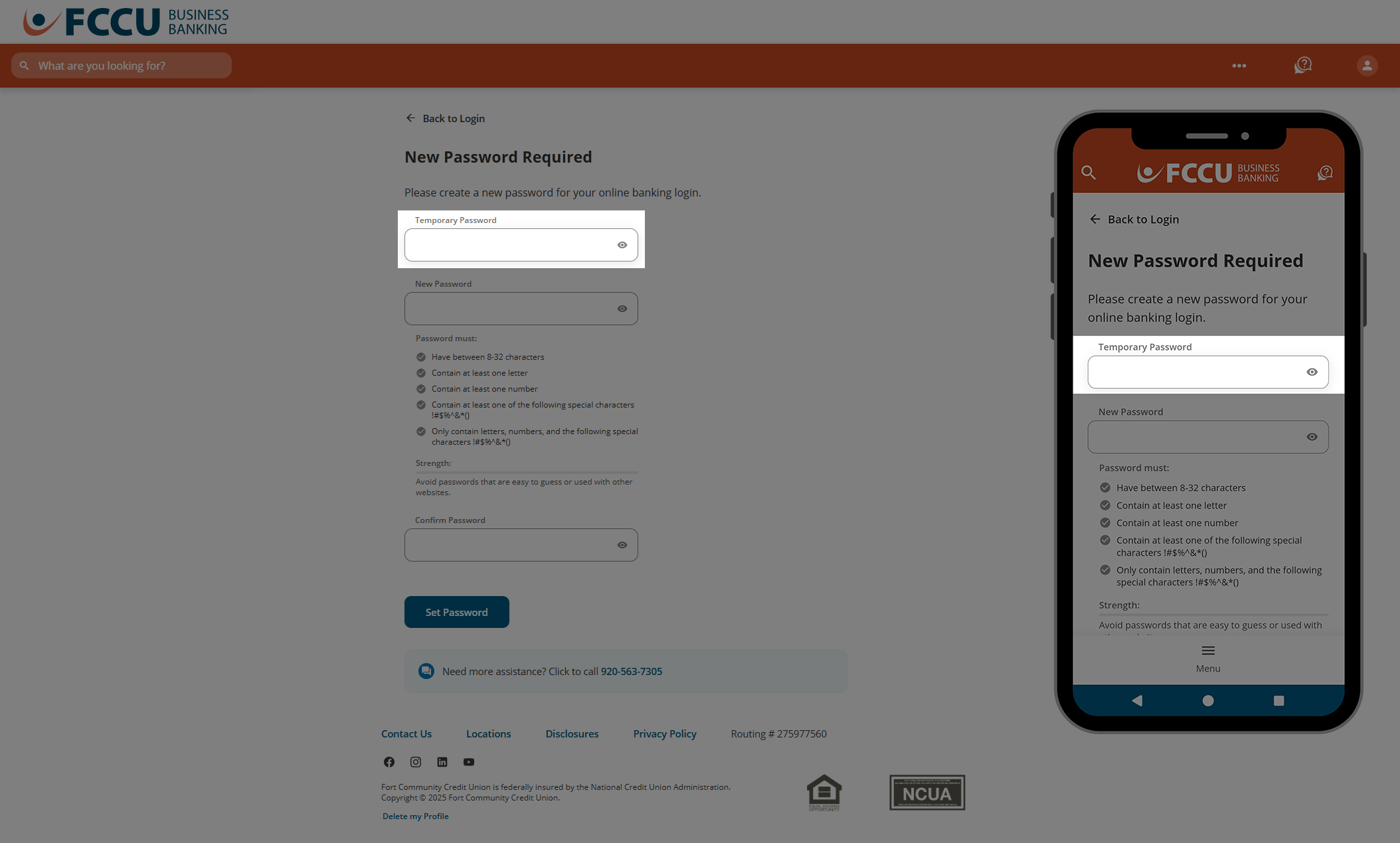
- In the Temporary Password field, type in (or copy/paste) the password sent to you via email or text message.
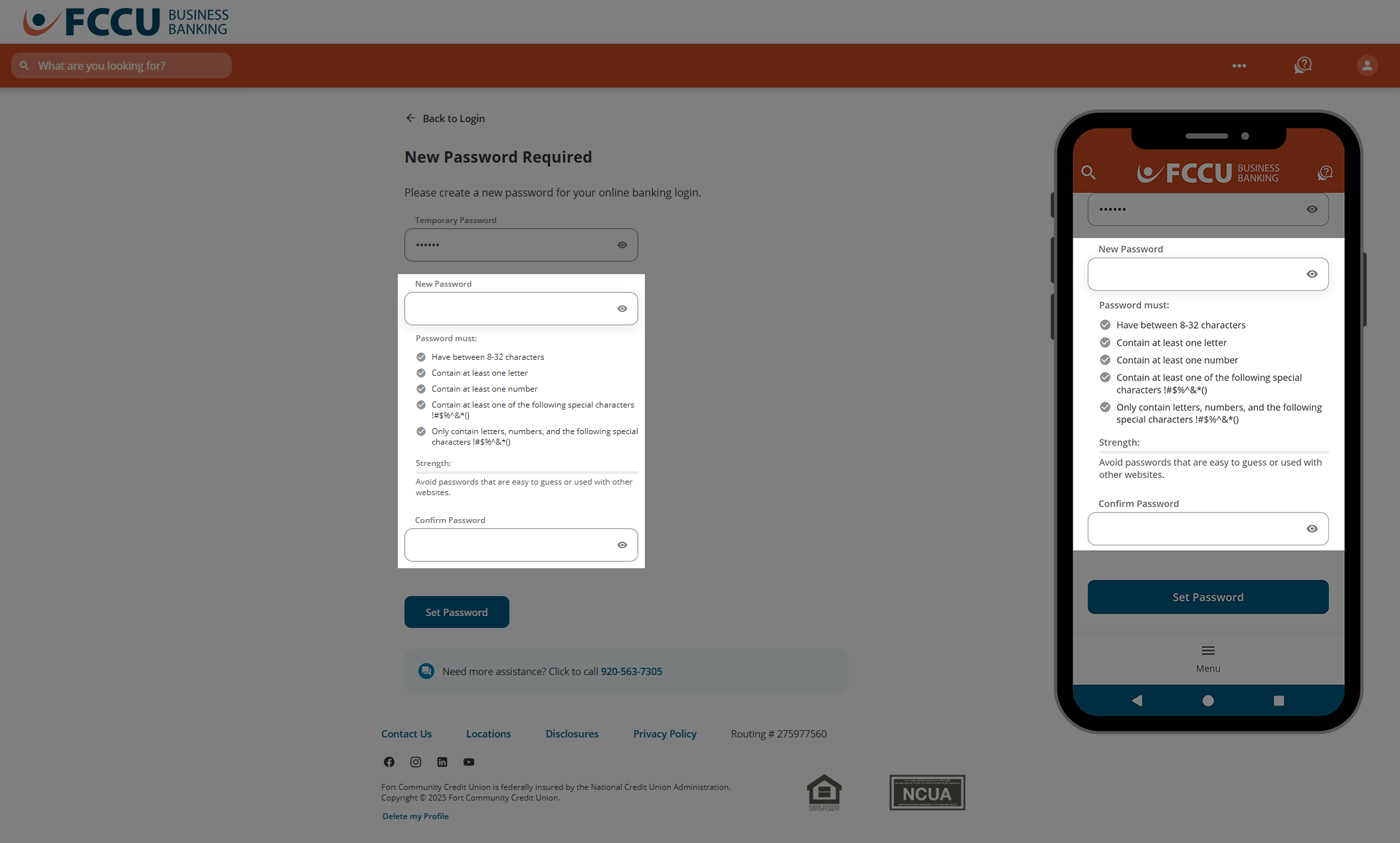
- In the Password and Confirm Password fields, type in your preferred password.
- Avoid passwords that are easy to guess or used with other websites.
- Do not share this password with anyone for any reason. Joint accountholders should register for their own account as the account is tied to your personal information— not account number.
- Your password must:
- Have between 8-32 characters
- Contain at least one letter
- Contain at least one number
- Contain at least one of the following special characters !#$%^&*()
- Only contain letters, numbers, and the following special characters !#$%^&*()
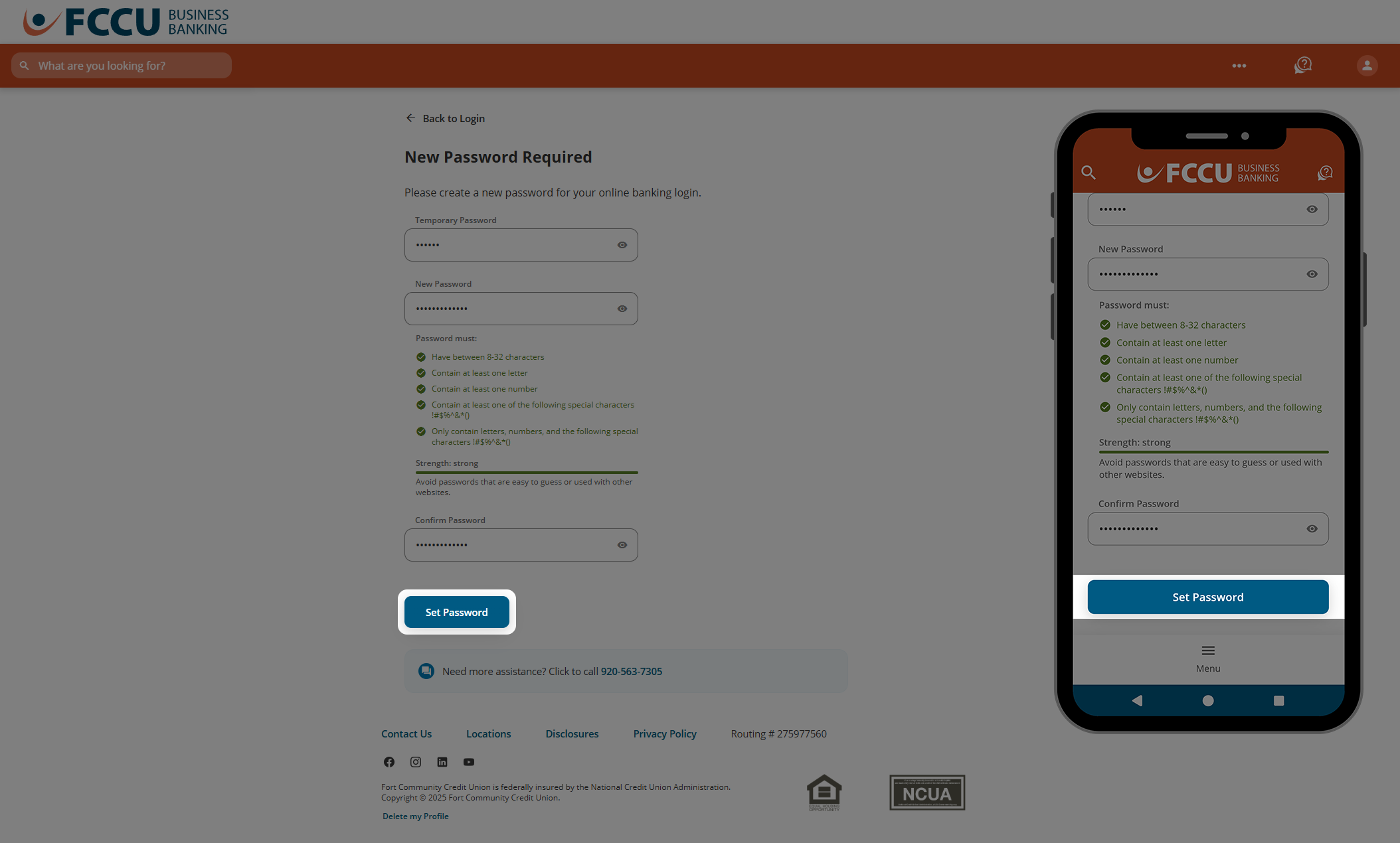
- Click the Set Password button.
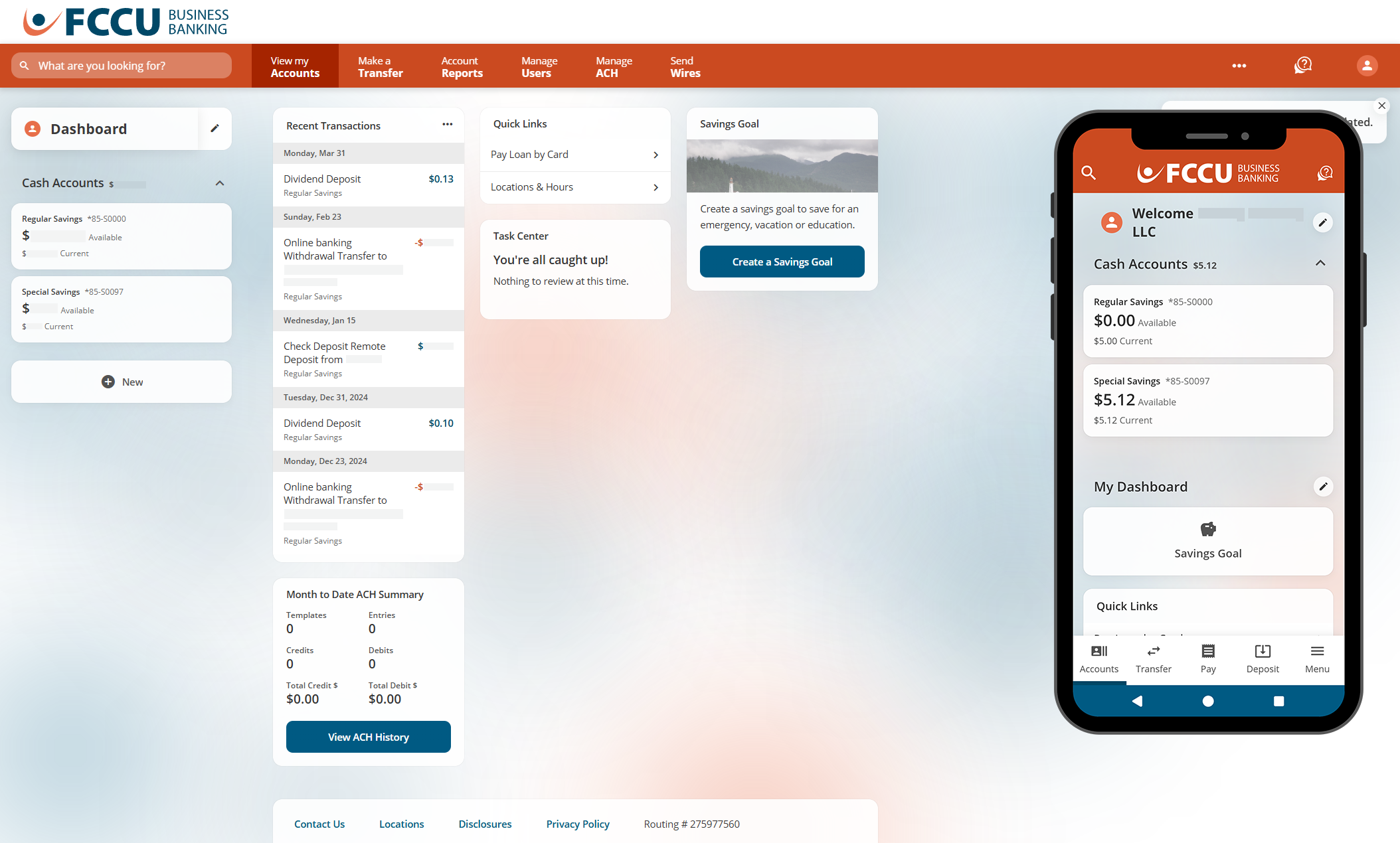
- All done! You will be redirected to the account dashboard.
{endAccordion}
Updated 9/16/2026