



Checking & Savings / Digital Banking / Instructions / Manage Roles
Create roles that allow users to only see and do what you want.
Add a New Role
Create a new group of permissions.

Role Permissions
See descriptions of all role permissions.
Manage Users
Share your digital banking access with others.
{beginAccordion}
Add a New Role
{openTab}
-
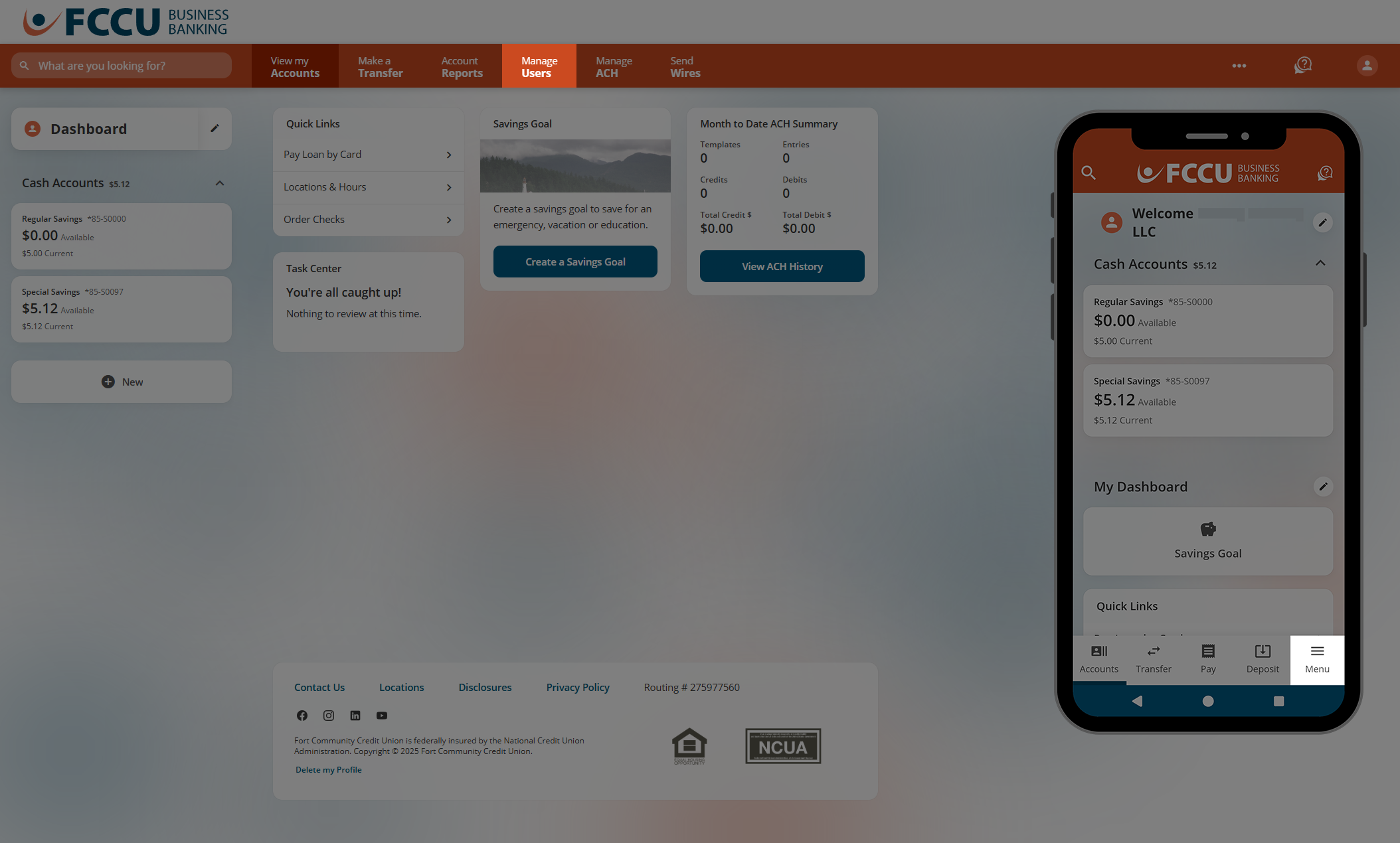
From your business account dashboard, click the Manage Users menu option.
On the mobile app, tap the Menu button.
-
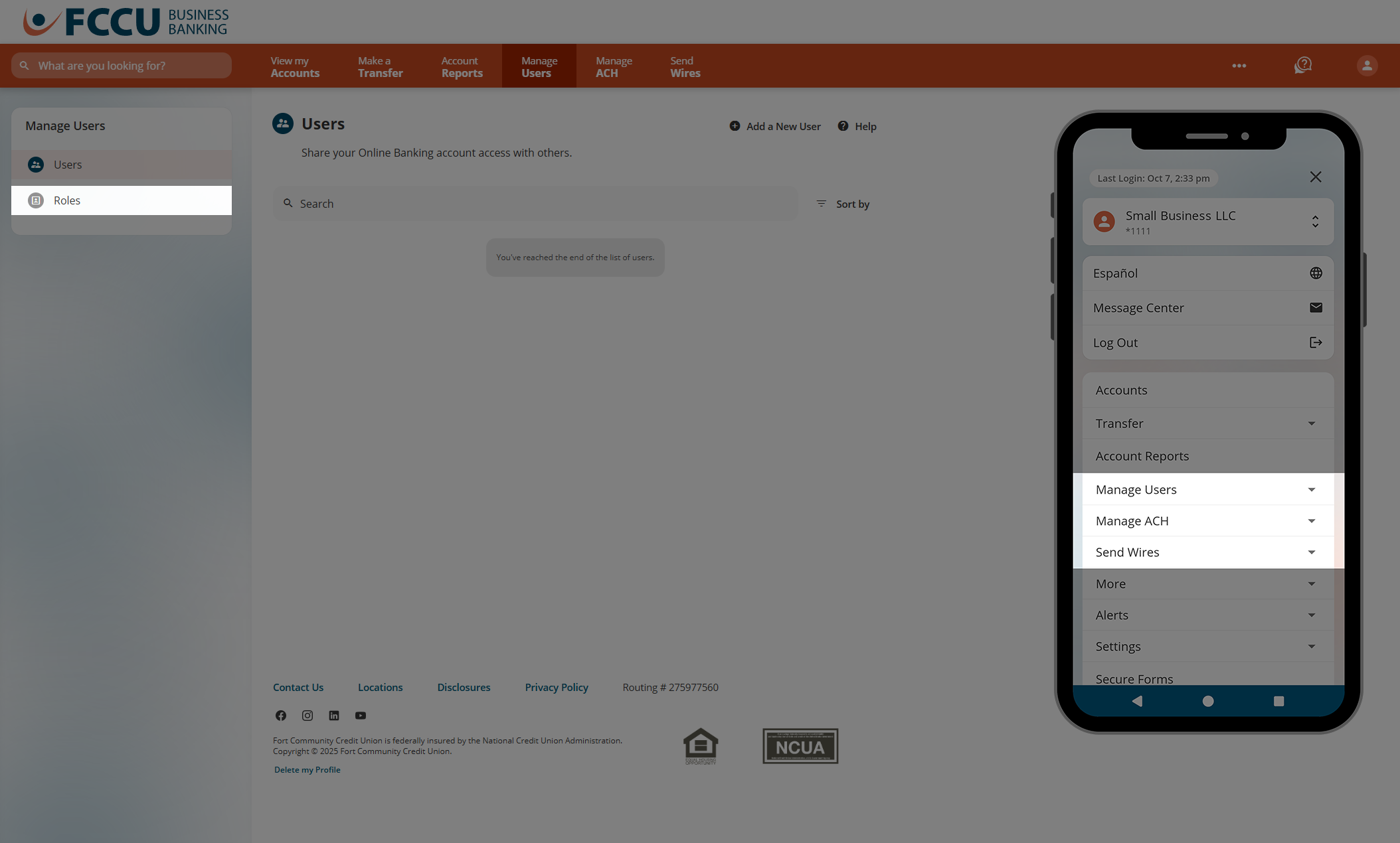
Click the Roles menu option.
On the mobile app, tap the Manage Users dropdown menu and then tap the Roles menu option.
-
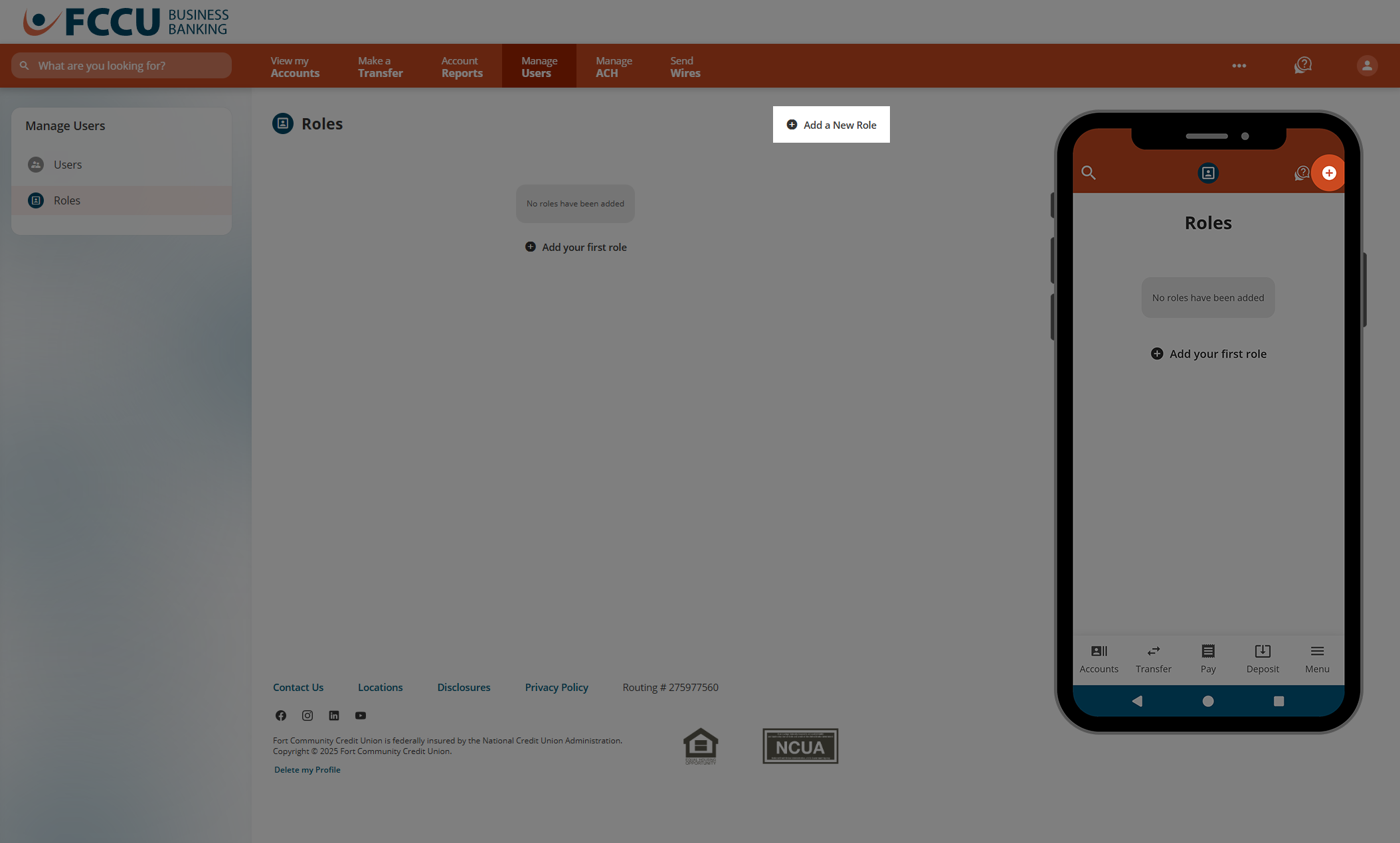
Click the Add a New Role button. A new window will appear.
On the mobile app, tap the + icon at the top right of the screen.

You will be prompted to verify your identity to proceed.
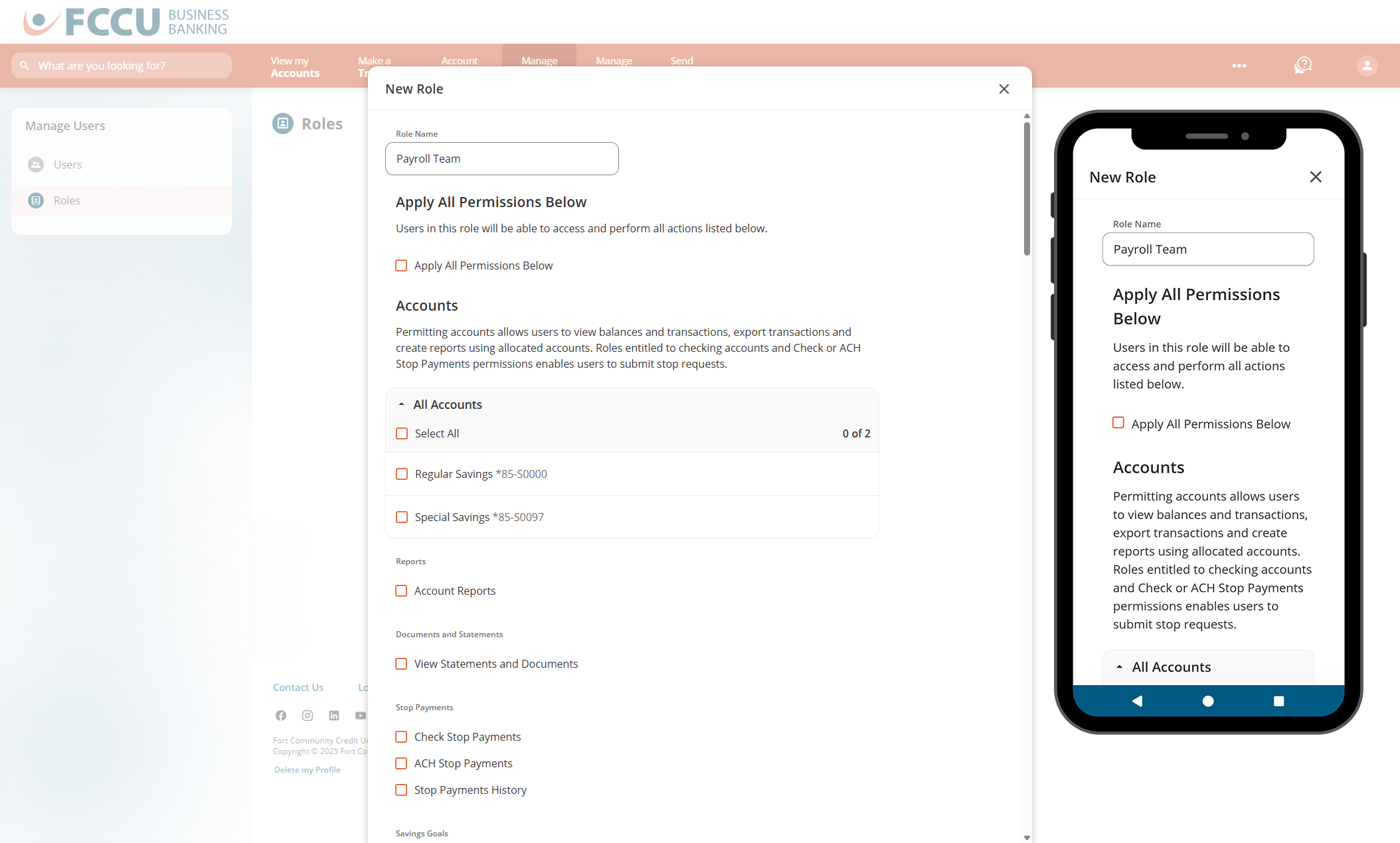
- In the Role Name field, type in a name that will distinguish this role from others.
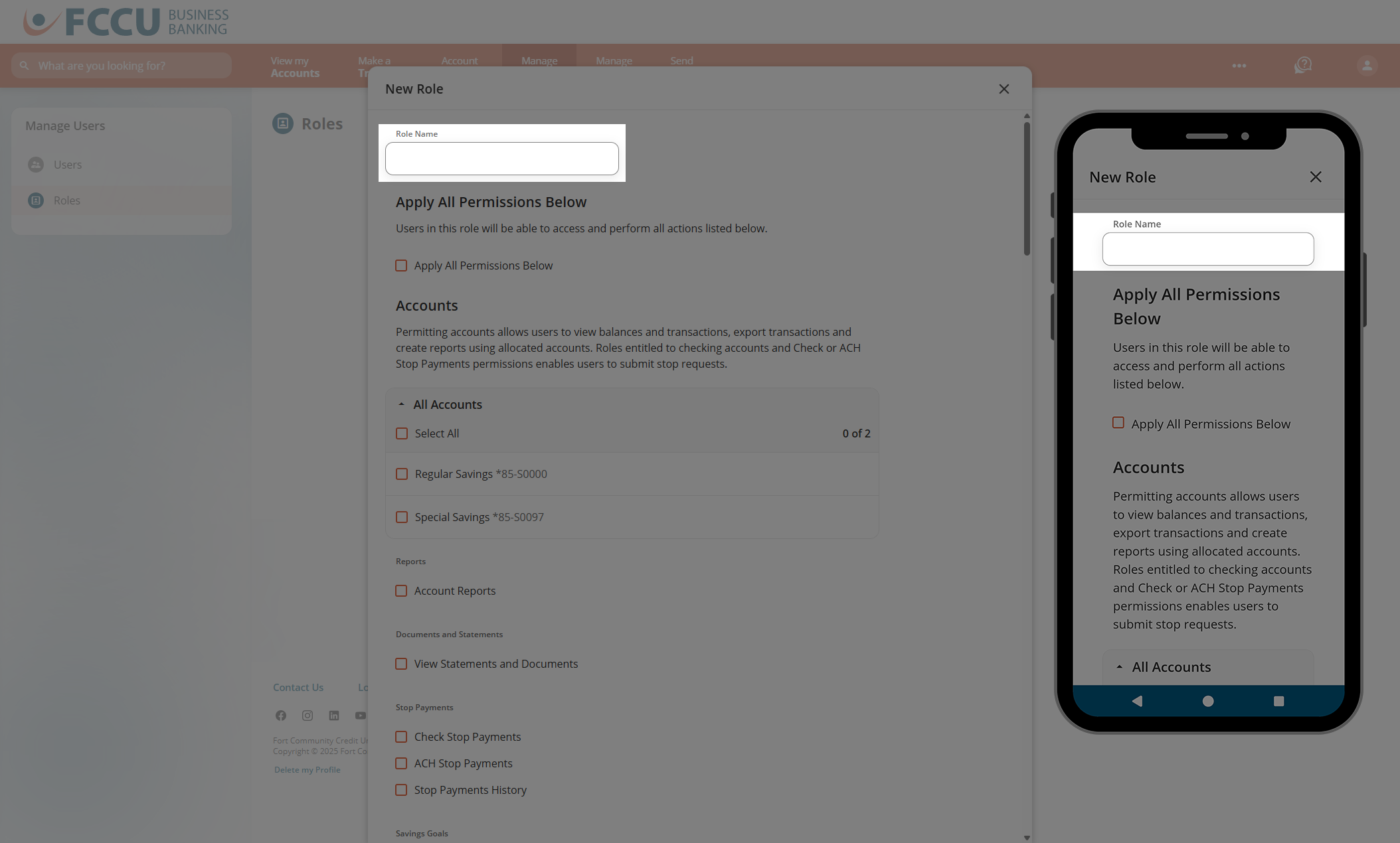
- Select the desired permissions for the new role, or select the Select All Permissions checkbox if the new role requires full access.
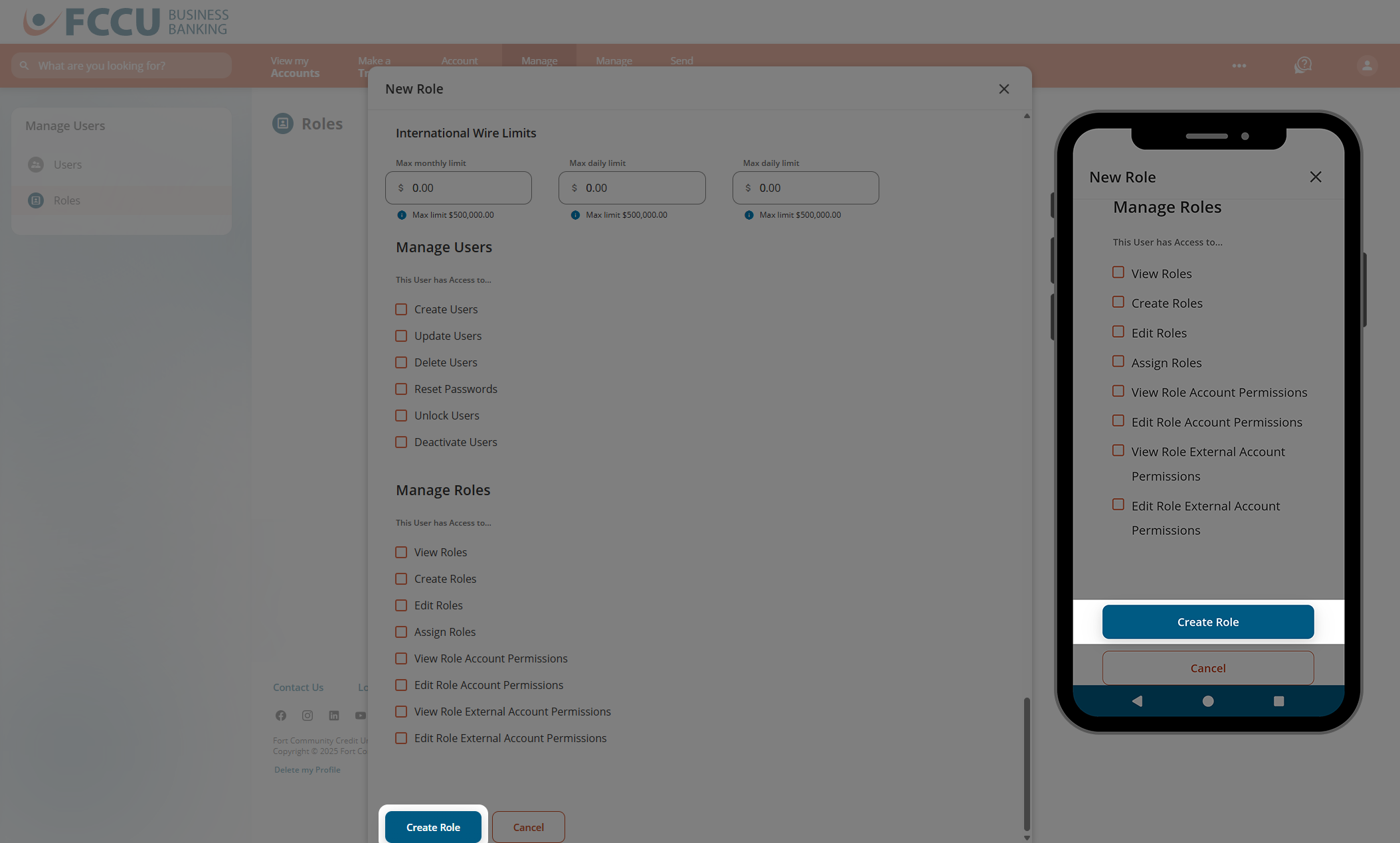
- If everything looks good, click the Create Role button. This window will close.
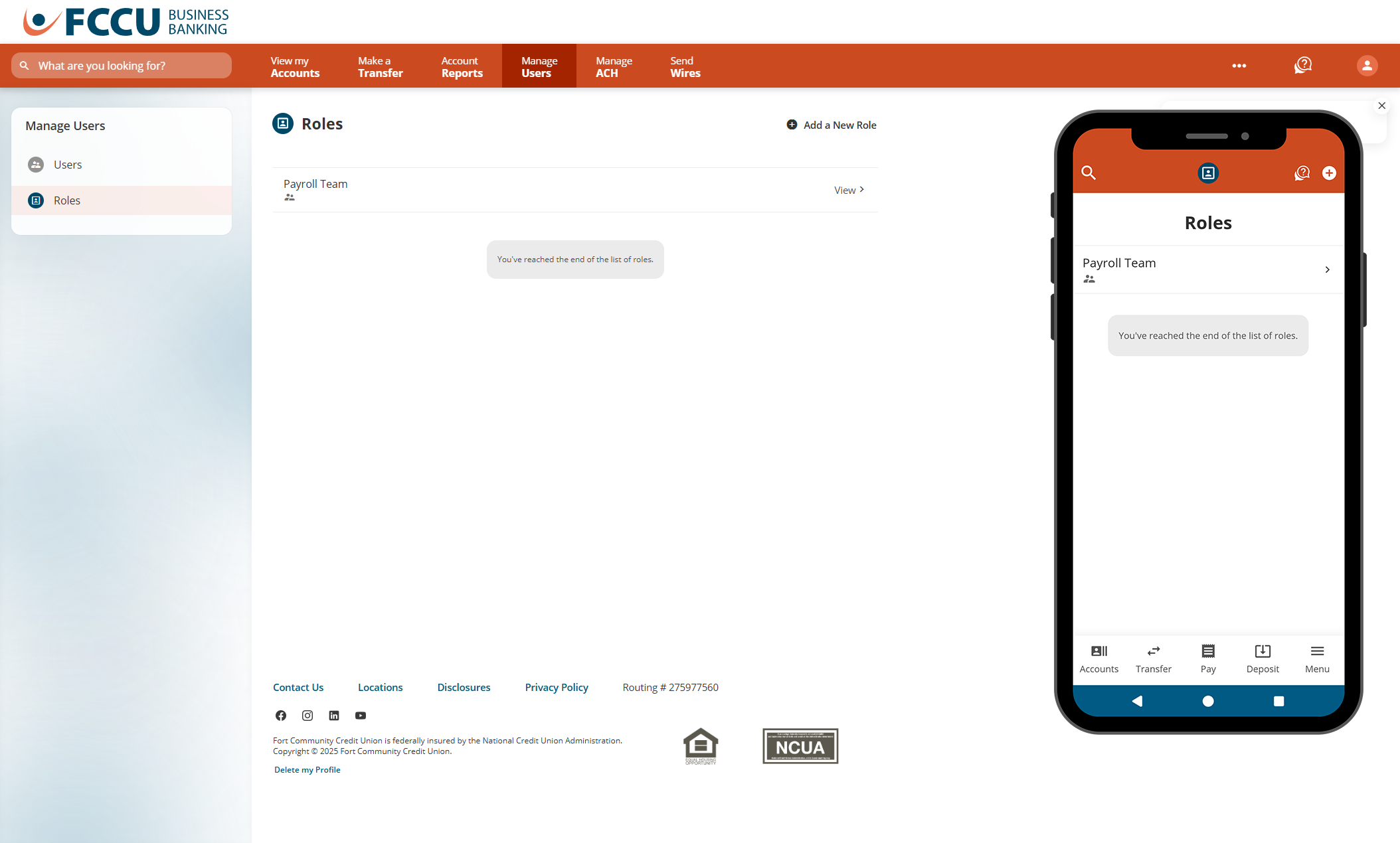
- Your new role has been added!
{endAccordion}
 Role Permissions
A role is a group of permissions and limits that a business can allocate to a user. Roles determine the accounts that a user can access and the tasks they can perform for a business in digital banking.

Apply All Permissions Below
Allows user access to all accounts and available business banking permissions.
Note: Transaction limits for external transfers, business ACH, and wire transfers need to be added manually.
Click the accordions below to learn more:
{beginAccordion}
Accounts
Permitting accounts allows user to view balances and transactions, export transactions and create reports using allocated accounts. Roles entitled to checking accounts and Check or ACH Stop Payments permissions enables users to submit stop request
Reports
Account Reports
Allows user to add, edit, delete, and download data from custom reports.
Documents and Statements
View Statements and Documents
Allows user to view and download account statements, electronic tax forms, and other electronic documents.
Note: Only the primary user is permitted to enroll or unenroll in E-Statements.
Bill Payments
Bill Pay
Allows user access to bill pay services.
Check Deposits
Mobile Check Deposit
Allows user access to deposit checks from the mobile app.
Stop Payments
Check Stop Payments
Allows user to access the Stop Payments feature and submit check stop payment requests for checking accounts permitted to their role.
ACH Stop Payments
Allows user to access and submit ACH stop payment requests.
Stop Payments History
Allows user to access check and ACH stop payment history.
Note: Users are able to view history for stop payments they are permitted to use.
Savings Goals
Create a Savings Goal
Allows user to create a savings goal using a permitted account.
{endAccordion}
{beginAccordion}
External Accounts
This User has Access to...
View External Accounts
Allows user to view and manage External Accounts including accounts added by other users.
View Member to Member Accounts
Allows user to view Member to Member Accounts.
Add External Accounts
Allows user to add and verify new External Accounts.
Required: Under Transfer To and From, select the Select All - All External Accounts checkbox.
Add Member to Member Accounts
Allows user to add new Member to Member Accounts.
Schedule Member to Member Transfers
Allows user to transfer funds to permitted Member to Member Accounts.
Schedule External Transfers
Allows user to transfer funds to and from permitted External Accounts.
External Transfer Limits

Limit per credit
Maximum credit amount per individual External Transfer (max limit: $2,000).
Limit per debit
Maximum debit amount per individual External Transfer (max limit: $2,000).
{endAccordion}
{beginAccordion}
Business ACH
This User has Access to...
Add ACH Templates
Allows user to add a new business ACH template.
Approve ACH Templates
Allows user to approve ACH templates. Users can approve templates of any permitted transaction type.
Note: Users must be assigned the following permissions associated with a template in order to view and approve templates: ACH Transaction Type, ACH Company.
Delete ACH Templates
Allows user to delete a business ACH template.
Access Restricted Templates
Allows user to add and view ACH templates and ACH Pass-Thru files flagged as restricted.
Import ACH Templates & Recipients
Allows user to import ACH and recipient entries using .csv or NACHA formats.
ACH Pass-Thru
Allows user to access the ACH Pass-Thru feature and upload .csv and NACHA-formatted files generated using other software systems (e.g., accounting or payroll application).
ACH History
Allows user to access ACH History.
ACH Reversals
Allows user to access and schedule ACH reversal transactions if within NACHA specified time frame.
Manage ACH NOCs and Returns
Allows user to access the ACH NOC/Return feature to view open issues, resolve issues, and view resolved items.
Add Recipient
Allows user to add ACH recipients.
Delete Recipient
Allows user to delete ACH recipients.
ACH Transaction Types
Note: If a user is permitted any ACH Transaction Type AND has Edit/Create Roles permissions, they will have the ability to edit ACH Transaction Limits and assign ACH Companies.
Payroll Direct Deposit (PPD)
Allows user to use the PPD, Credit transaction type. This code can also be used to credit individuals (e.g., refunds, other payments to consumers).
Credit Businesses (CCD)
Allows user to use the CCD, Credit ACH Standard Entry Class Code. This code is used to credit businesses.
Debit Consumers (PPD)
Allows user to use the PPD, Debit ACH transaction type. This code is used to debit individuals (e.g., debit a consumer for a monthly fee).
Debit Businesses (CCD)
Allows user to use the CCD, Debit ACH Standard Entry Class Code. This code is used to debit businesses.
ACH Debit Limits
Max monthly debit limit
Maximum cumulative ACH debit amount a user can submit per month (max limit: $10,000).
Max daily debit limit
Maximum cumulative ACH debit amount a user can submit per day (max limit: $2,000).
ACH Credit Limits
Max monthly credit limit
Maximum cumulative ACH credit amount a user can submit per month (max limit: $10,000).
Max daily credit limit
Maximum cumulative ACH credit amount a user can submit per day (max limit: $2,000).
{endAccordion}
{beginAccordion}
Wire Transfers
Wire Offset Accounts
Allow users access to offset accounts for one-time wires and wire transfer templates.
This User has Access to...
Add Wire Templates
Allows user to add and schedule one-time and templates from wires.
Delete Wire Templates
Allows user to delete wire transfer templates.
Approve Wire Requests
Allows user to approve one-time and wire transfer templates.
Wire History
Allows user to view wire transfer history.
Note: Users are restricted to viewing history based on Wire Transaction Type permissions.
Wire Transaction Types
Domestic
Allows user to add domestic wire transfer templates and submit one-time domestic wire requests.
International
Allows user to add international wire transfer templates and submit one-time international wire requests.
Domestic Wire Limits
Max monthly limit
Maximum cumulative domestic wire total a user can submit per month (max limit: $500,000).
Max daily limit
Maximum cumulative domestic wire total a user can submit per day (max limit: $500,000).
Max per wire limit
Maximum amount per domestic wire (max limit: $500,000).
International Wire Limits
Max monthly limit
Maximum cumulative international wire total a user can submit per month (max limit: $500,000).
Max daily limit
Maximum cumulative international wire total a user can submit per day (max limit: $500,000).
Max per wire limit
Maximum amount per international wire (max limit: $500,000).
{endAccordion}
{beginAccordion}
Manage Users
This User has Access to...
Create Users
Allows user to access the Users navigation tab. If a user is not assigned this permission, the Users tab is hidden.
Required: Under Manage Roles, select the View Roles checkbox.
Update Users
Allows user to edit/update user information.
Required: Under Manage Roles, select the Assign Roles and View Roles checkboxes.
Delete Users
Allows user to delete users.
Required: Under Manage Roles, select the View Roles checkbox.
Reset Passwords
Allows user to reset user passwords.
Required: Under Manage Roles, select the View Roles checkbox.
Unlock Users
Allows user to unlock users.
Required: Under Manage Roles, select the View Roles checkbox.
Deactivate Users
Allows user to deactivate another user’s access to business digital banking.
Required: Under Manage Roles, select the View Roles checkbox.
{endAccordion}
{beginAccordion}
Manage Roles
This User has Access to...
View Roles
Allows user to access the Roles navigation tab. If a user is not assigned this permission, the Roles tab is hidden.
Create Roles
Allows user to create new user roles.
Note: Users are not allowed to add permissions to a new role that are not assigned in their own user role. For example, if the user's role doesn’t have ACH Transaction Types, that user will not be able to add those permissions to a role.
Edit Roles
Allows user to edit user roles.
Note: Users are not allowed to edit their own role, nor are they allowed to add permissions that are not assigned in their own user role. For example, if the user's role doesn’t have ACH Transaction Types, that user will not be able to add those permissions for another role.
Assign Roles
Allows user to access the Roles dropdown on the Users page and assign roles to users.
Note: Users are prohibited from editing the role assigned to their profile, changing their own role, or assigning users to the primary user's role.
View Role Account Permissions
Allows user to view account permissions. If a user is not assigned this permission, the Accounts list is hidden on Role screens.
Edit Role Account Permissions
Allows user to add or remove internal account permissions at the user role level.
Note: This feature also controls the ability to add or remove To and From Accounts for Internal Transfers.
View Role External Account Permissions
Allows user to view External Accounts and external transfer limits.
Edit Role External Account Permissions
Allows user to allocate External Accounts and external transfer limits.
{endAccordion}
Updated 9/16/2026