



Checking & Savings / Digital Banking / Instructions / External Transfers
Transfer money to and from your account at another financial institution.
Instant Account Verification
Add an external account from select banking institutions instantly.

Manual Account Input
Add an external account using account information (takes 2-3 business days).
Transfer Money
Schedule a one-time or recurring transfer between your accounts.
 Add an External Account
You can add an external account in two ways. Click the accordions below to learn more:
{beginAccordion}
Instant Account Verification
-
From your account dashboard, click the Make a Transfer menu option.
On the mobile app, tap the Transfer menu option.
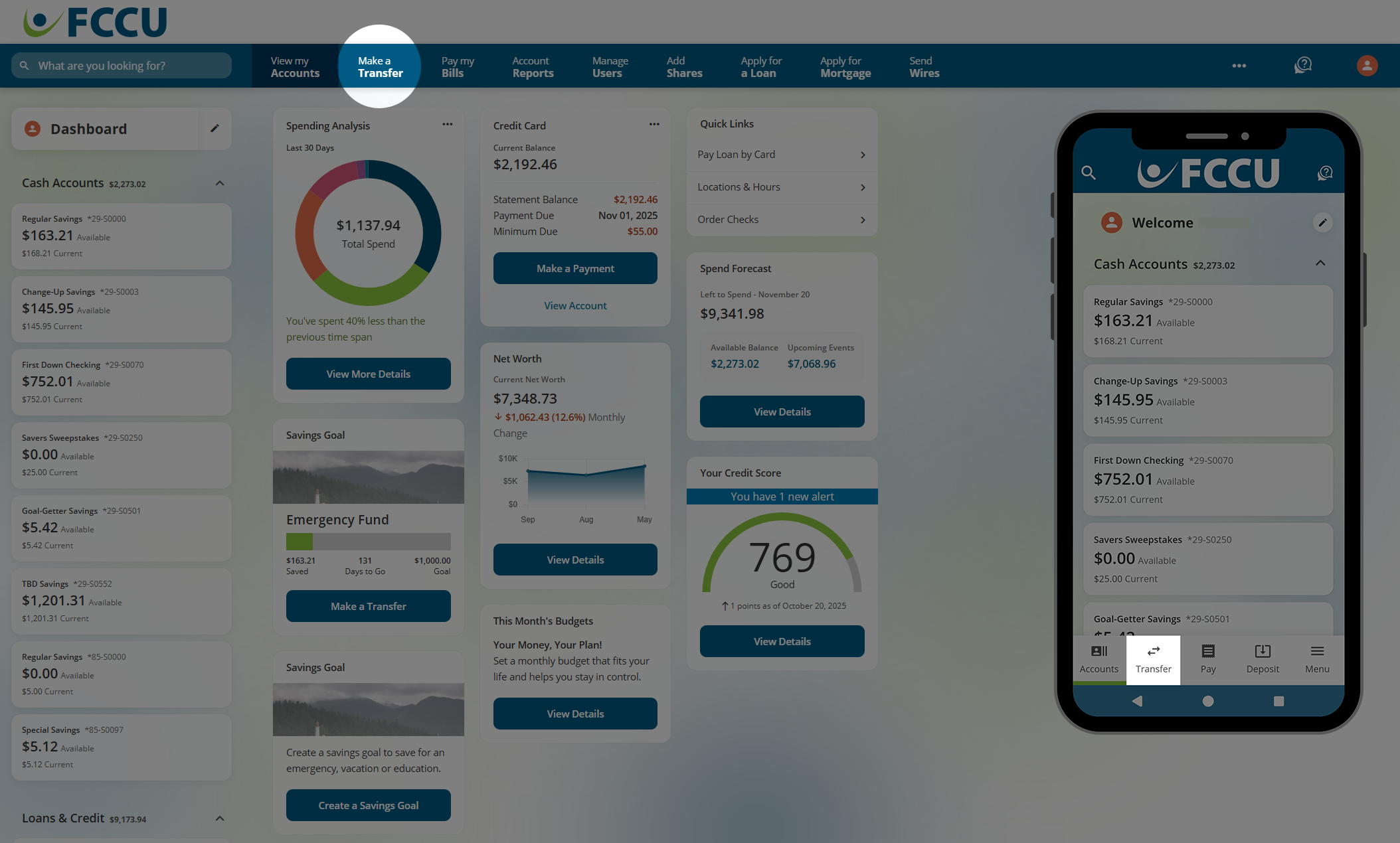
- Click the Add External Account button.
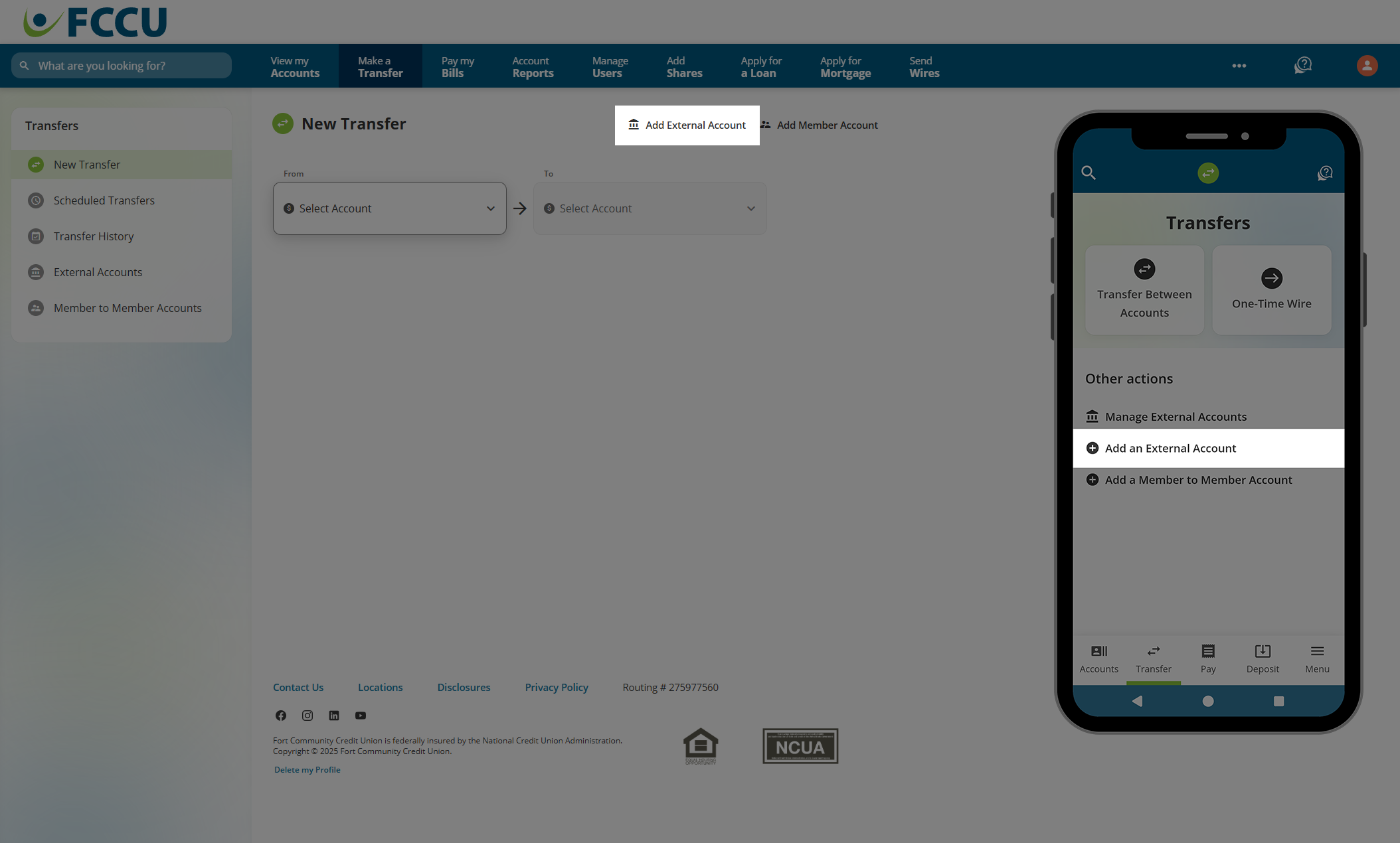

You will be prompted to verify your identity to proceed. If this is your first time adding an external account, you will also be prompted to read and accept disclosures to continue.
- Click the Get Started button.
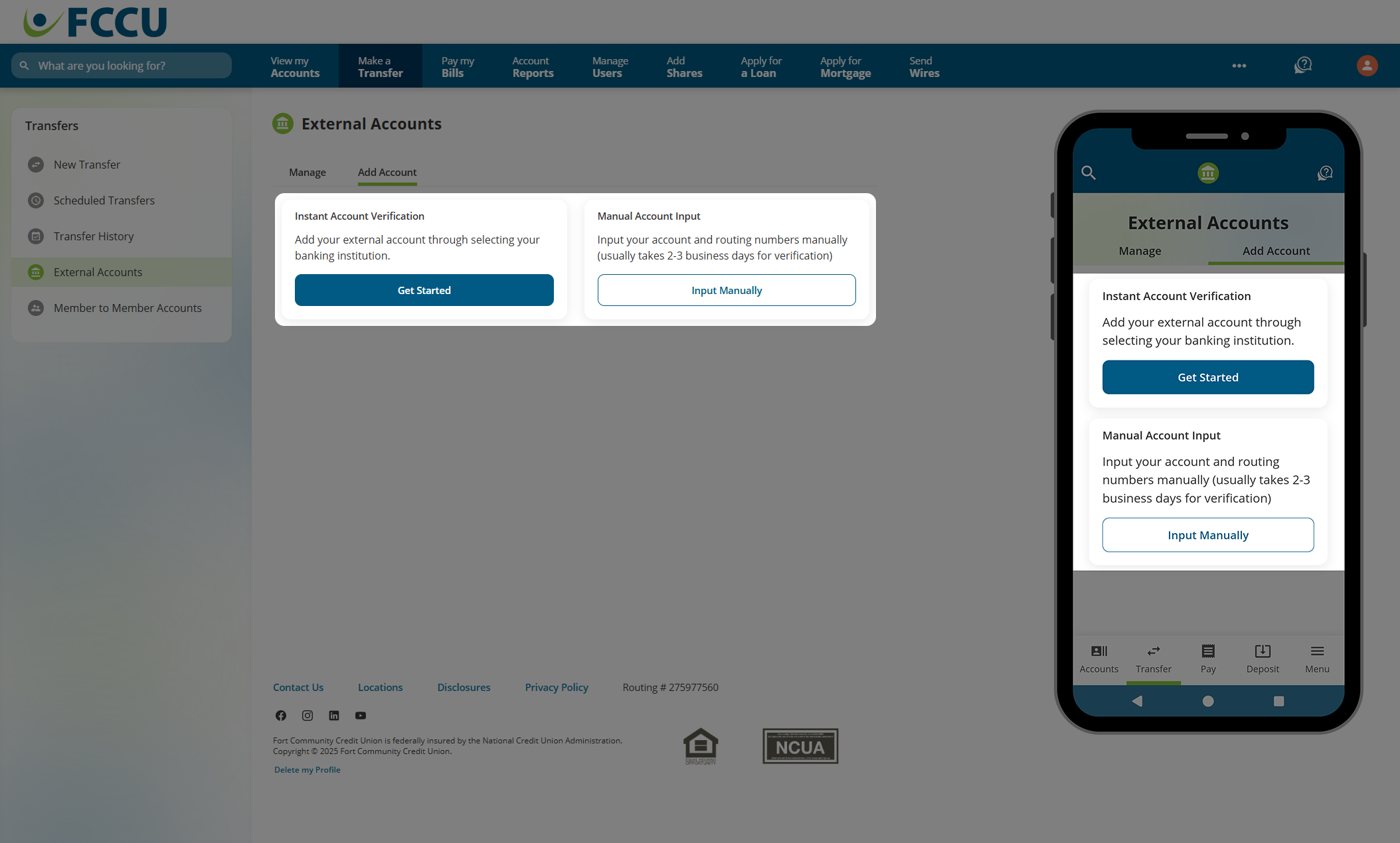
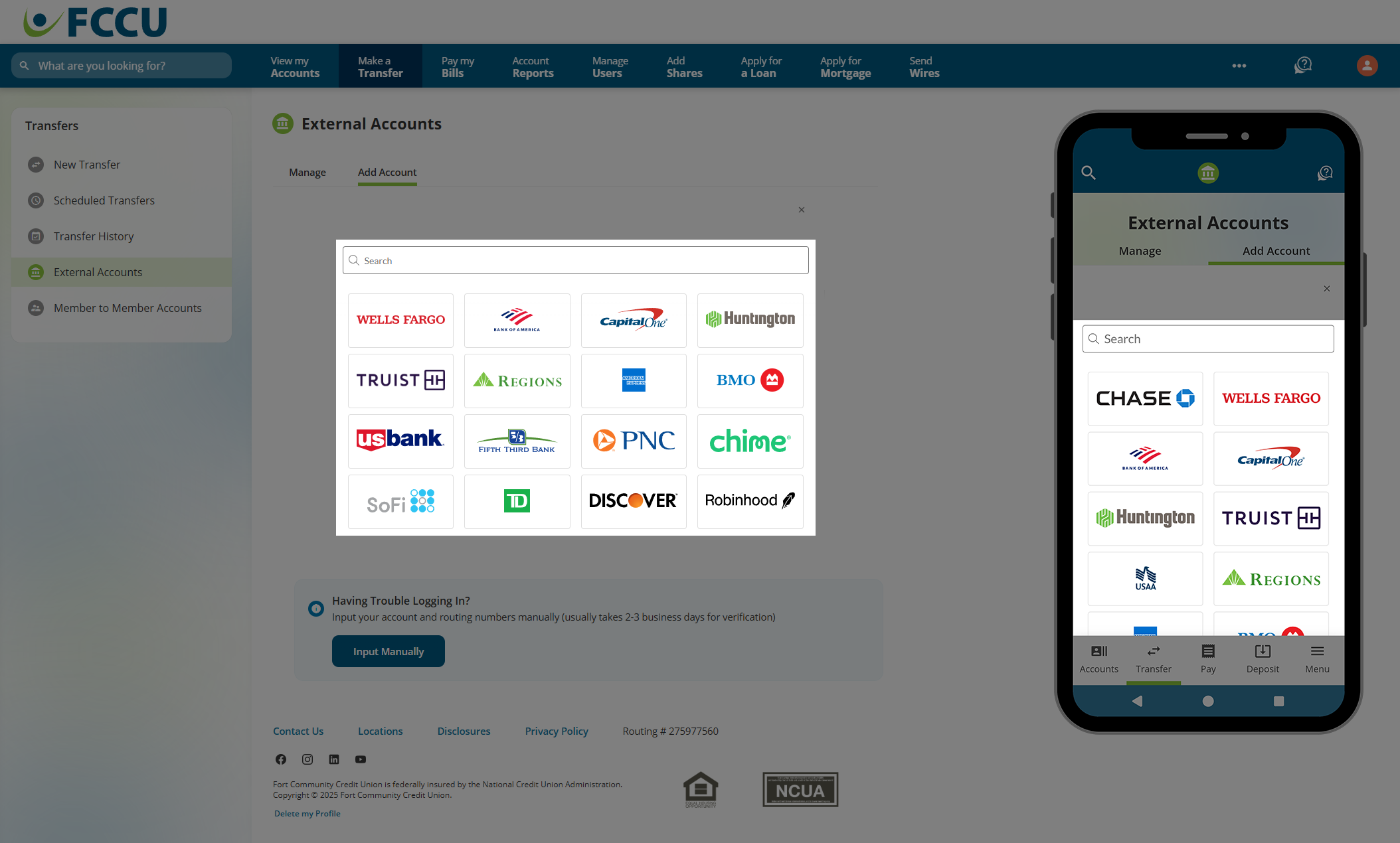
- Use the search bar to find the banking institution associated with your external account.
-
If your banking institution is listed, click on it.
If your banking institution is not listed, click the Input Manually button at the bottom of the page and continue to the Manual Account Input instructions.
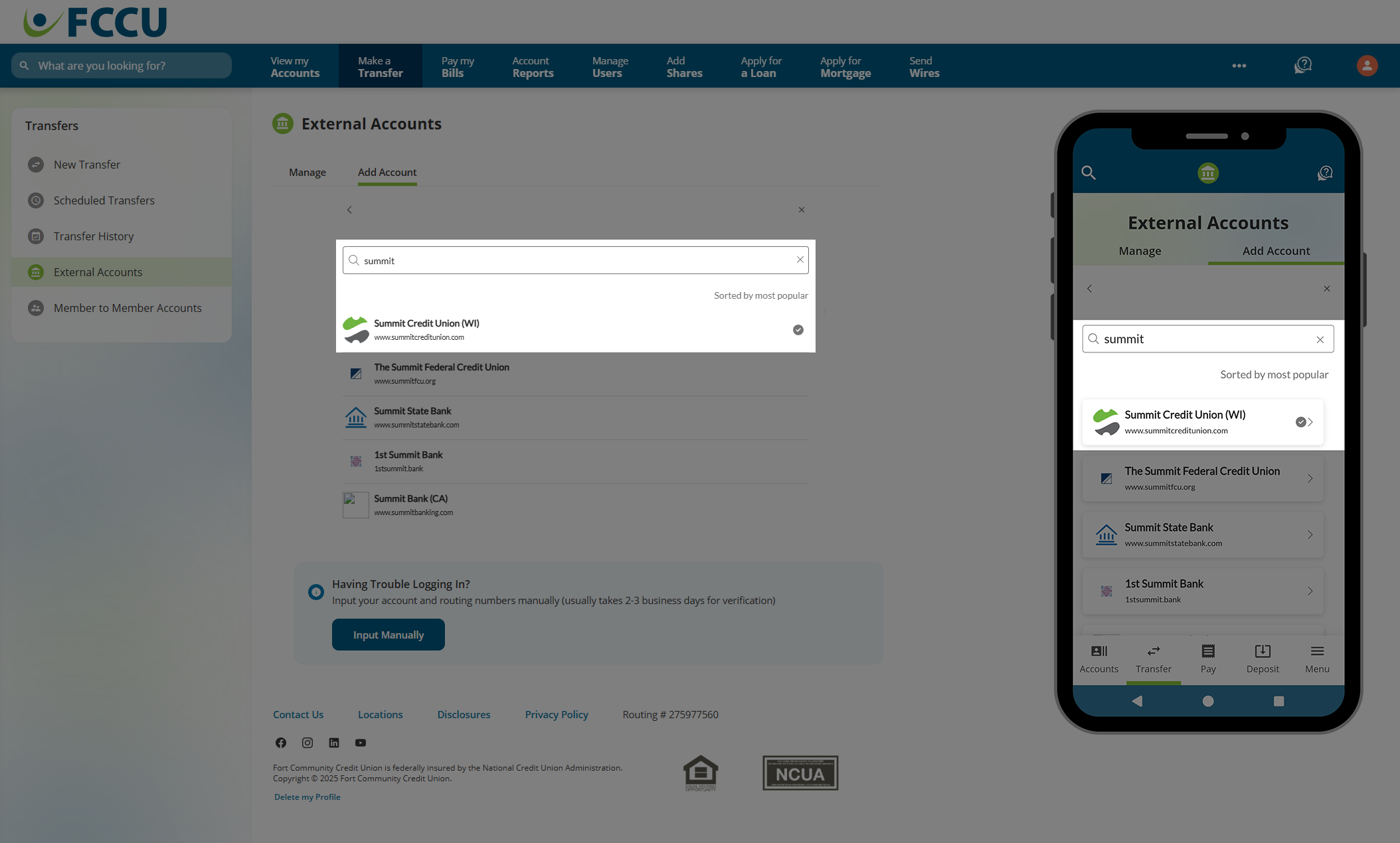
From here, your experience will look different based on the banking institution you selected.
On the same page or in a new browser tab, you will be presented a login page or further instructions on how to connect your account. You may also be prompted to verify your identity by the banking institution.
If your external account is successfully connected, you will be presented with an on-screen confirmation message!
{endAccordion}
{beginAccordion}
Manual Account Input
-
From your account dashboard, click the Make a Transfer menu option.
On the mobile app, tap the Transfer menu option.
- Click the Add External Account button.
You will be prompted to verify your identity to proceed. If this is your first time adding an external account, you will also be prompted to read and accept disclosures to continue.
- Click the Input Manually button.
- Use the search bar to find the banking institution associated with your external account.
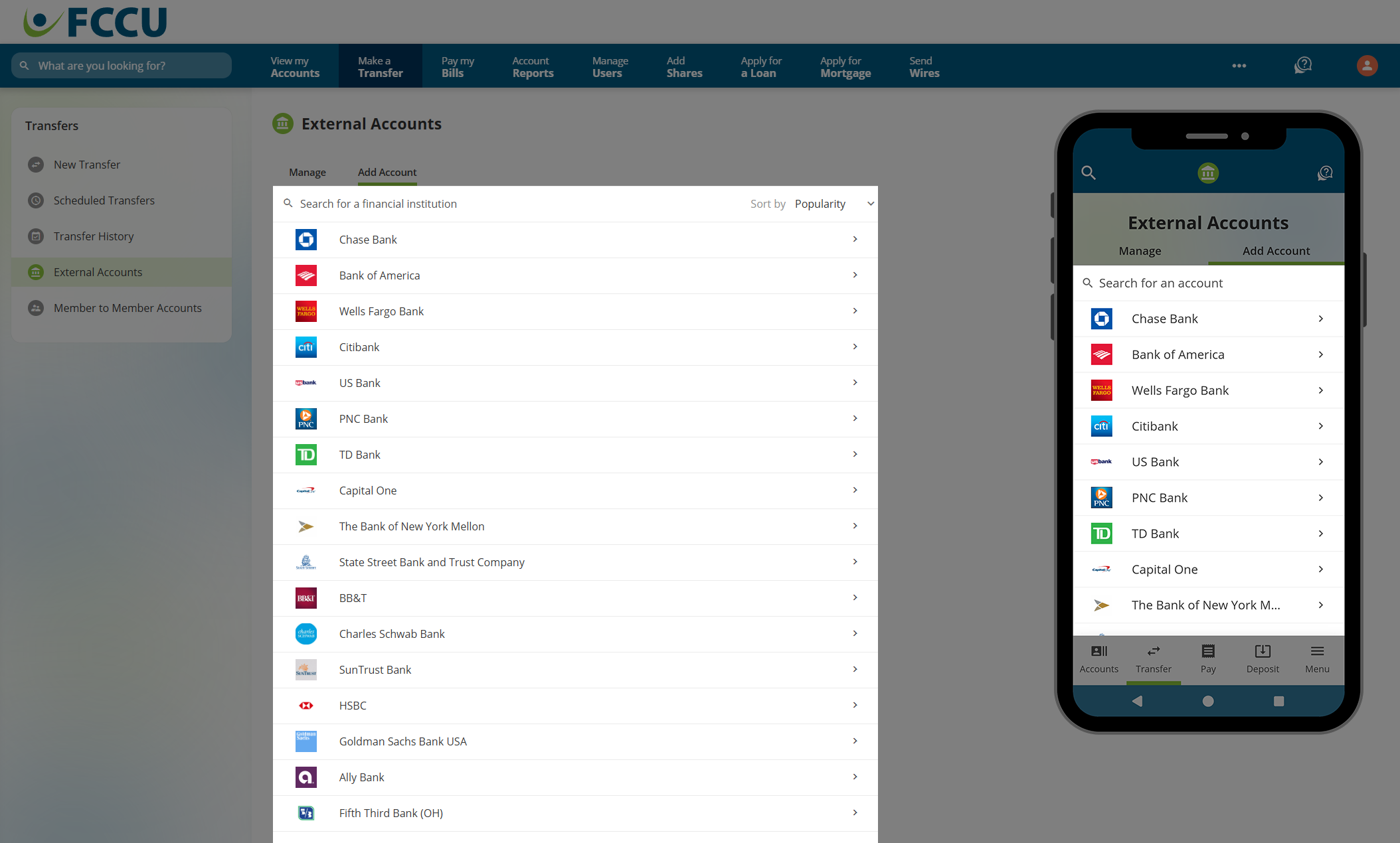
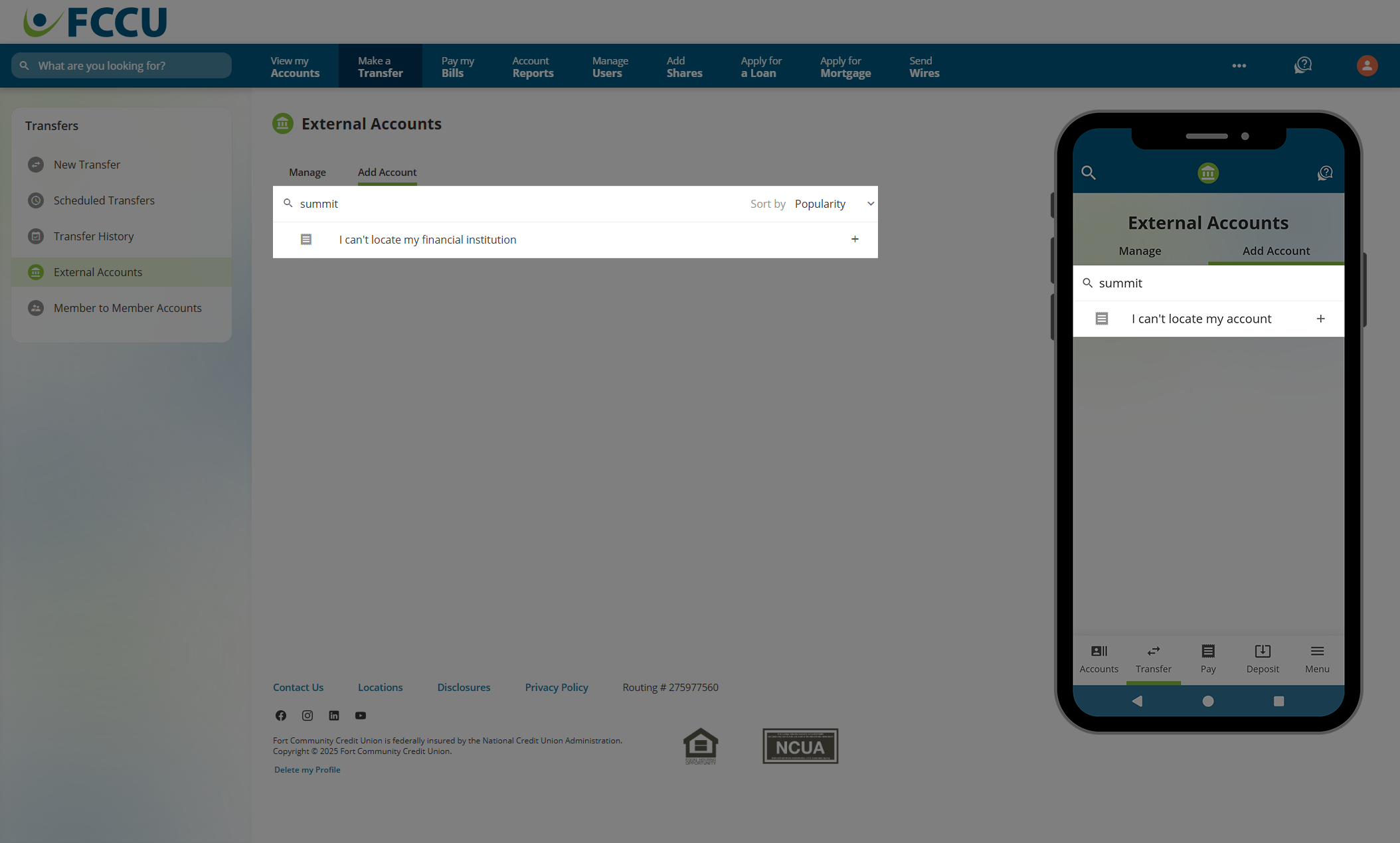
- If your banking institution is listed, click on it. Otherwise, click the I can't locate my financial institution option at the bottom of the list.
- In the Routing Number field, type in the routing number for the banking institution associated with your external account.

You can often find a financial institution's routing number on their website.
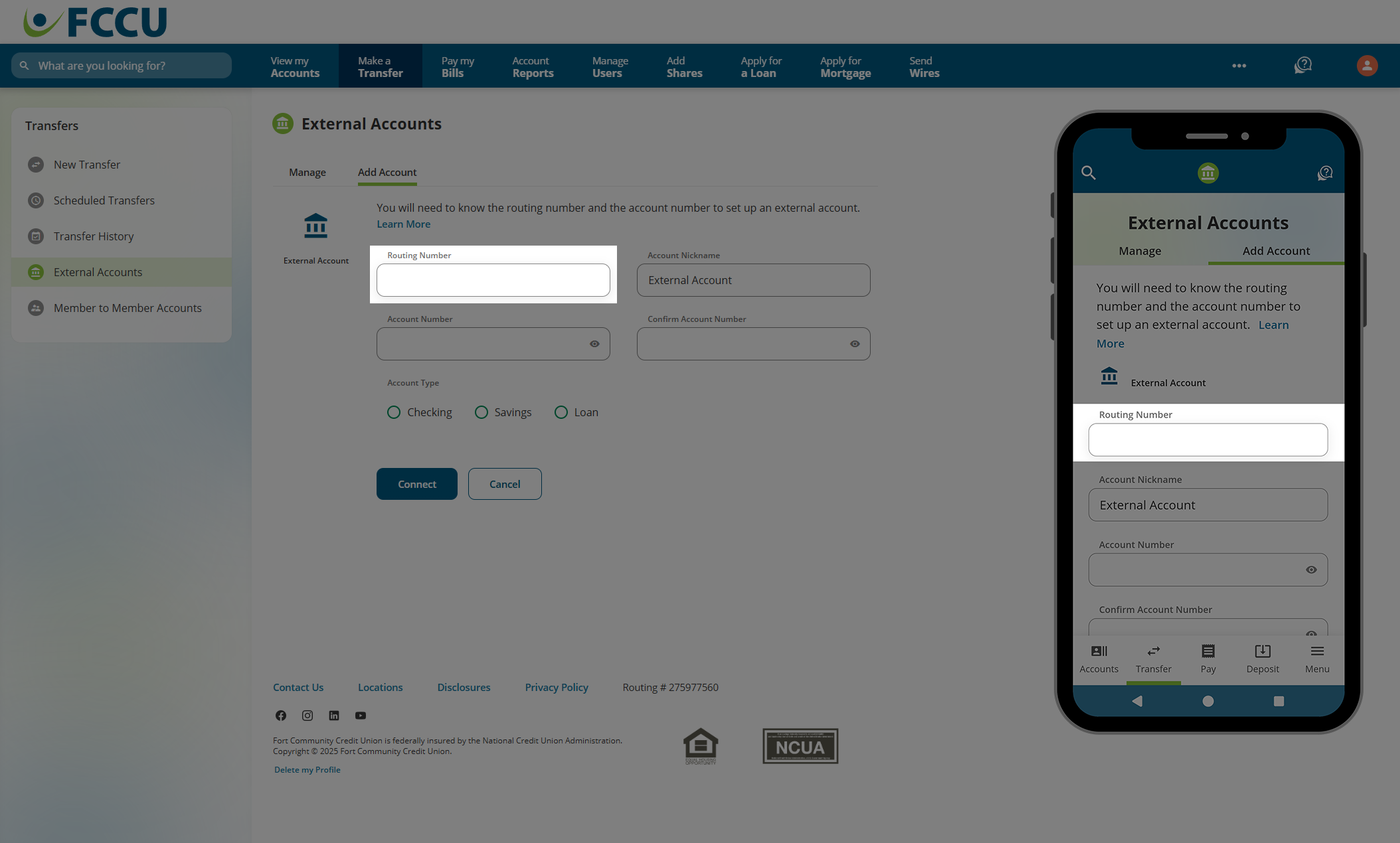
- If the routing number is recognized, the Account Nickname field will autofill with the name of the banking institution. You can edit the nickname or leave it as-is.
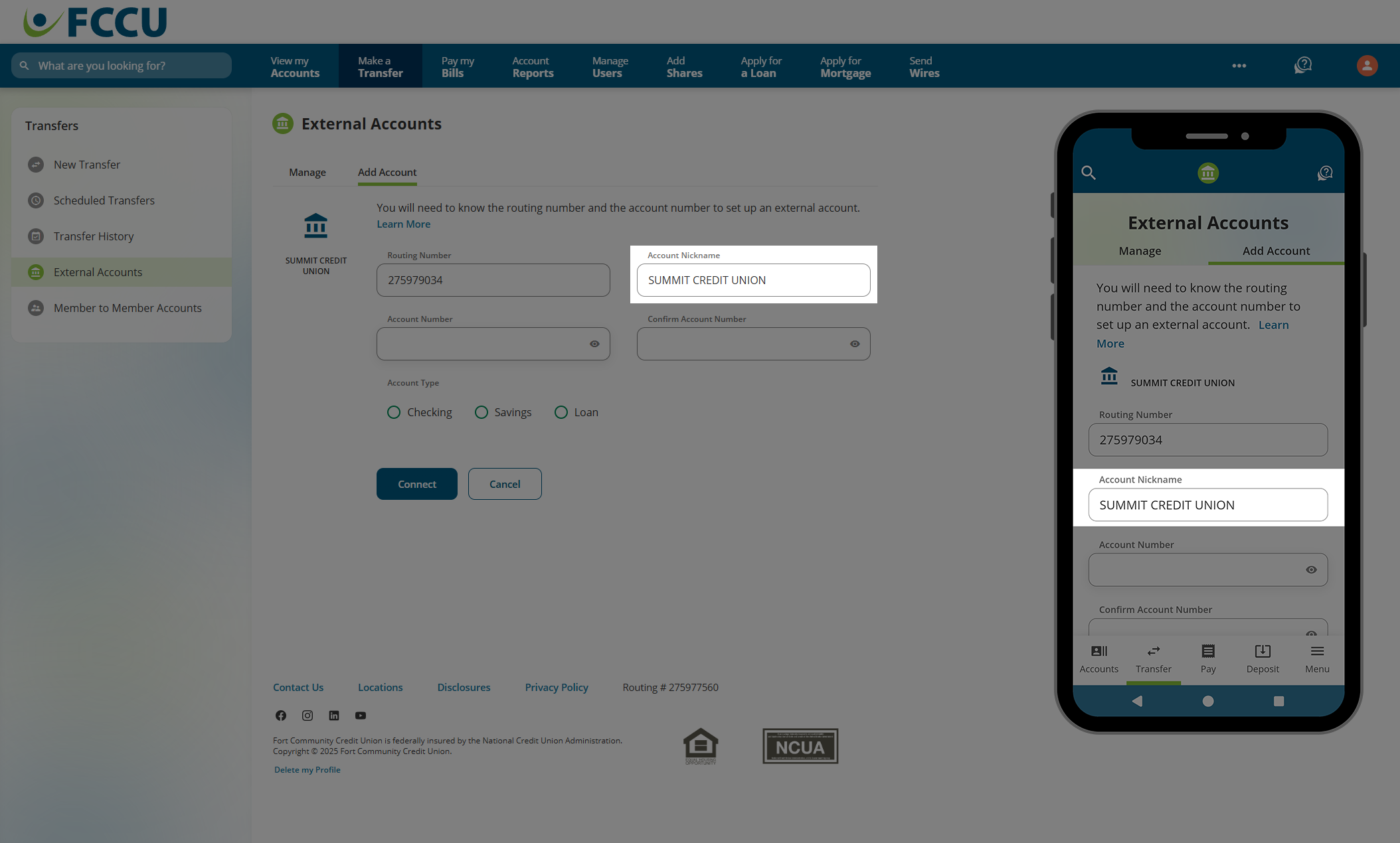
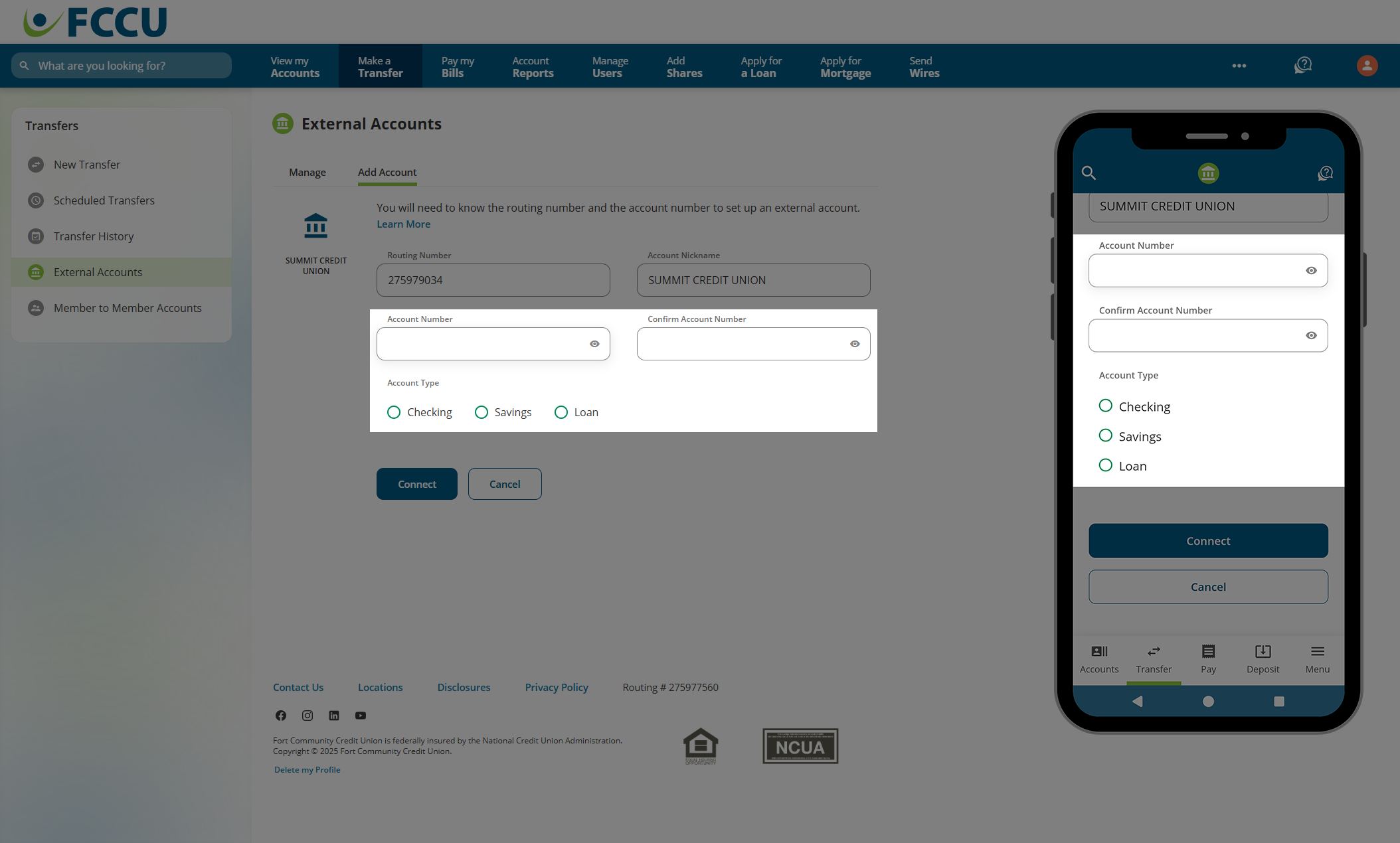
- In the Account Number and Confirm Account Number fields, type in the account number associated with you external account.
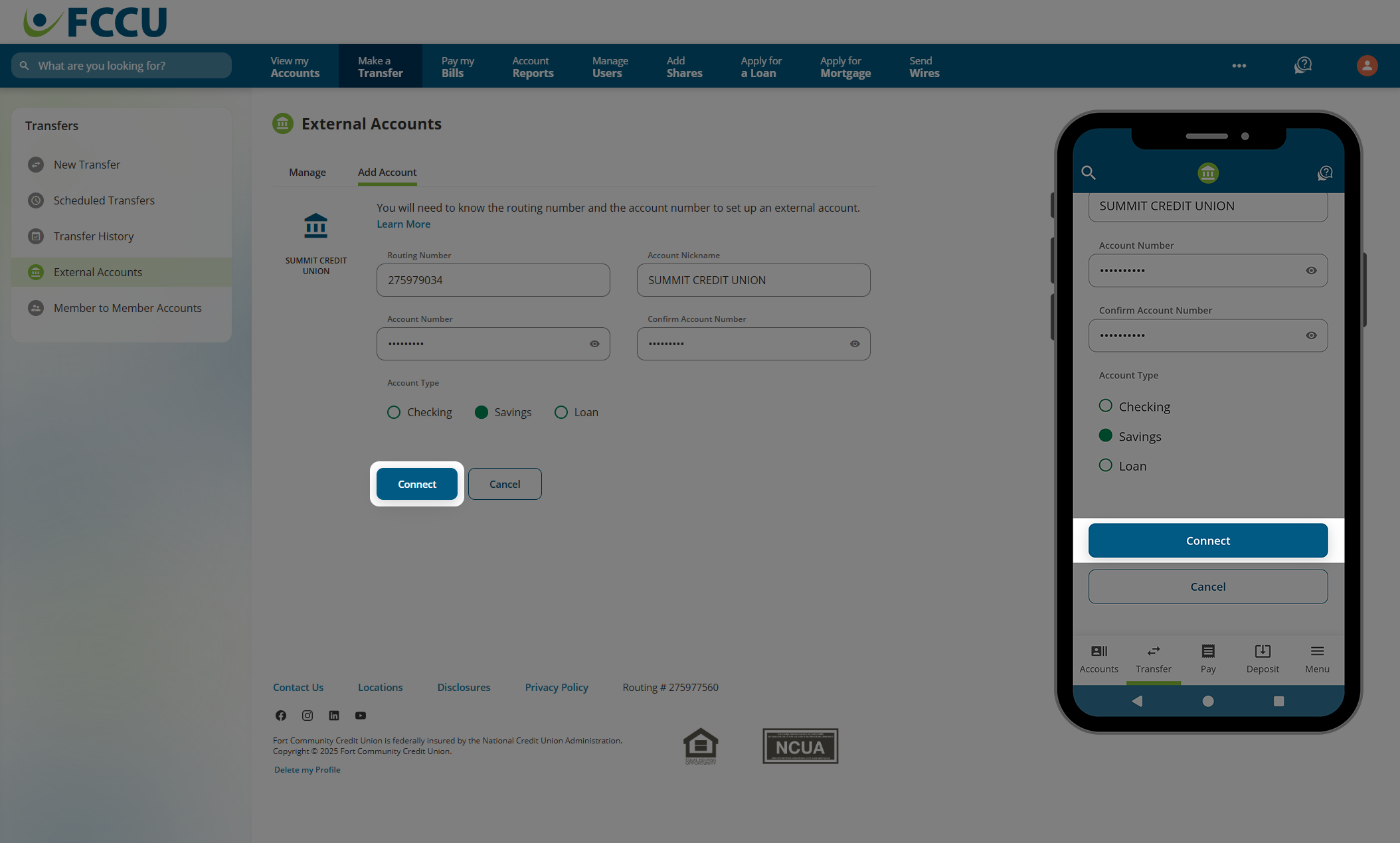
- Under Account Type, click the radio button next to the corresponding account type: Checking, Savings, or Loan.
- If everything looks good, click the Connect button.
 Next Steps
- Wait 2-3 business days for two small trial deposits to appear in your external account.
- Return to digital banking and enter the deposit amounts to complete the verification process (instructions below).
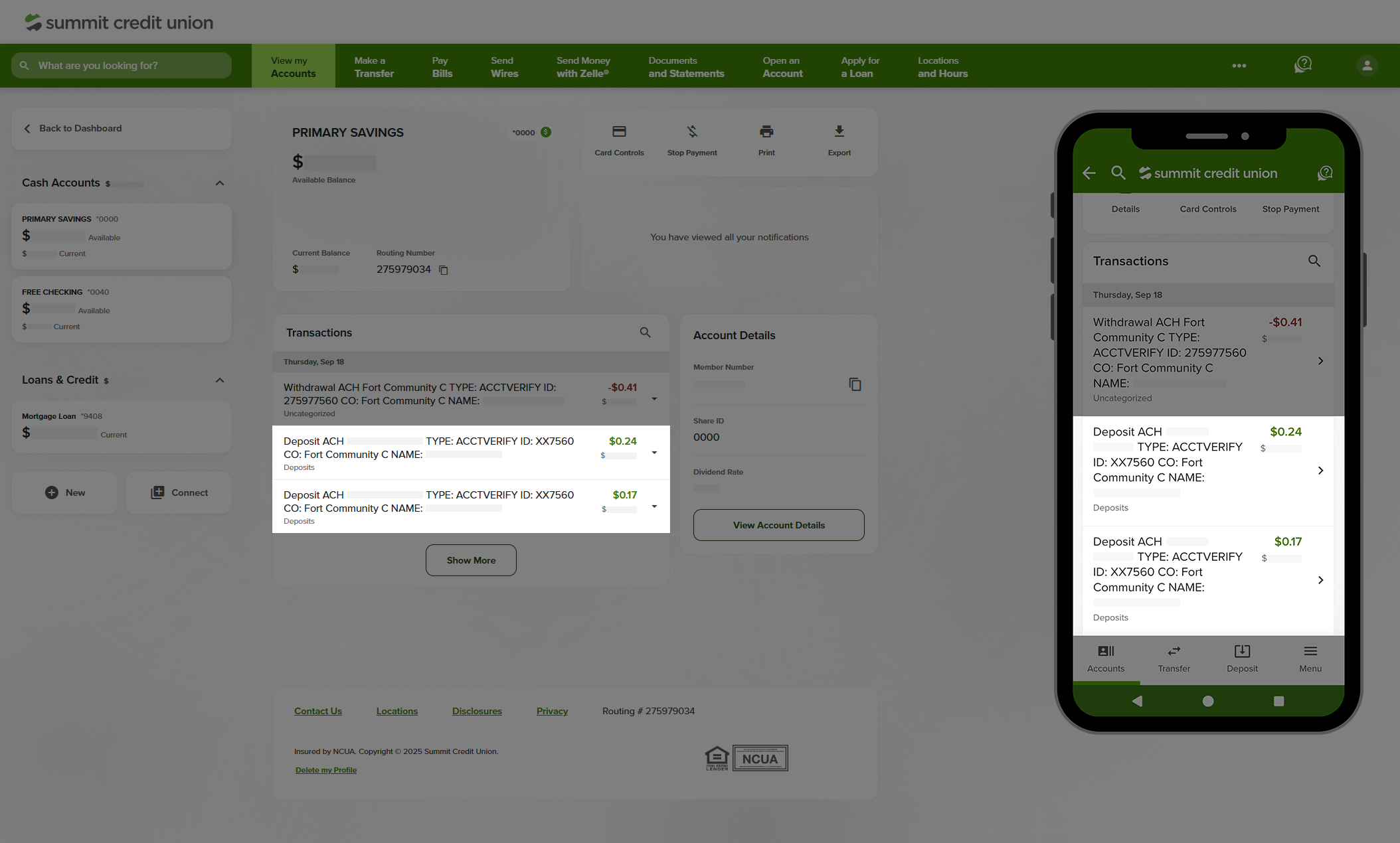
Screenshot: Example of small trial deposits in an external account.
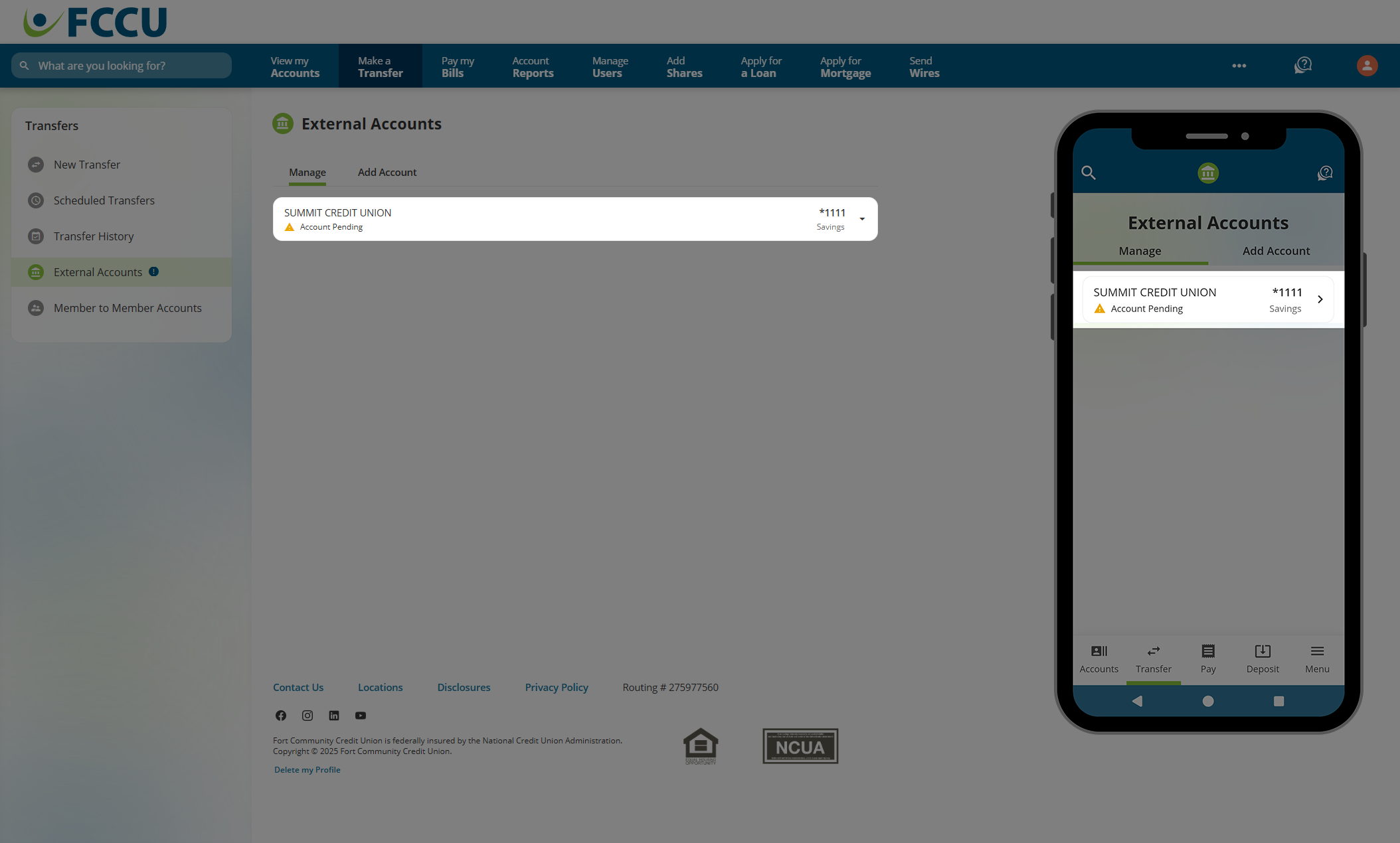
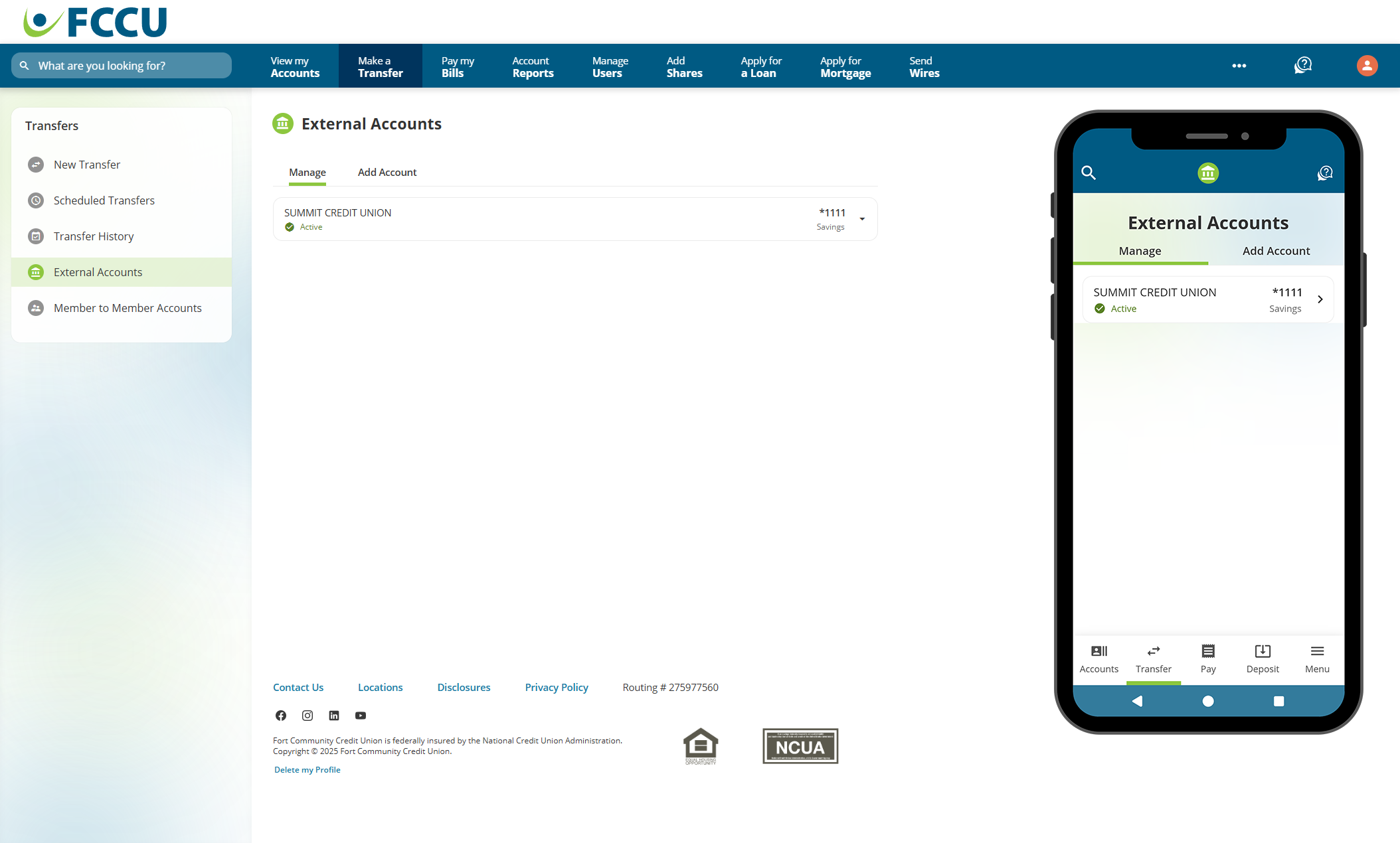
- Return to the External Accounts page.
- Click on the pending external account to expand it.
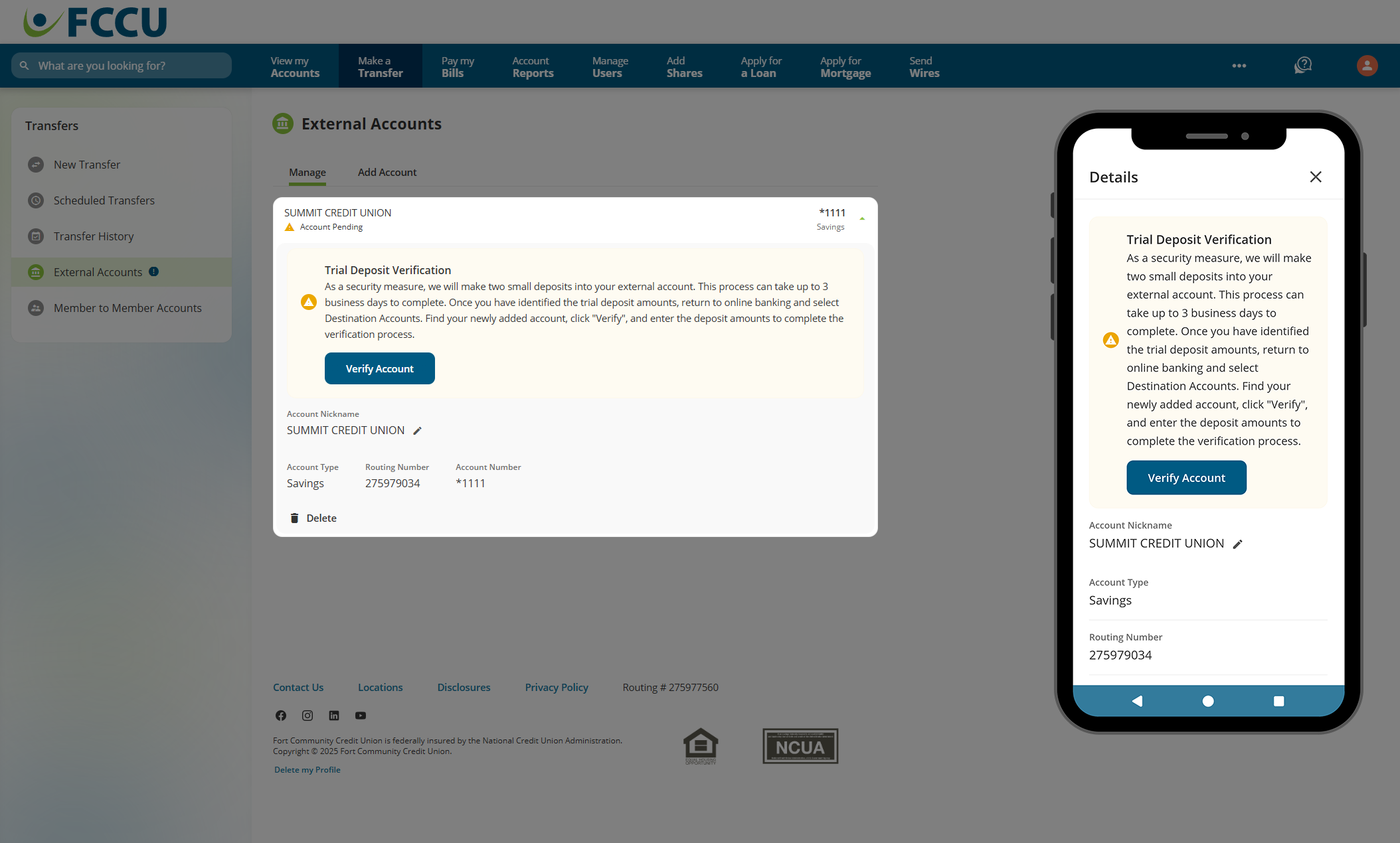
- Click the Verify Account button.
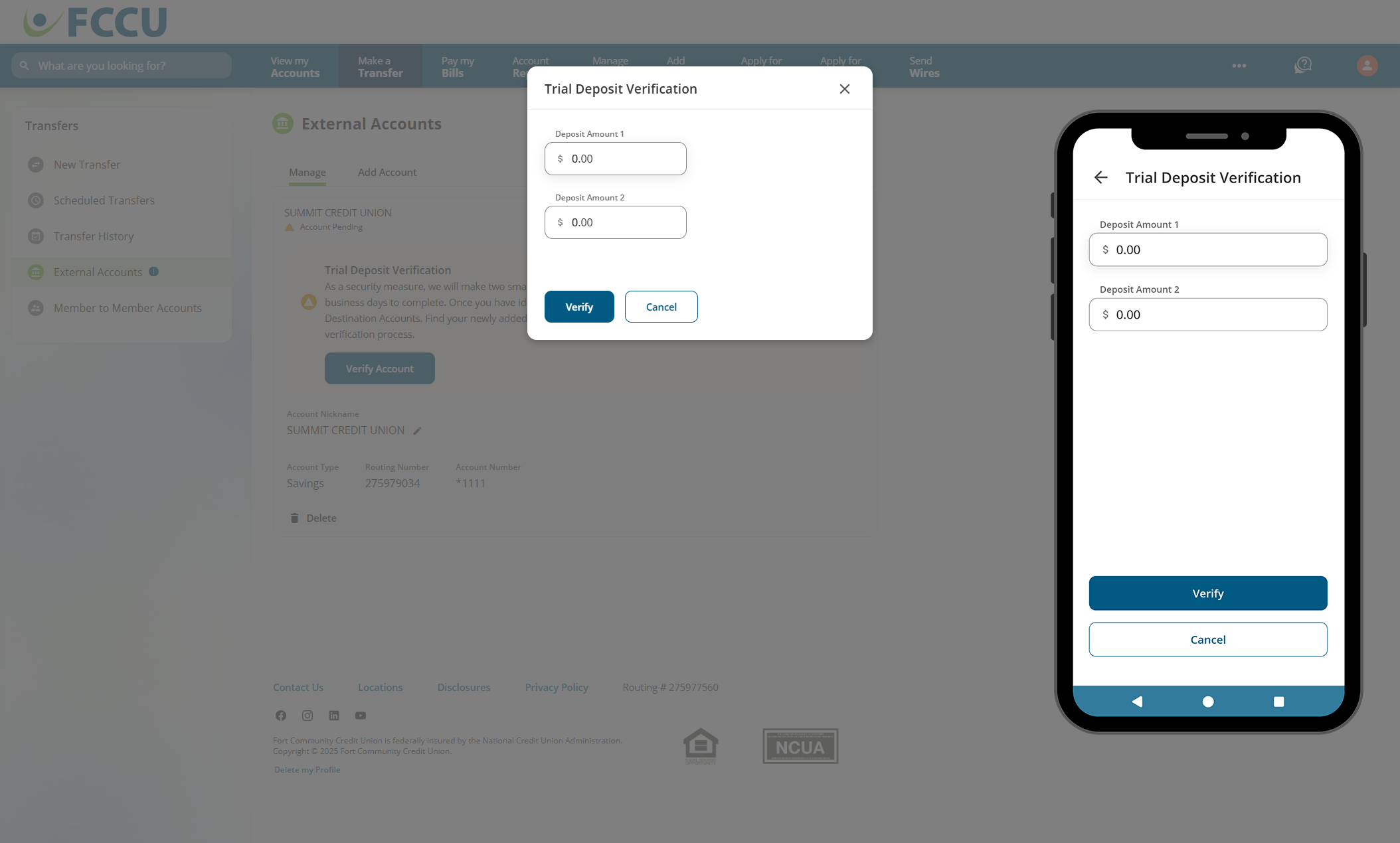
- In the Deposit Amount 1 and Deposit Amount 2 fields, type in the amount of the trial deposits you see in your external account.
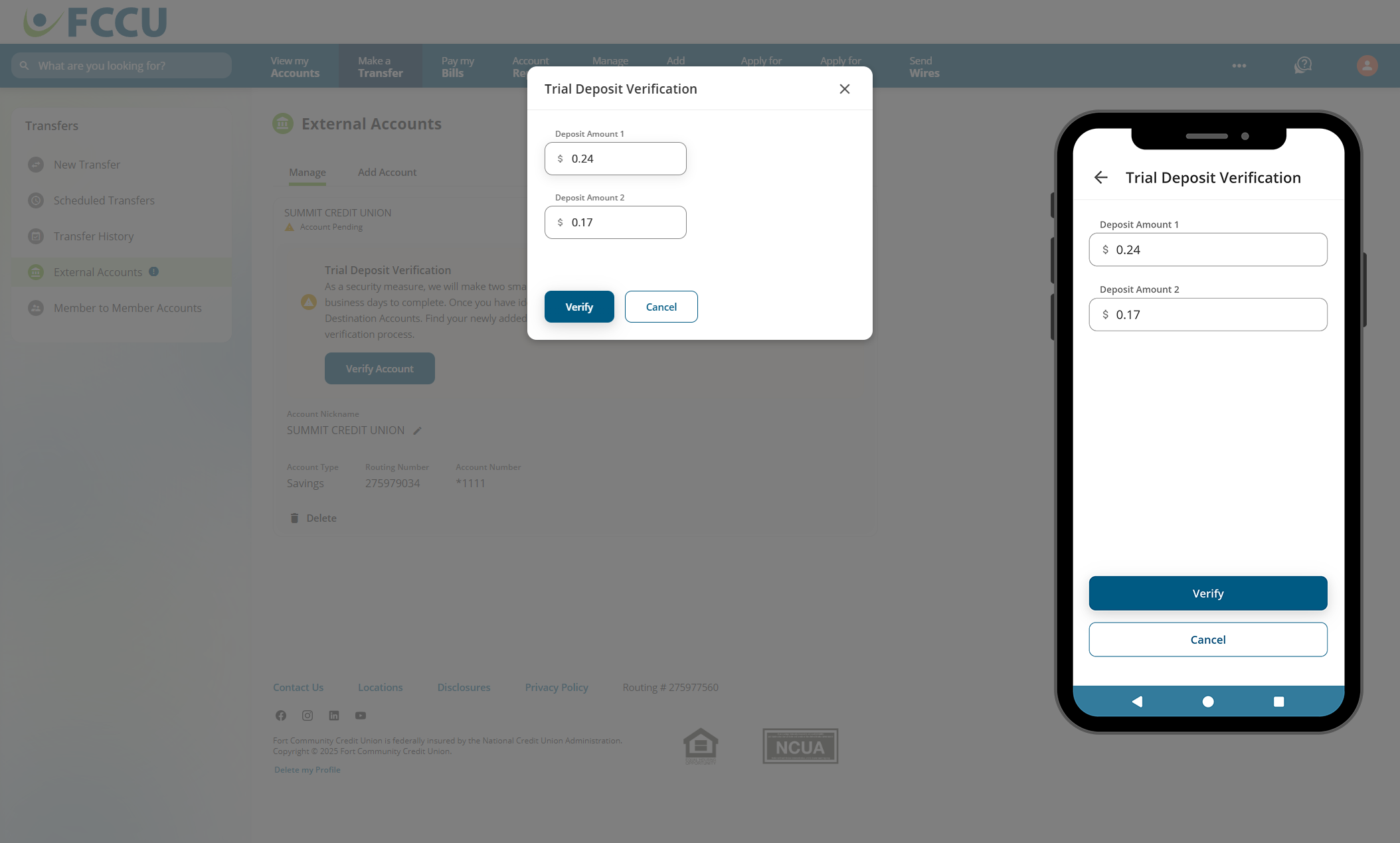
- Click the Verify button.
- Your external account is now active! This account will now appear in the list of accounts you can transfer funds to or from.
{endAccordion}
Updated 9/16/2026