



Checking & Savings / Digital Banking / Instructions / Alerts
Set up custom alerts to keep track of your finances and monitor account security.
Alert Settings
Find alert settings within digital banking.

Account Alerts
Manage alerts on your cash and loan accounts.
Security Alerts
Manage alerts related to potential suspicious activity on your accounts.
{beginAccordion}
Alert Settings
{openTab}
- From your account dashboard, click the Menu button.
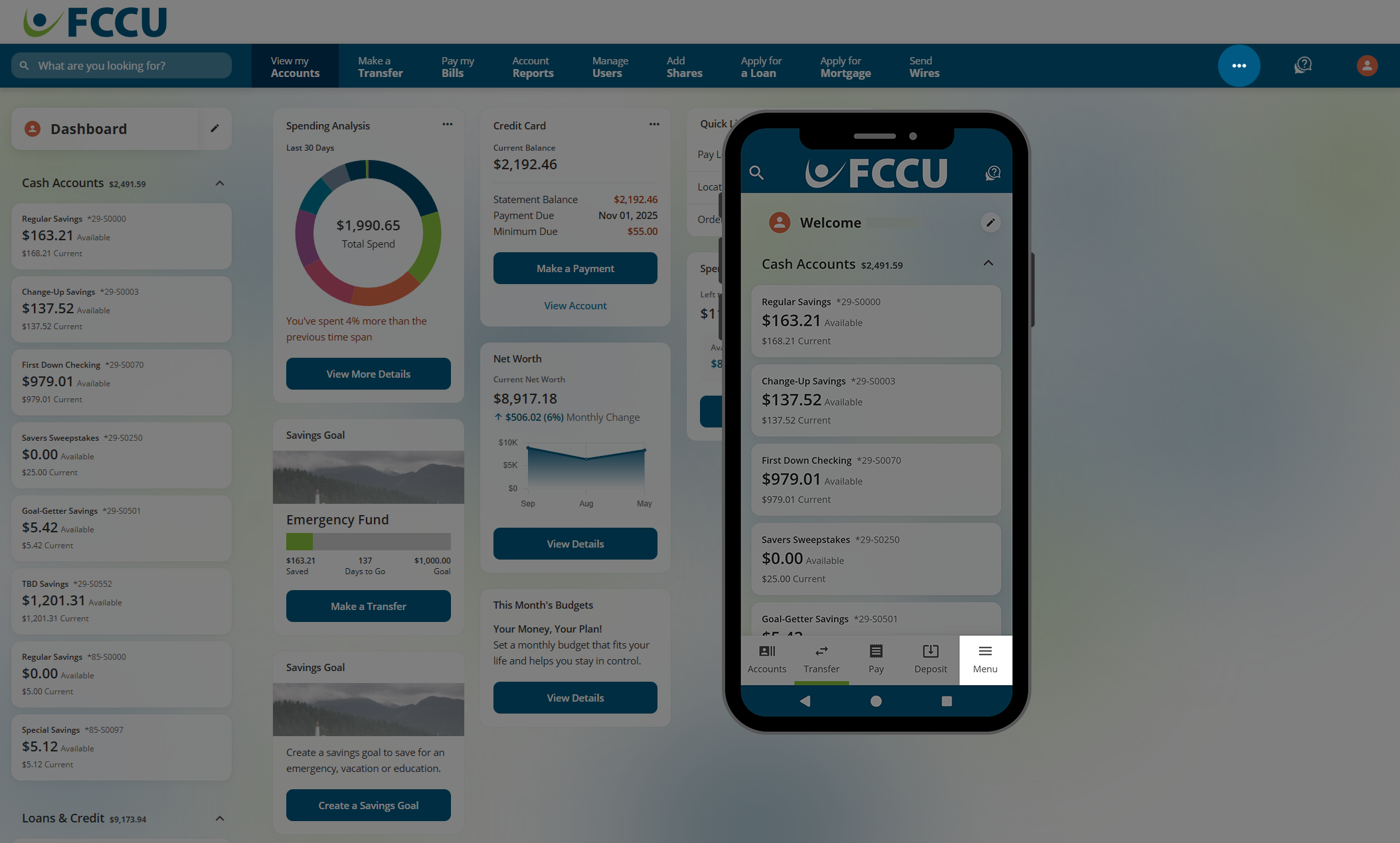
-
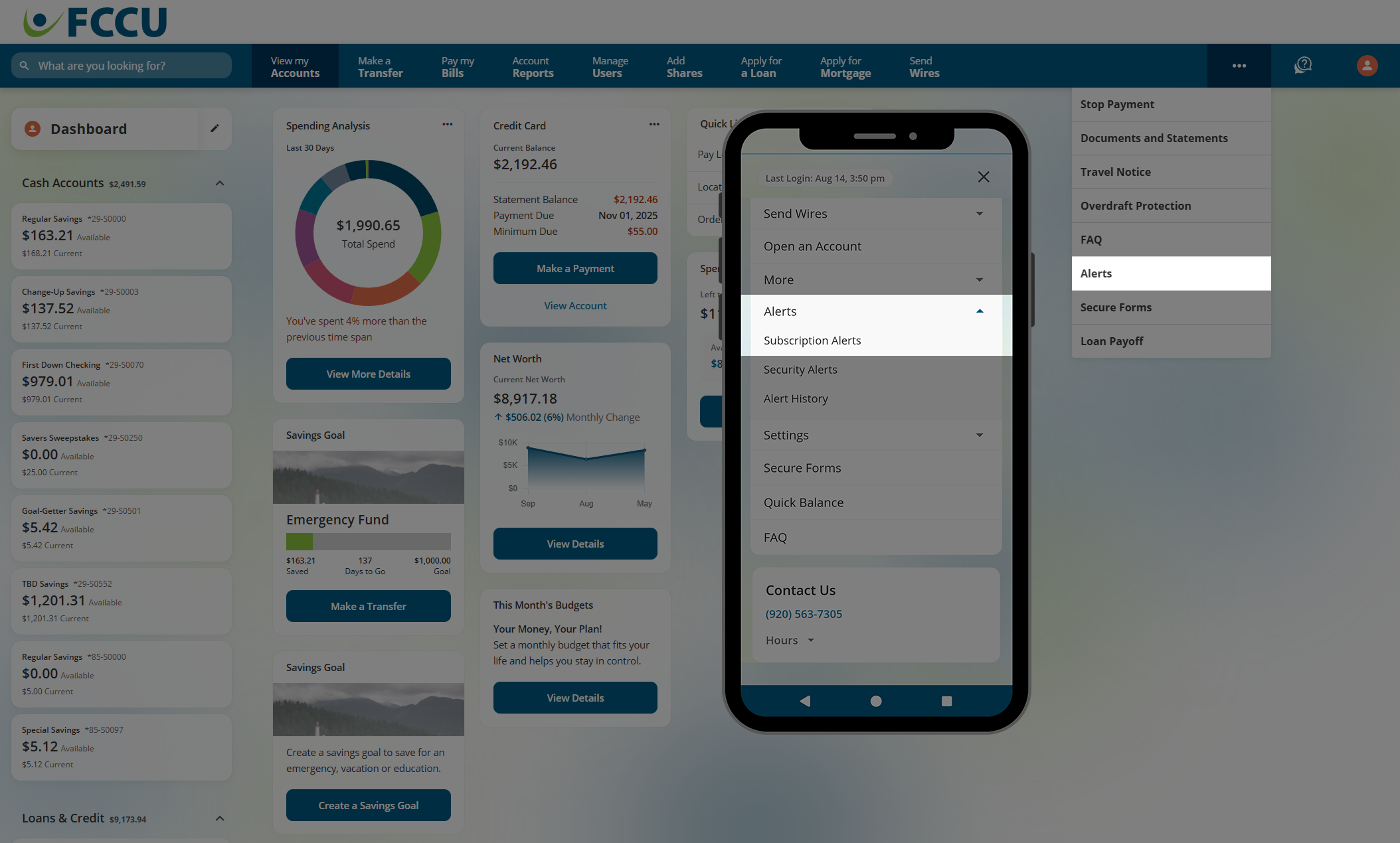
Click the Alerts menu option.
On the mobile app, tap the Alerts dropdown menu and then tap the Subscription Alerts menu option.
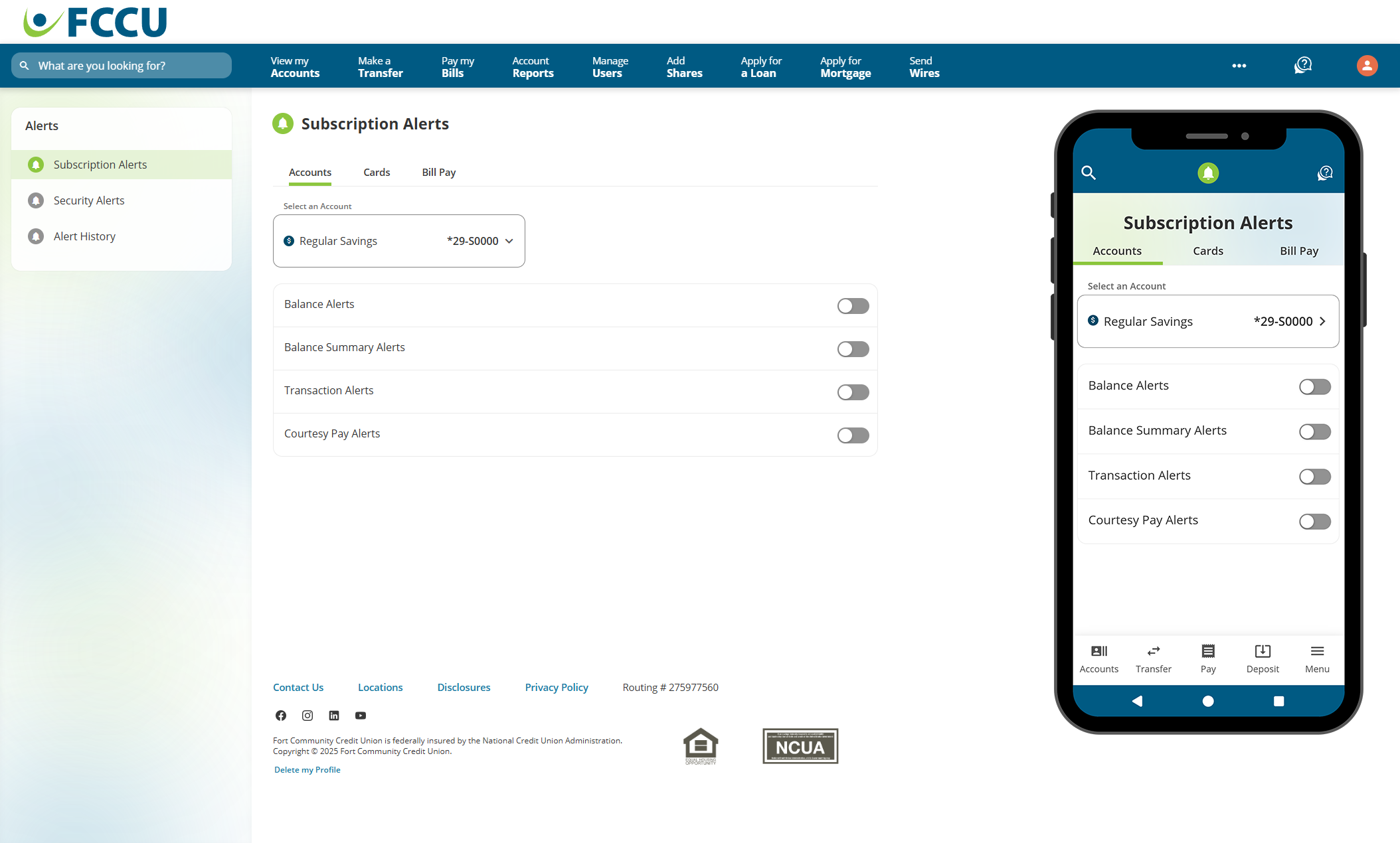
- You are now on the Subscription Alerts page! Use the menu on the left to find the Security Alerts and Alert History pages.
{endAccordion}
 Account Alerts
There are six types of Account Alerts that allow you to manage alerts on your cash and loan accounts.
Choose an account from the Select an Account dropdown menu to view all alert options related to that account type. Note: Only alert types related to the selected account will be displayed.
Click to expand the accordions below to learn more about each alert type:
{beginAccordion}
Balance Alerts

Balance Alerts notify you when your selected account(s) balance falls below or exceeds a set limit.
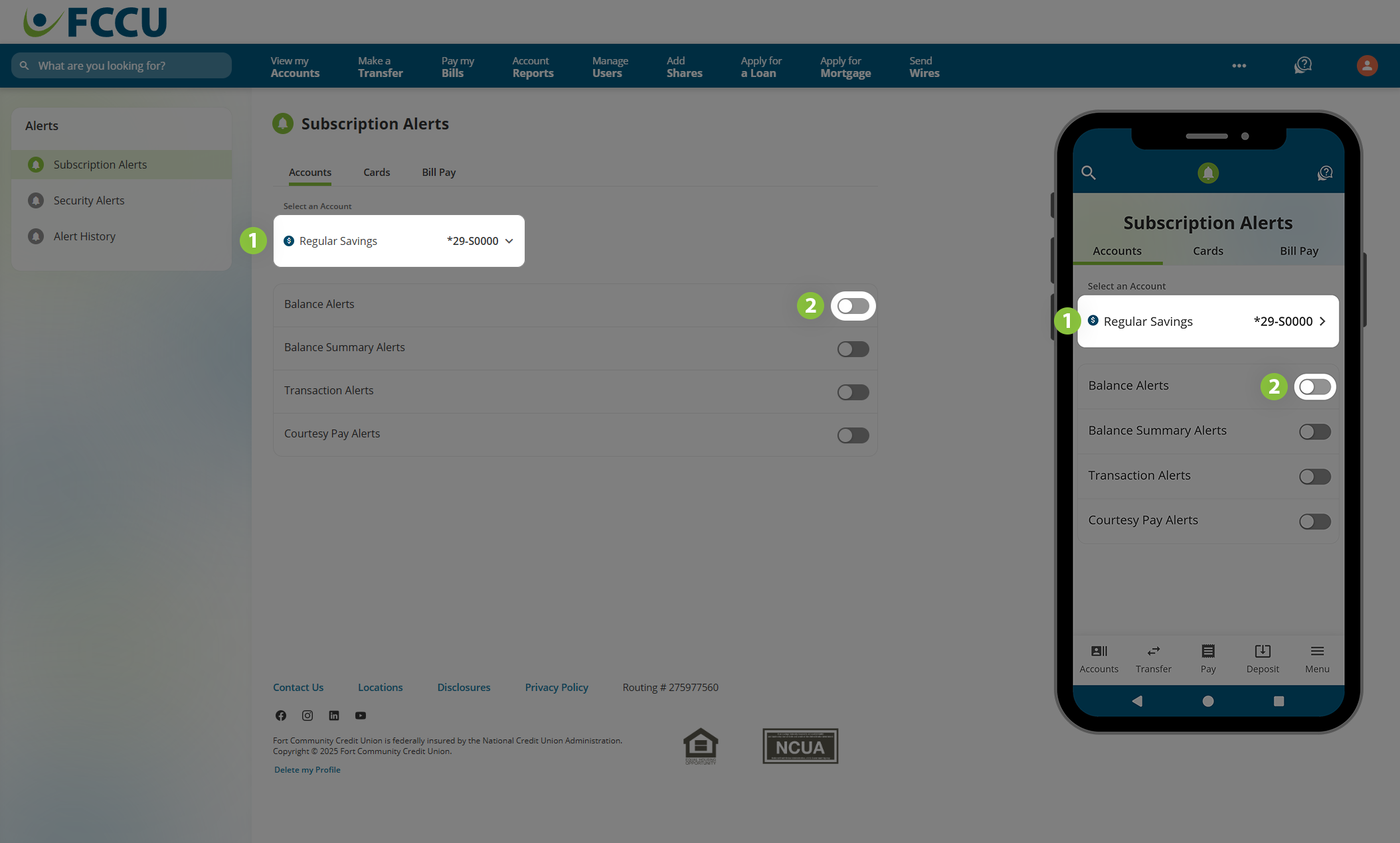
- From the Select an Account dropdown menu, choose the account you'd like to set an alert for.
- Click the slider next to Balance Alerts.
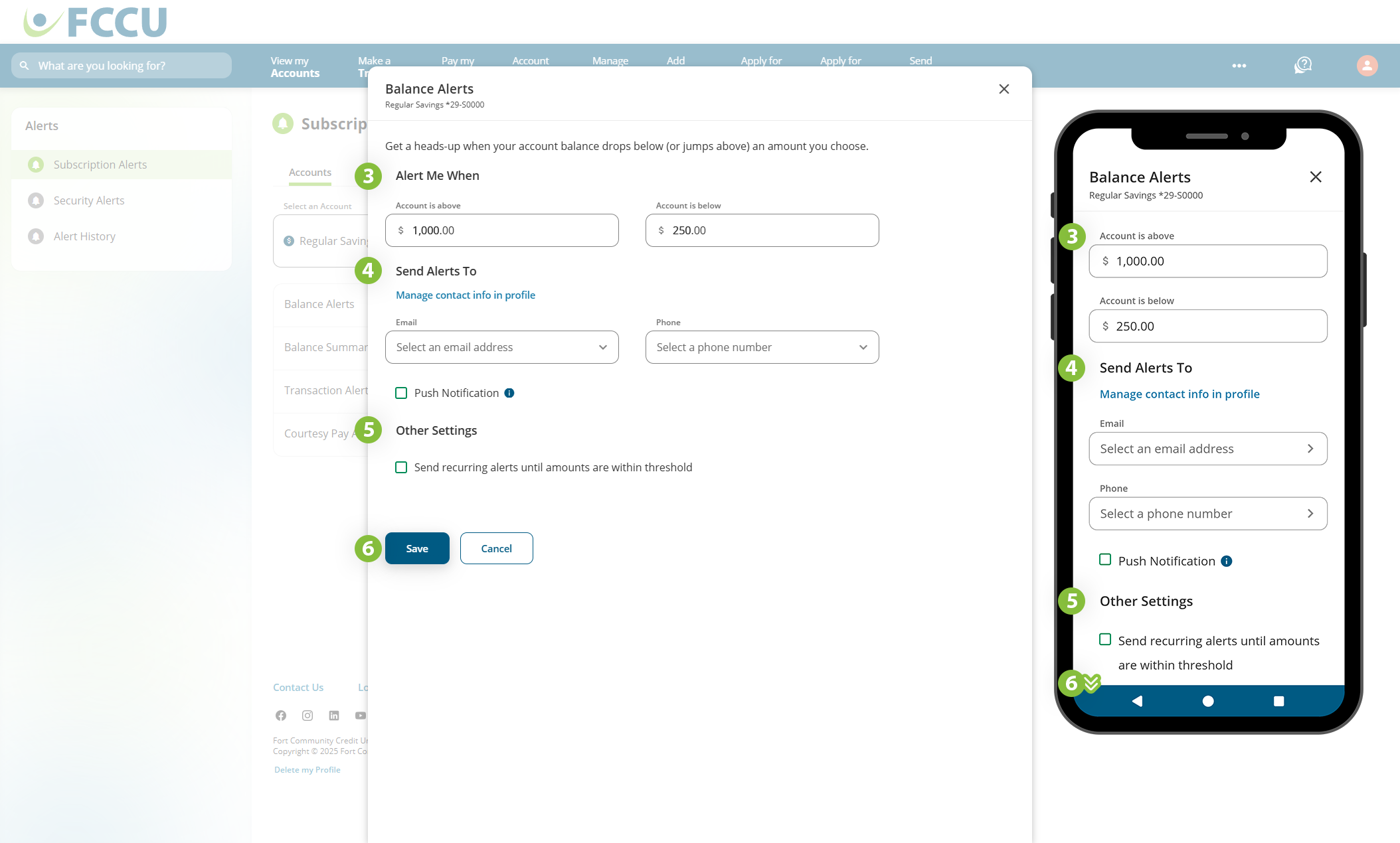
- Alert Me When
- In the Account is above field, type in a dollar amount that will trigger an alert if your account balance exceeds it (this value will default to $1,000.00).
- In the Account is below field, type in a dollar amount that will trigger an alert if your account balance falls below it (this value will default to $250.00).
-
Send Alerts To
Indicate how you want to receive this alert, whether via email, text message, and/or push notification (mobile app). Use the corresponding dropdown menus and/or checkboxes to indicate your choice.
-
Other Settings
If you wish to receive daily or weekly alerts until your account balance returns to the designated limit, click the Send recurring alerts until amounts are within threshold checkbox and select alert frequency and time.
- If everything looks good, click the Save button.
{endAccordion}
{beginAccordion}
Balance Summary Alerts
Balance Summary Alerts periodically notify you of the balance of selected account(s).
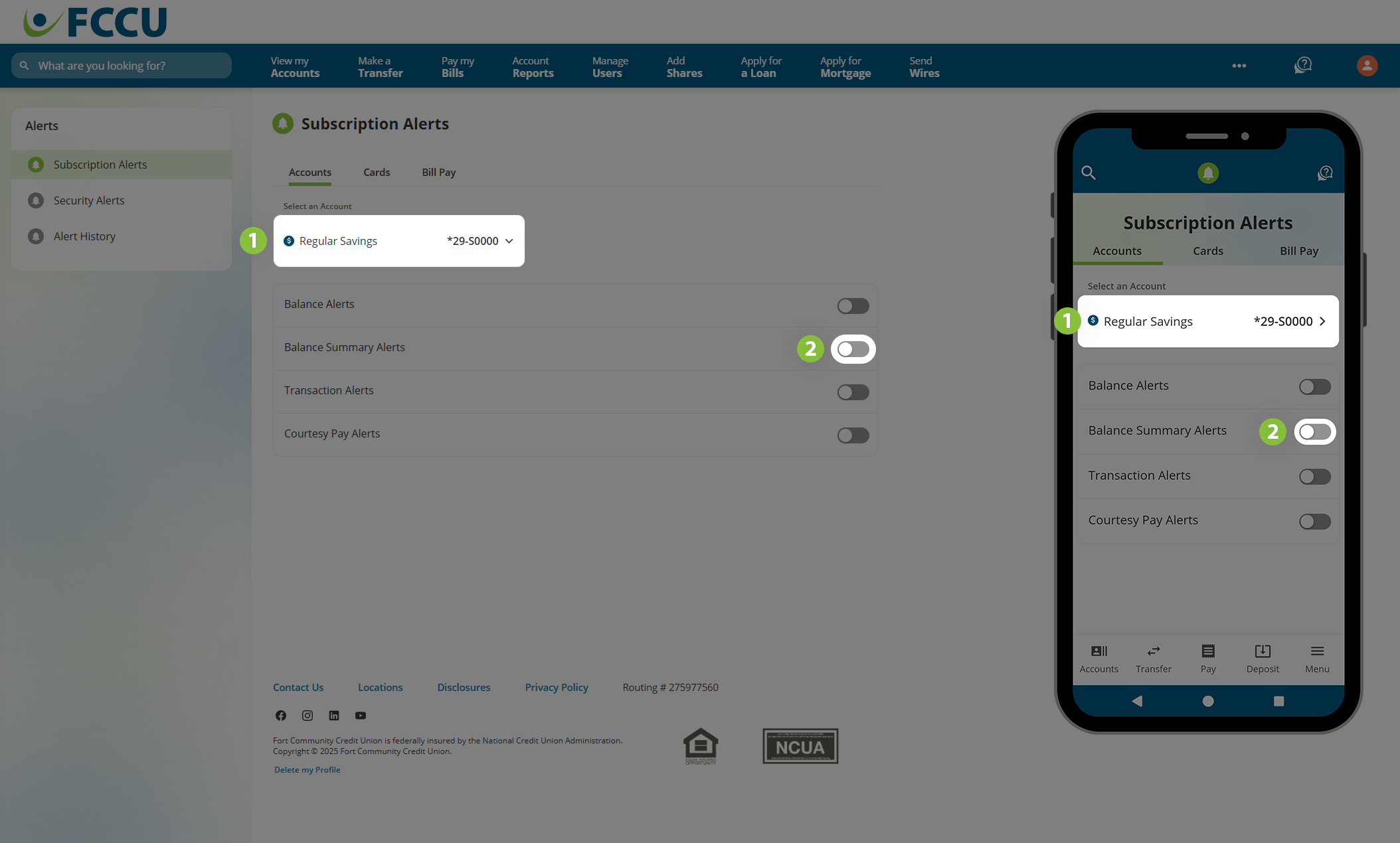
- From the Select an Account dropdown menu, choose the account you'd like to set an alert for.
- Click the slider next to Balance Summary Alerts.
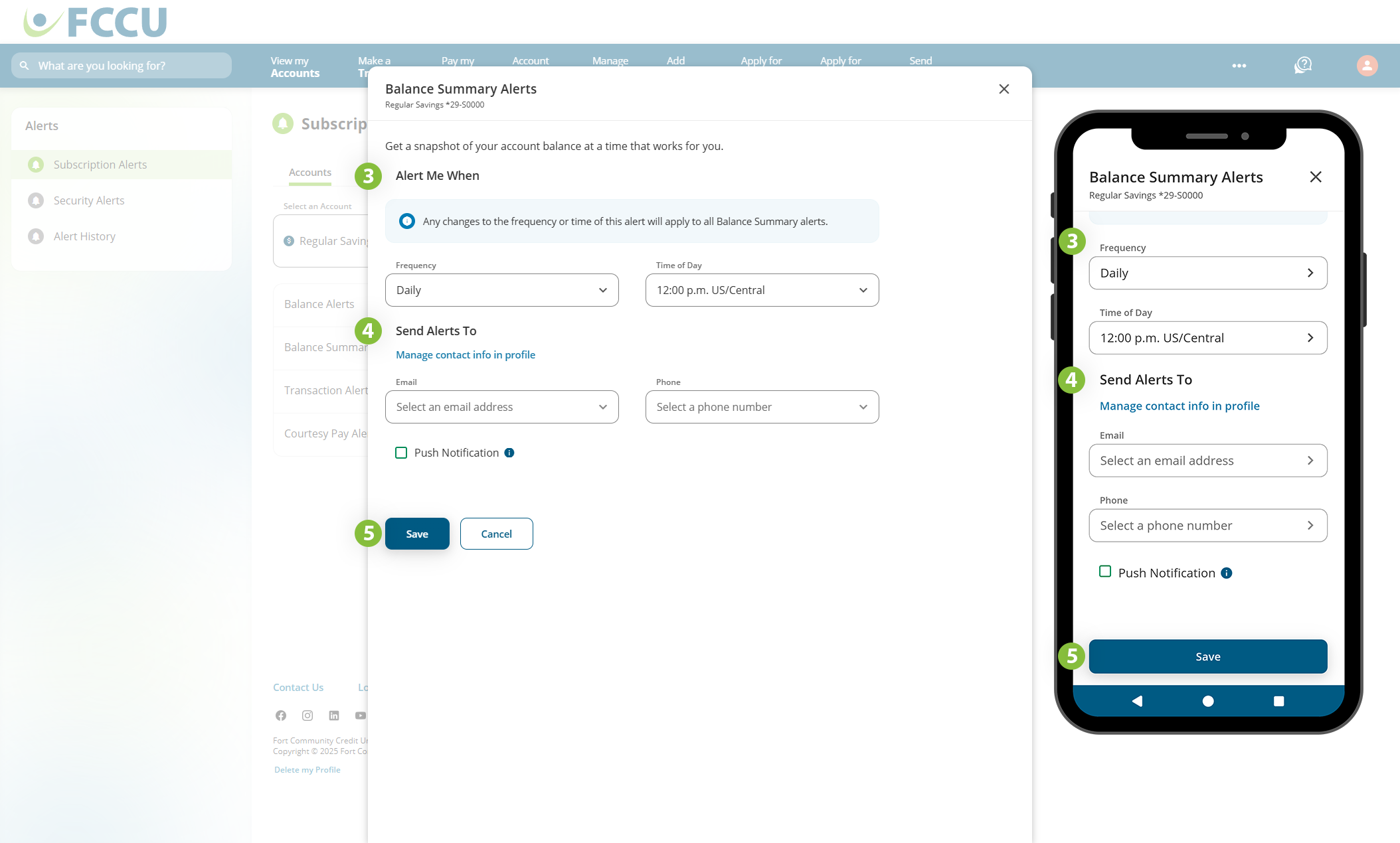
- Alert Me When
- In the Frequency dropdown menu, choose whether you want to receive this alert Daily or Weekly.
- In the Time of Day dropdown menu, choose what time you want to receive this alert.
-
Send Alerts To
Indicate how you want to receive this alert, whether via email, text message, and/or push notification (mobile app). Use the corresponding dropdown menus and/or checkboxes to indicate your choice.
- If everything looks good, click the Save button.
{endAccordion}
{beginAccordion}
Transaction Alerts
Transaction Alerts notify you when designated transactions take place.
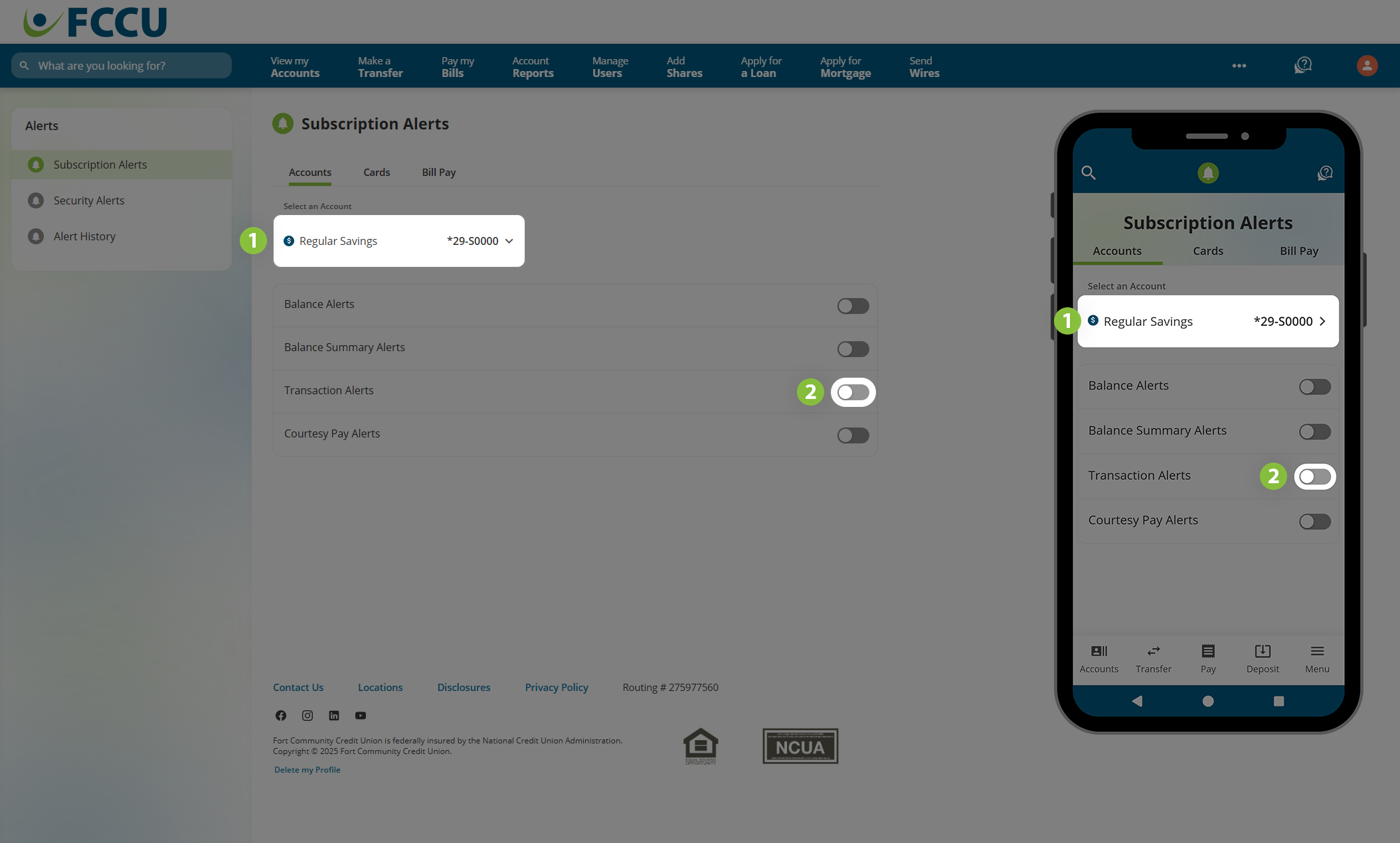
- From the Select an Account dropdown menu, choose the account you'd like to set an alert for.
- Click the slider next to Transaction Alerts.
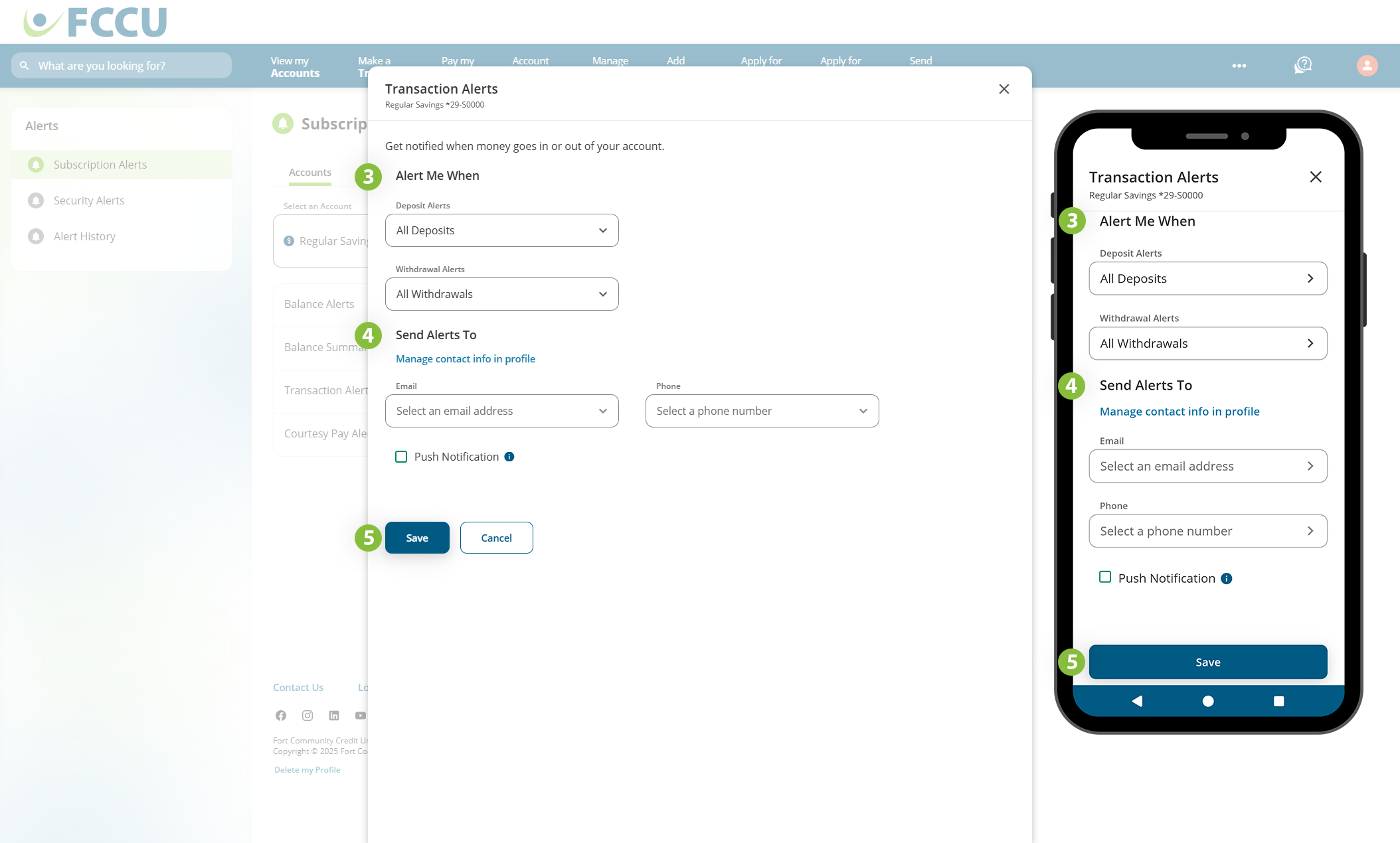
- Alert Me When
- In the Deposit Alerts choose one of the following options:
- All Deposits - Notifies you for every deposit posted to this account.
- ACH/Direct Deposits - Notifies you for every ACH/Direct Deposit posted to this account.
- When my deposit is above - Notifies you for every deposit posted to this account that exceeds a specified amount.
- Do not send Deposit Alerts
- In the Withdrawal Alerts choose one of the following options:
- All Withdrawals - Notifies you for every withdrawal that clears this account.
- When my withdrawal is above - Notifies you for every withdrawal that clears this account that exceeds a specified amount.
- Do not send Withdrawal Alerts
-
Send Alerts To
Indicate how you want to receive this alert, whether via email, text message, and/or push notification (mobile app). Use the corresponding dropdown menus and/or checkboxes to indicate your choice.
- If everything looks good, click the Save button.
{endAccordion}
{beginAccordion}
Courtesy Pay Alerts
Courtesy Pay Alerts notify you when Courtesy Pay is used to cover a transaction.
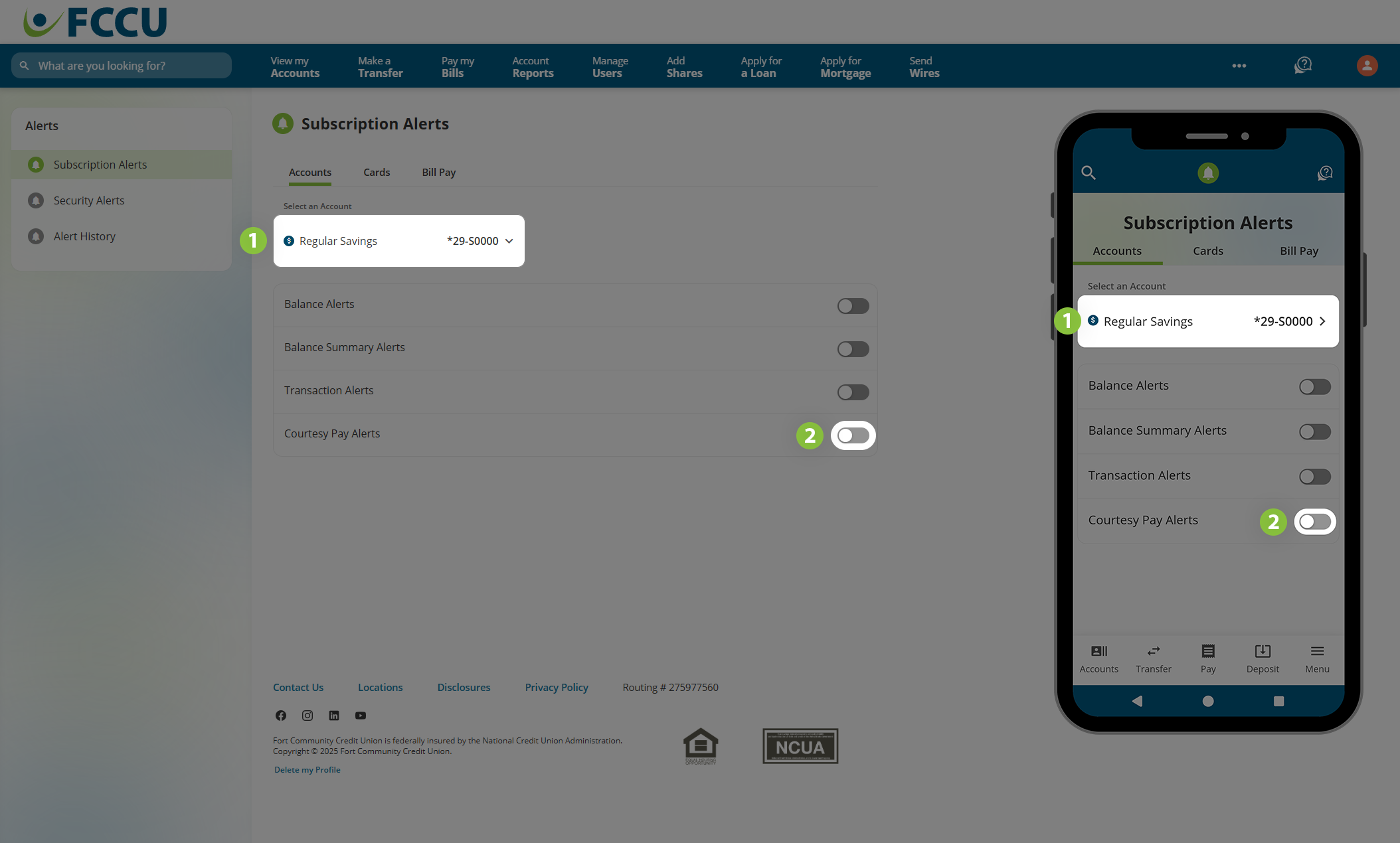
- From the Select an Account dropdown menu, choose the cash account you'd like to set an alert for.
- Click the slider next to Courtesy Pay Alerts.
-
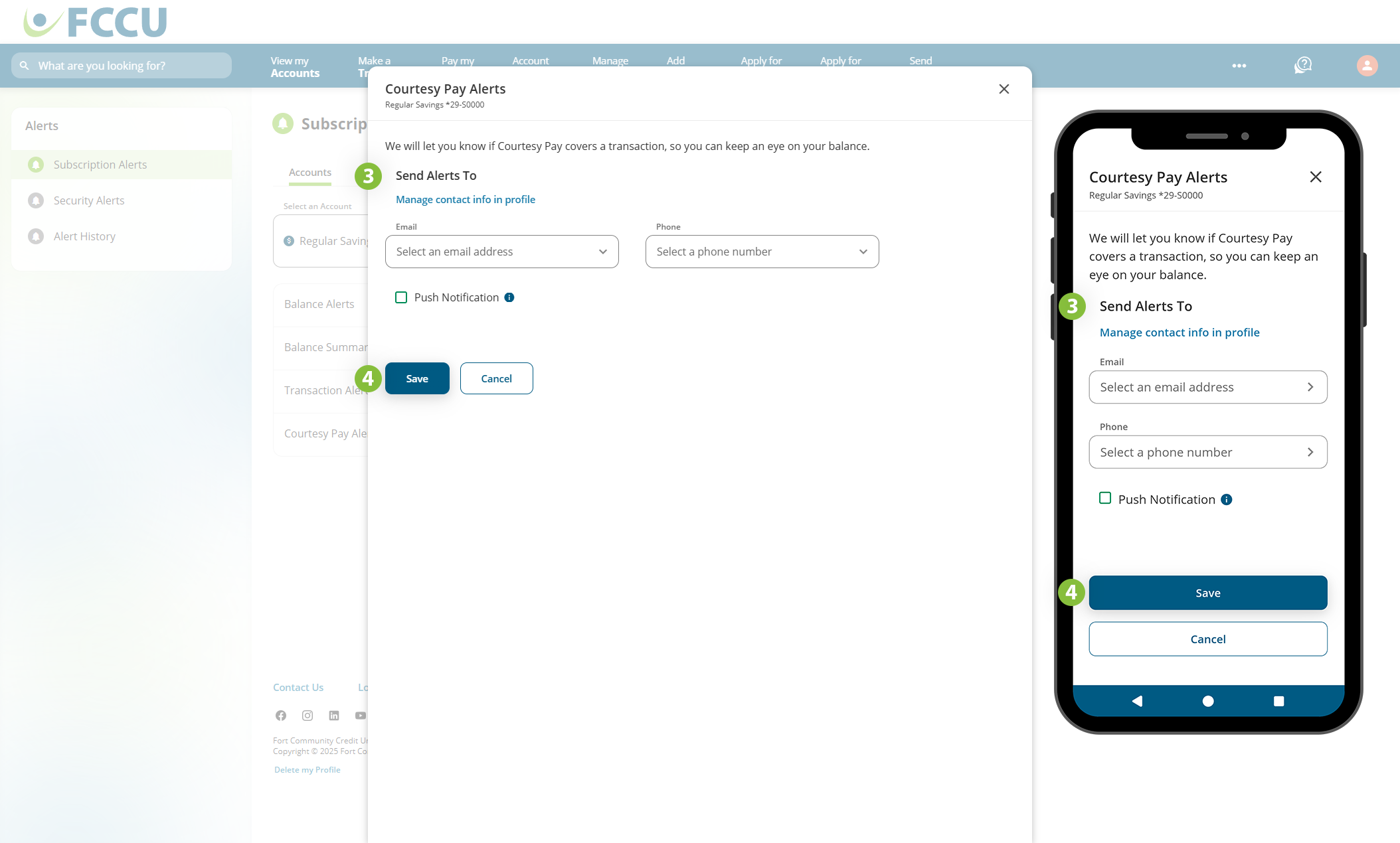
Send Alerts To
Indicate how you want to receive this alert, whether via email, text message, and/or push notification (mobile app). Use the corresponding dropdown menus and/or checkboxes to indicate your choice.
- If everything looks good, click the Save button.
{endAccordion}
{beginAccordion}
Check Cleared Alerts
Check Cleared Alerts notify you when all, or designated, checks clear your account.
- From the Select an Account dropdown menu, choose the checking account you'd like to set an alert for.
- Click the slider next to Check Cleared Alerts.
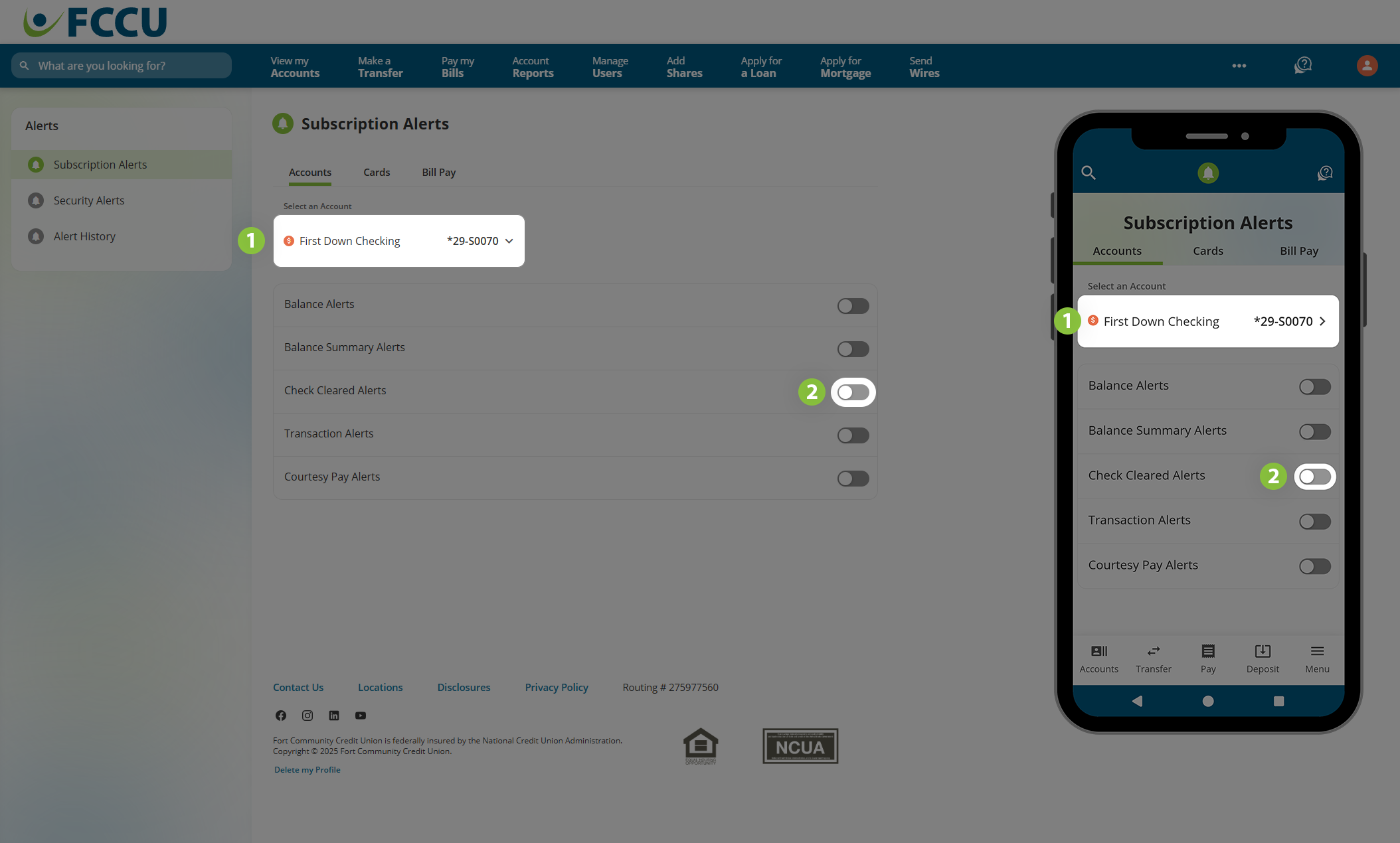
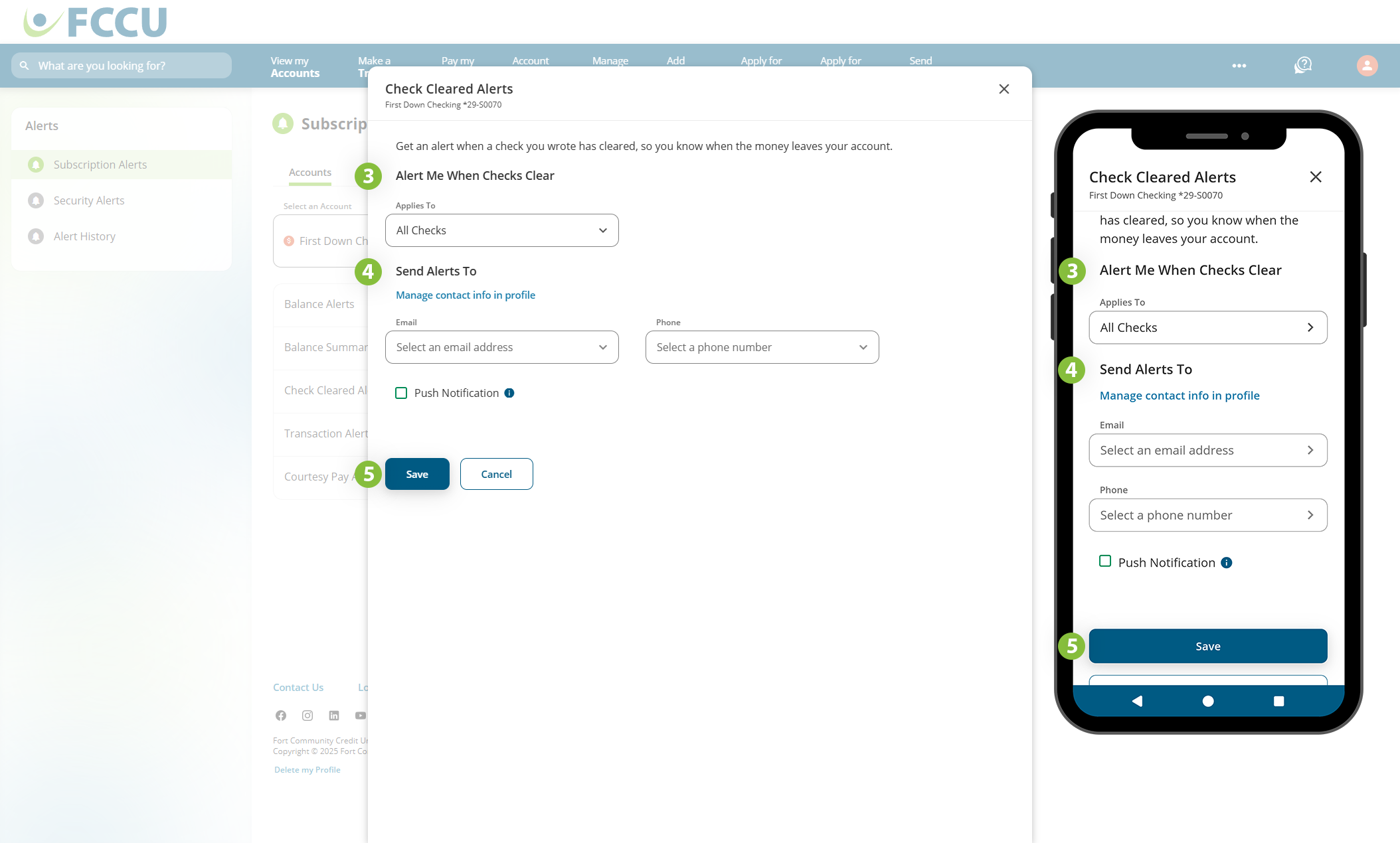
- Alert Me When Checks Clear
- In the Applies To dropdown menu, choose one of the following options:
- All Checks - Notifies you for every check that clears this account.
- Check Number - Notifies you when a check with a specified check number clears this account.
- Check Number Range - Notifies you when checks between two specified check numbers clear this account.
-
Send Alerts To
Indicate how you want to receive this alert, whether via email, text message, and/or push notification (mobile app). Use the corresponding dropdown menus and/or checkboxes to indicate your choice.
- If everything looks good, click the Save button.
{endAccordion}
{beginAccordion}
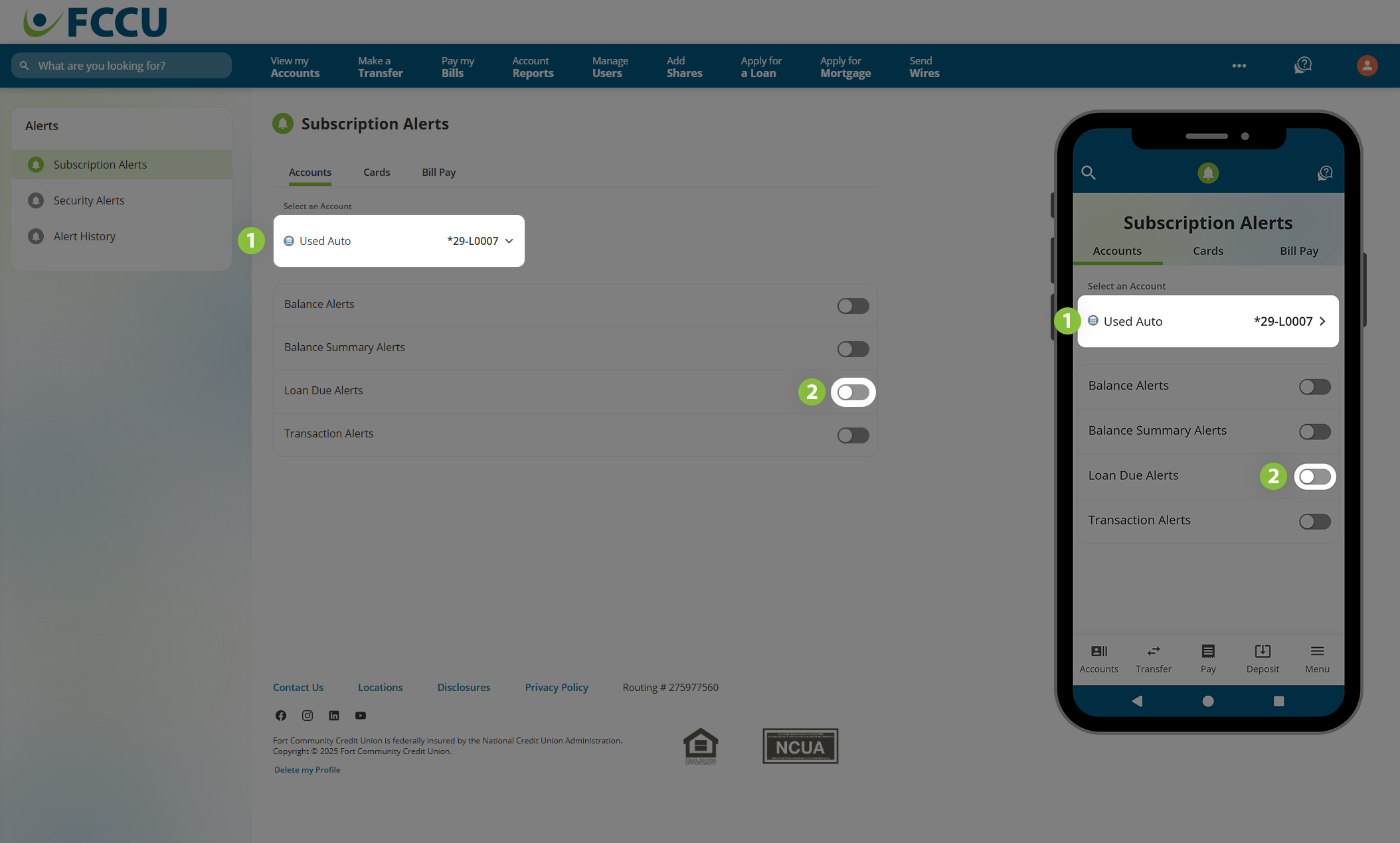
Loan Due Alerts
Loan Due Alerts notify you when a loan or card payment is due in a specified number of days.
- From the Select an Account dropdown menu, choose the loan account you'd like to set an alert for.
- Click the slider next to Loan Due Alerts.
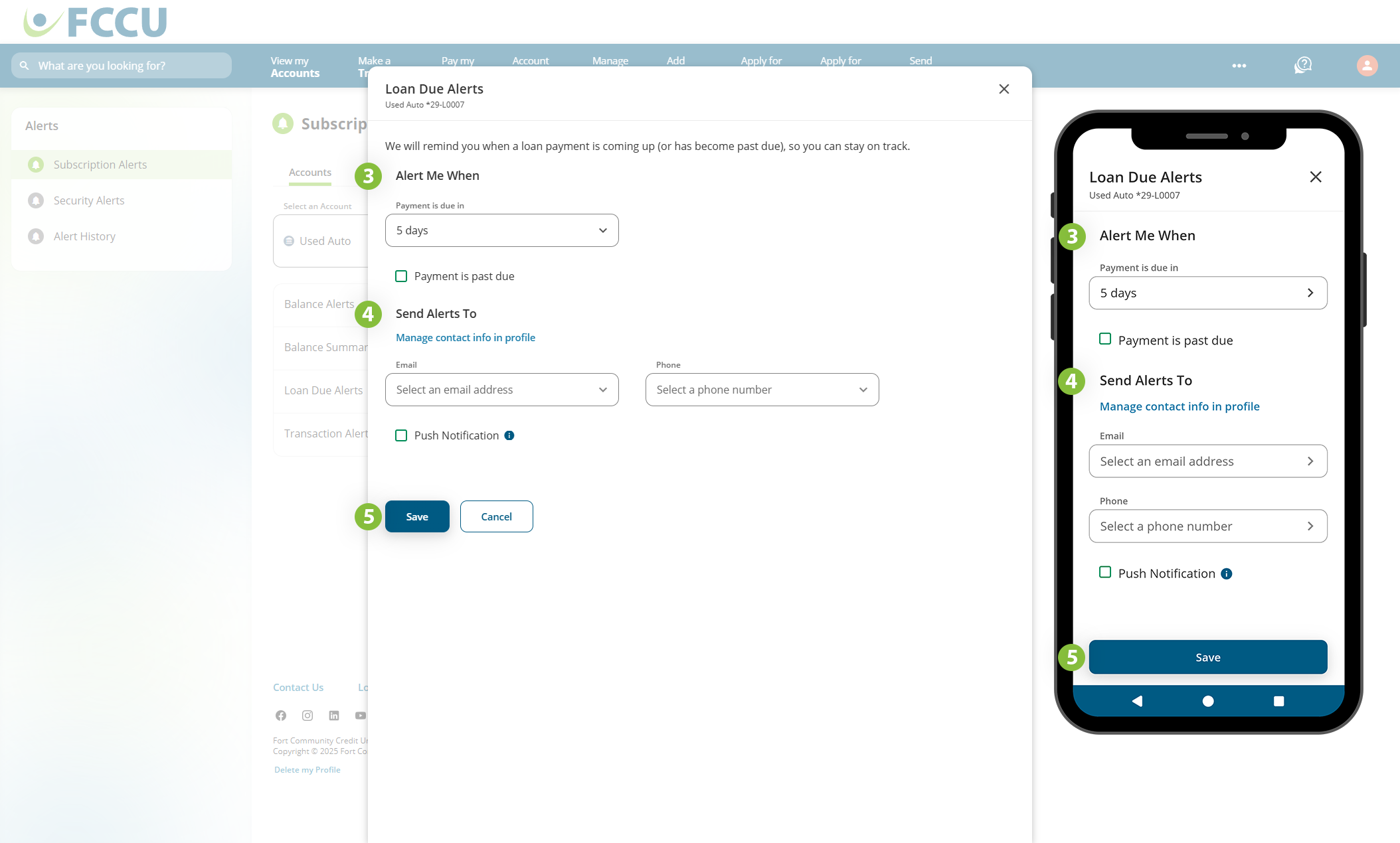
- Alert Me When
- In the Payment is due dropdown menu, choose between 1-5 days before the loan's due date.
- Click the Payment is past due checkbox if you wish to receive alerts after the payment's due date if the payment is not made.
-
Send Alerts To
Indicate how you want to receive this alert, whether via email, text message, and/or push notification (mobile app). Use the corresponding dropdown menus and/or checkboxes to indicate your choice.
- If everything looks good, click the Save button.
{endAccordion}
 Security Alerts
There are three types of Security Alerts that allow you to manage alerts related to potential suspicious activity on your accounts.

Click to expand the accordions below to learn more about each alert type:
{beginAccordion}
Security Alerts
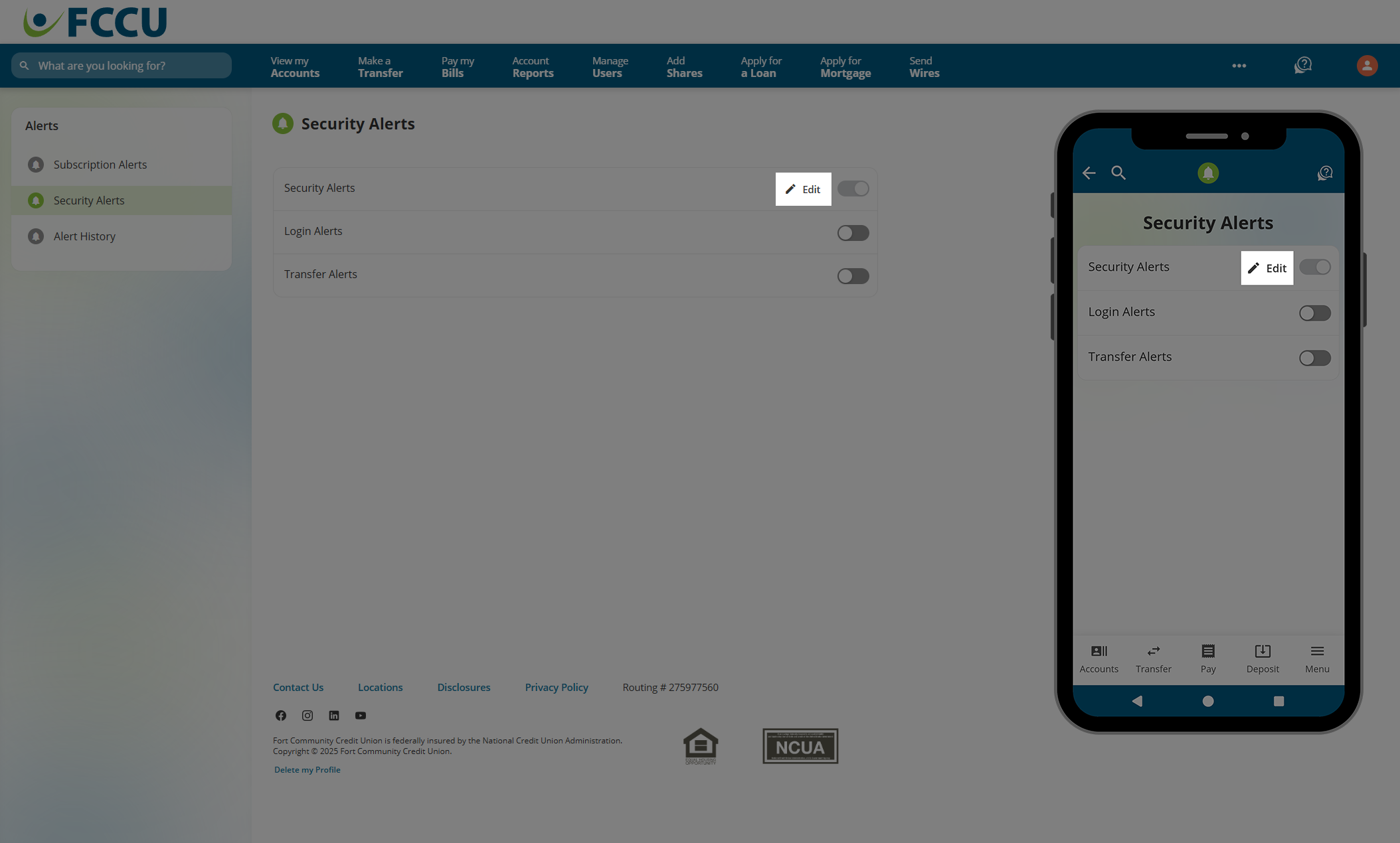
Security Alerts notify you when we spot any unusual activity on your account. Note: Security Alerts via email can't be turned off.
- Click the Edit button next to Security Alerts.
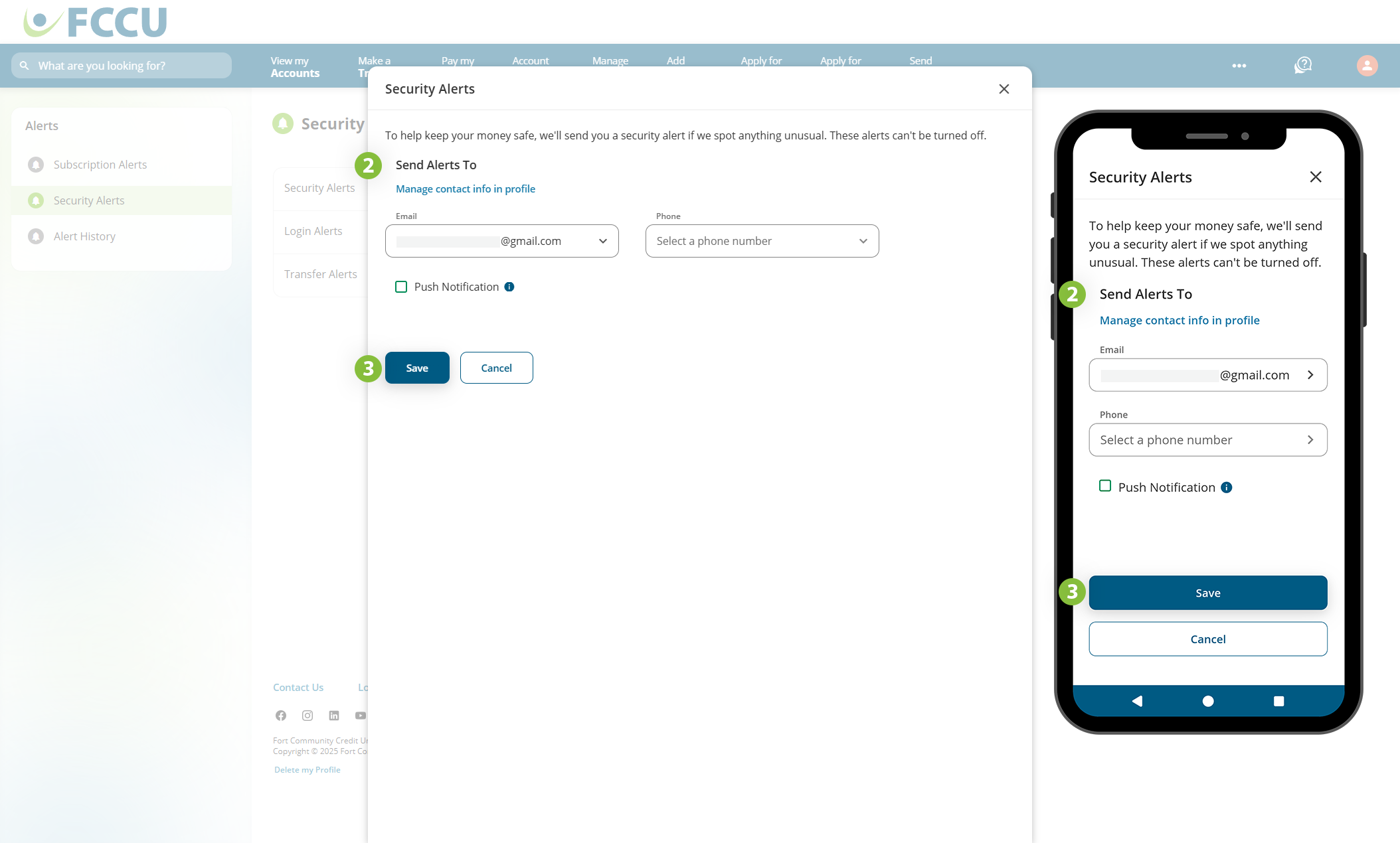
- Send Alerts To
- Security Alerts via email can't be turned off. However, you can change which email address they are sent to in the Email dropdown menu.
- If you wish to enable text and/or push notifications as well, use the corresponding dropdown menu and/or checkbox to indicate your choice.
- If everything looks good, click the Save button.
{endAccordion}
{beginAccordion}
Login Alerts
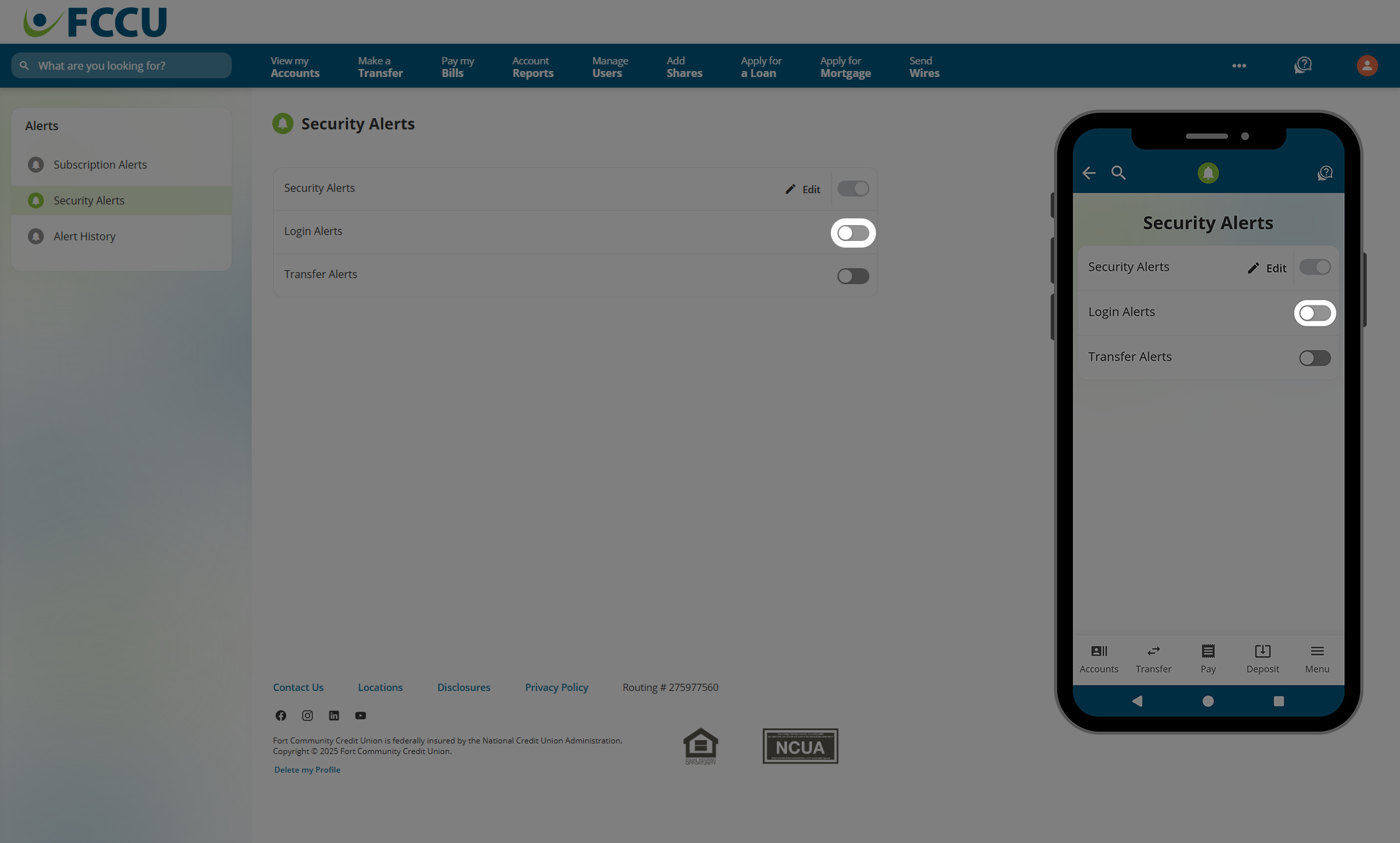
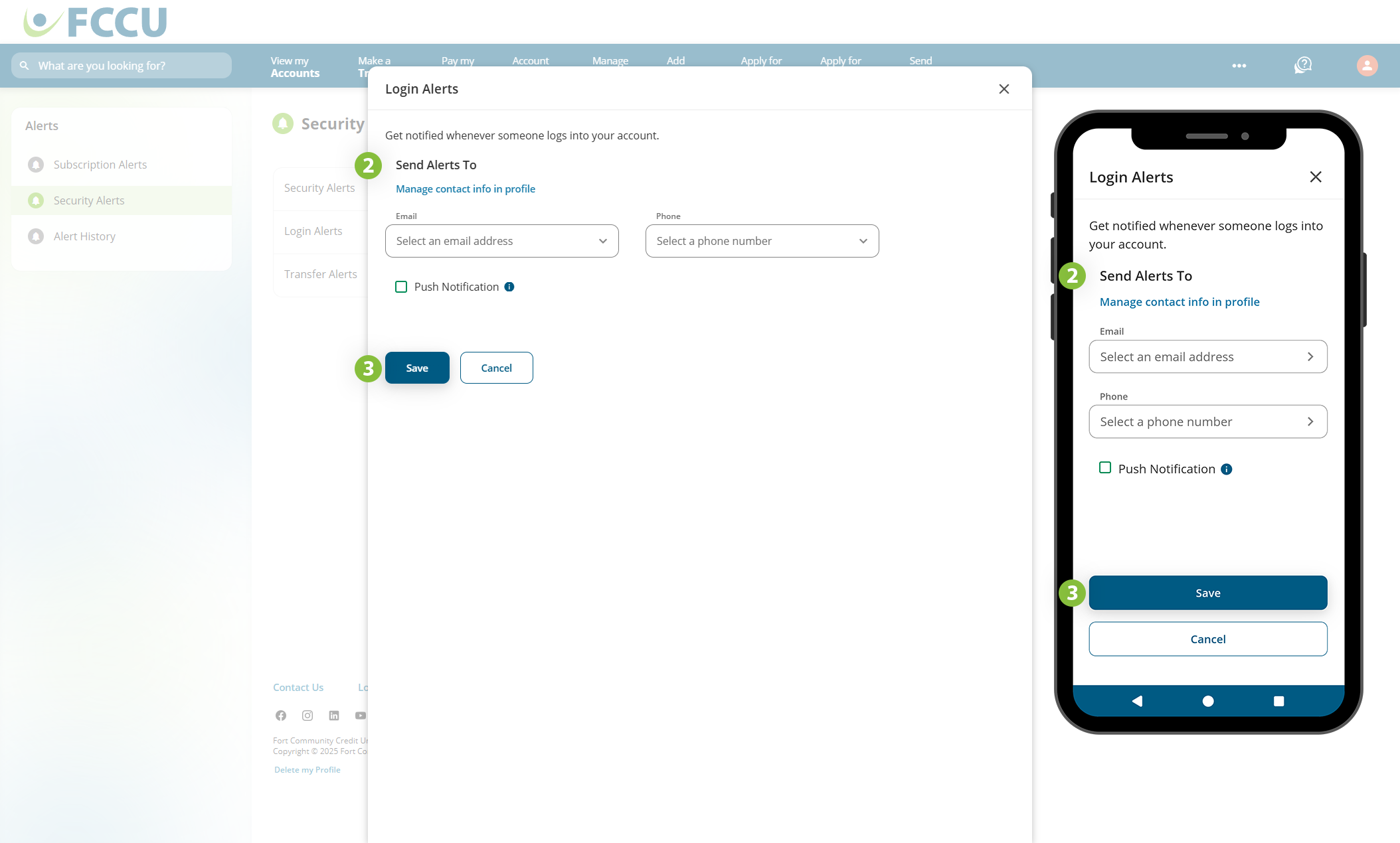
Login Alerts notify you whenever someone logs into your account.
- Click the slider next to Login Alerts.
-
Send Alerts To
Indicate how you want to receive this alert, whether via email, text message, and/or push notification (mobile app). Use the corresponding dropdown menus and/or checkboxes to indicate your choice.
- If everything looks good, click the Save button.
{endAccordion}
{beginAccordion}
Transfer Alerts
Transfer Alerts notify you anytime money is moved (i.e. transferred) between your accounts.
- Click the slider next to Transfer Alerts.
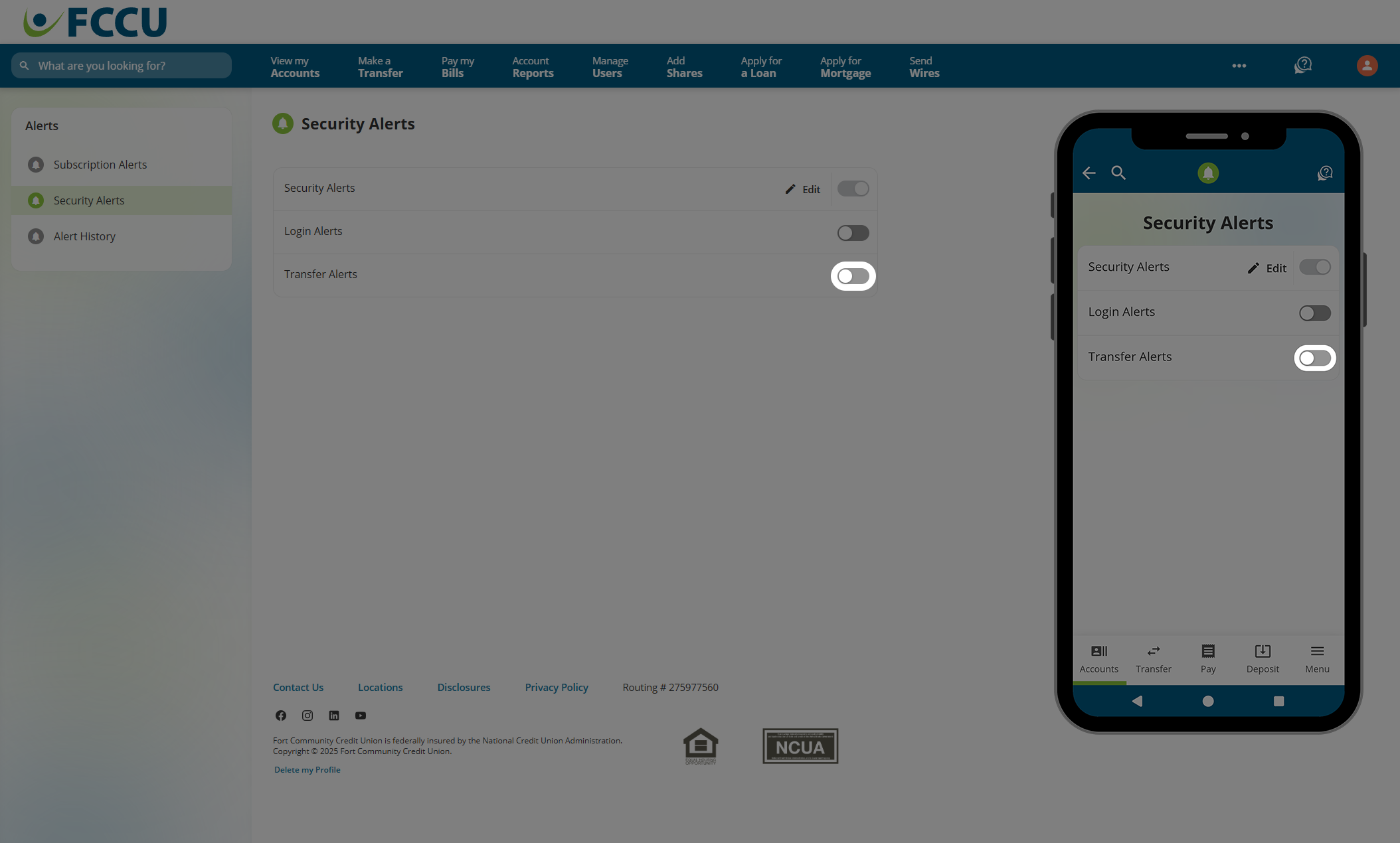
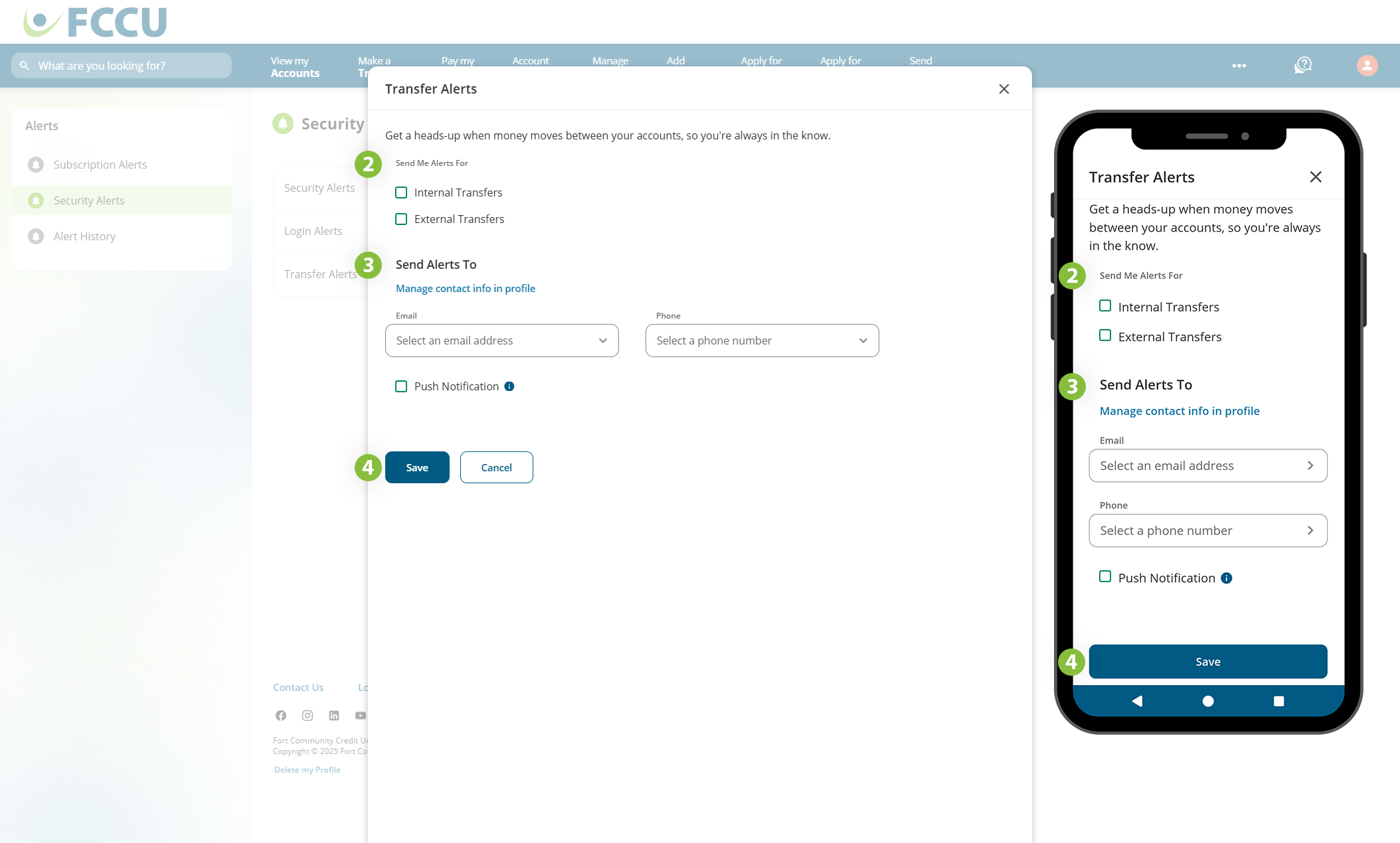
- Click on one or both of the checkboxes to receive alerts for Internal Transfers and/or External Transfers.
-
Send Alerts To
Indicate how you want to receive this alert, whether via email, text message, and/or push notification (mobile app). Use the corresponding dropdown menus and/or checkboxes to indicate your choice.
- If everything looks good, click the Save button.
{endAccordion}
Updated 9/16/2026